
Placeholder vs Label: Why Placeholder Text Is Not a Label, and the Field Spec to Use
Gray text inside a field disappears the moment someone types. Why a placeholder cannot replace a label, where hints go, the border color that passes, and the exact field spec to hand your developer.
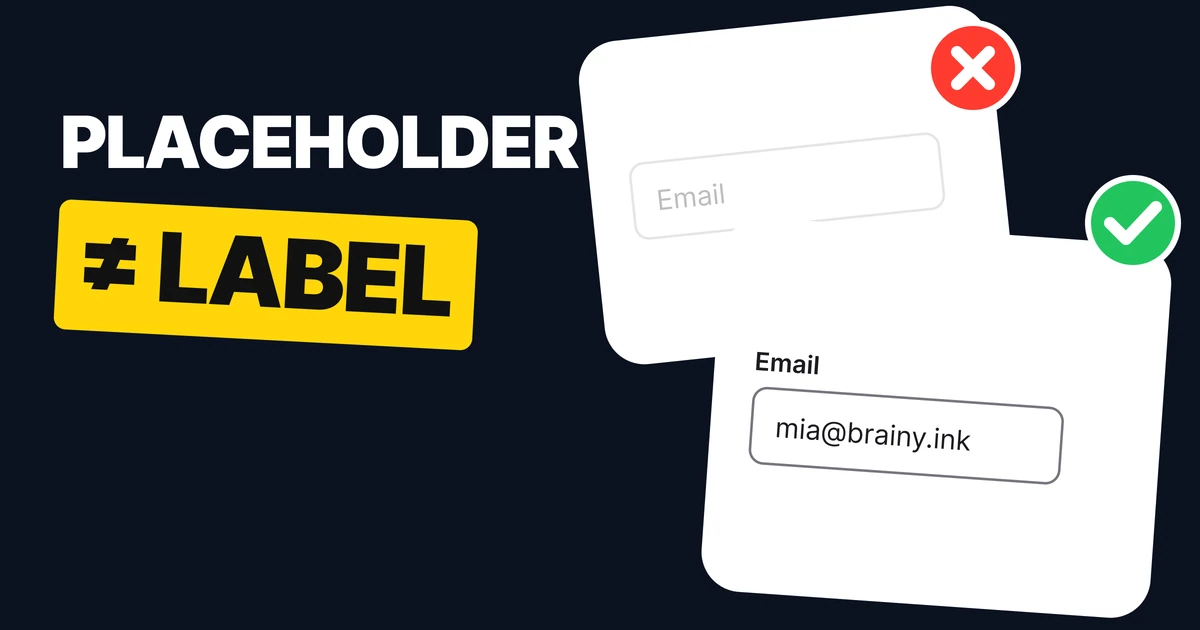
A placeholder is not a label. It vanishes the moment someone types, and with it goes the only clue to what the field was for. Put a real label above every field, hints under it, a visible border around it, and use the placeholder only for an example. Here is why, and the exact spec.
What goes wrong when a placeholder is the label
Before typing: looks clean
✕ After typing: what was this field for?
The left field looks tidy, which is why designers like it. The right field is the same field two seconds later. The word "Email" is gone, so the person has no label to check, and on a long form they cannot tell which answer belongs to which field.
This is a memory problem, not a taste problem. Nielsen Norman Group's research on placeholders in form fields found that the disappearing text strains short-term memory, and makes it hard to check answers before submitting. Our broader guide to form design best practices covers the whole form; this paper goes deep on the one decision that causes most of the trouble.
There is a second problem. Placeholder text is gray by default, and that gray is usually too faint. The common #8E8E93 placeholder gray has a contrast of about 3.3 to 1 on white, under the 4.5 to 1 that WCAG asks for text. So the one hint you gave is also hard to read.
Fix 1: a real label, above the field
✓ Label above: still there after typing
Work email
✓ Placeholder as an example only
A label sits outside the field, so typing never touches it. Put it above the field, left aligned, at 15 px in semibold. Above is better than beside because it works at every width, including a phone, and the eye moves down the form in one straight line.
Do not hide the label to save space. If a design has no room for labels, the design is wrong, not the rule. Floating labels that shrink into the corner on focus are a compromise: they keep the label, but they are small, they need careful timing, and they are harder to build accessibly than a plain label above.
A real label is also what screen readers announce. In HTML, connect it to the field so tapping the label focuses the input:
<label for="email">Email</label>
<input id="email" name="email" type="email" autocomplete="email"
       placeholder="name@company.com" />
Fix 2: hints go under the field
Password
At least 8 characters.
✓ Hint under the field: stays while people type
✕ Hint as placeholder: gone on the first key
The most useful thing a field can say, such as a format or a rule, is the thing people need while typing. So it cannot live in the placeholder, where it disappears at the first keystroke. Move it under the field, at 13 px in a quieter gray, where it stays visible the whole time.
Errors use the same slot. When something goes wrong, the hint line can turn into the error message, which keeps the layout steady. Our paper on error message color covers what that message should look like.
Fix 3: a border people can see
✕ #E5E5E5 border: a ghost
✓ #79747E border: easy to find
A field is a control, and a control has to be findable. The ghost-gray border on the left is a favorite of design files, because it looks light. On a real screen it nearly disappears, and people do not know where to tap.
WCAG 1.4.11 asks that the visual information needed to identify a user interface component has at least 3 to 1 against the color next to it. #E5E5E5 on white is about 1.3 to 1, which fails. #79747E, which is Material 3's outline color, is about 4.6 to 1, which passes comfortably. Use 1.5 px so it holds on a low-density screen too.
Note the difference with dividers. A light gray like #E5E5EA is fine between list rows, because a divider only has to be noticed. A field border has to be seen. We covered the divider and surface grays in light mode background color.
Fix 4: ask for the right keyboard
A field that knows what it is for can open the keyboard that helps, on iPhone and Android alike. An email field that opens with the @ key ready saves a tap on every character it prevents a typo on. In HTML it is one attribute:
| Field | Input type | What the phone opens |
|---|---|---|
type="email" | Keyboard with @ and . | |
| Phone | type="tel" | Number pad |
| Website | type="url" | Keyboard with / and .com |
| Card or code | inputmode="numeric" | Number pad, no spinner |
| Search | type="search" | Search key on the keyboard |
Pair that with autocomplete values such as email and name, so the phone can fill the field itself.
The field spec
| Part | Value |
|---|---|
| Label | Above the field, 15 px, semibold |
| Field | 48 px tall, 12 px radius |
| Border | 1.5 px in #79747E |
| Text | 16 px, never smaller |
| Hint | Under the field, 13 px |
| Placeholder | An example, or nothing |
Text at 16 px matters on iPhone: Safari zooms the page in when a person taps a field with smaller text, which feels like a bug.
.field label { font: 600 15px/1.3 system-ui; display: block; margin-bottom: 6px; }
.field input {
  height: 48px;
  padding: 0 14px;
  font-size: 16px;
  border: 1.5px solid #79747E;
  border-radius: 12px;
}
.field input::placeholder { color: #8E8E93; }
.field .hint { font-size: 13px; margin-top: 6px; }
The 48 px height gives a comfortable touch target, and the 12 px radius is a choice, not a rule: match your system and keep it the same on every field.
FAQ
Should I use a placeholder instead of a label?
No. A placeholder disappears when someone types, so the field loses its name. Put a visible label above the field and keep the placeholder for an example format, or leave it empty.
Is placeholder text accessible?
Rarely by default. Placeholder text is usually a light gray with low contrast, it vanishes on input, and some assistive tools do not treat it as a label. A real label connected to the input is the accessible choice.
Where should the label go: above or inside the field?
Above, left aligned. It works at every screen width, it stays visible while typing, and the eye follows one straight line down the form.
What should I put in a placeholder?
An example of the format, such as name@company.com, or nothing at all. Never put the instruction people need while typing there. That goes in a hint under the field.
What color should an input border be?
Dark enough to reach at least 3 to 1 against the page, as WCAG 1.4.11 requires. #79747E, Material 3's outline color, is about 4.6 to 1 on white. A pale #E5E5E5 is about 1.3 to 1 and fails.
Do floating labels fix the placeholder problem?
Partly. They keep a label visible by shrinking it above the text, but the small size, the animation and the accessibility work make a plain label above the field the safer default.
Sources
- Nielsen Norman Group, Placeholders in Form Fields Are Harmful (Katie Sherwin, 2014): placeholder text disappears on typing, strains short-term memory and makes answers hard to check.
- WCAG 2.1, 1.4.11 Non-text Contrast (3 to 1 for user interface components) and 1.4.3 Contrast (Minimum).
- Ratios on white, computed with the WCAG relative luminance formula: #E5E5E5 1.26 to 1, #79747E 4.55 to 1, placeholder gray #8E8E93 3.26 to 1. #79747E is Material 3's Outline (NeutralVariant50), read from androidx Compose ColorLightTokens.
- MDN, the input element, type attribute:
type="email"brings up an email keyboard on phones. - Field sizes in the spec table (15 px label, 48 px height, 12 px radius, 13 px hint) are our own recommendation, not a platform value.
- First published as a carousel on UX Brainy.
Want every form in your product to feel this easy to fill in? Our team designs and builds product UI with the field details decided once.
Get StartedGet new papers by email
New Brainy papers in your inbox. Confirm once, unsubscribe anytime.