
Light Mode Background Color: Why #FFFFFF Isn't Enough, and 8 Colors to Use
An all-white screen has nowhere to put depth. The light mode background color to use instead (#F2F2F7 behind white cards), the softer text colors, the deeper accent, and the 8 codes to hand your developer.
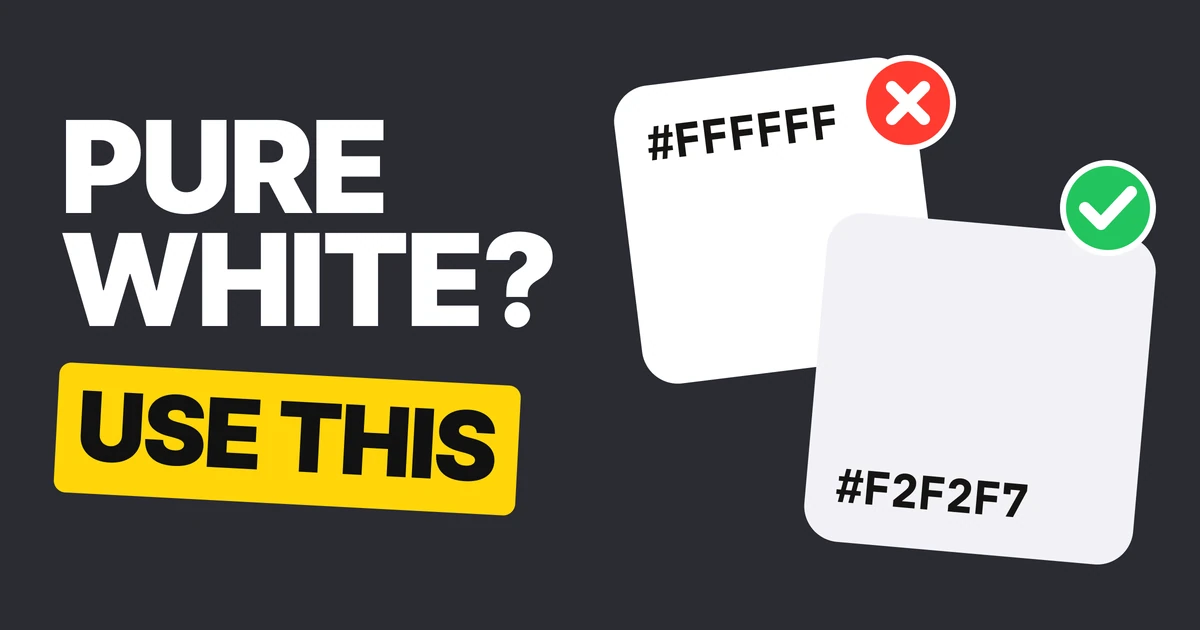
The best light mode background color is not #FFFFFF. Put the page on a soft gray such as #F2F2F7 and keep white for the cards that sit on top of it, so surfaces have something to rise from. Here is why an all-white screen fails, the three fixes, and the eight colors to hand your developer.
Why an all-white screen goes flat
Most designers start light mode by painting everything white. It is the default fill in every design tool and the default background in every browser, so it feels neutral. It is not. It is the one choice that removes your ability to show depth.
A card needs to look different from the page it sits on. When both are #FFFFFF, the only way left to separate them is a border or a shadow, so those two details end up doing all the work. Add a few more cards and the screen turns into a grid of outlines.
Dark mode already solved this. There, a lighter surface means a higher one, so each layer is a step lighter than the layer below. Our paper on dark mode color systems covers that ramp, and dark mode design covers the rest of the palette. Light mode has no lighter step above white, so it needs a different move: lower the floor.
Fix 1: start the page at #F2F2F7
Page and cards both #FFFFFF
Page #F2F2F7, cards #FFFFFF
#F2F2F7 is the gray iOS puts behind its grouped lists. It is Apple's system gray 6 in light mode, and Apple's own guidance is to use the grouped background colors for grouped table views. Settings is the classic example: a pale gray page, white rows.
That one change gives you a floor and a ceiling. The page is the floor, cards and sheets are the ceiling, and the gap between them is visible without a single line drawn.
Where to apply it:
- The page background, behind every screen that has cards, lists or sections.
- Grouped lists and settings screens, where the rows are white and the gaps are gray.
- Inputs inside a white card, which can sit on the page gray so they read as recessed.
If your screen is one long white article with no cards at all, white is fine. The rule is for interfaces made of surfaces.
Fix 2: let shadows do the lifting
In dark mode, elevation is a lighter color. In light mode, the surfaces stay white and the shadow grows instead. A card at rest gets a small, soft shadow; a menu or a dialog that floats above it gets a larger, softer one.
Two habits make that look right:
- Tint the shadow with your ink, not pure black. A shadow in the color of your text (the post used #1B1530, a deep violet) looks like part of the interface. Pure black looks like a smudge.
- Make bigger mean higher. Use a short scale of four, small to large, and map each level to a job: card, raised card, menu, dialog. Then never invent a fifth.
/* A starting point, not a platform spec. Tune the values to your brand. */
:root {
  --shadow-ink: 27 21 48; /* #1B1530 */
  --shadow-sm: 0 1px 2px rgb(var(--shadow-ink) / 0.08);
  --shadow-md: 0 4px 12px rgb(var(--shadow-ink) / 0.10);
  --shadow-lg: 0 12px 32px rgb(var(--shadow-ink) / 0.14);
}

.card   { background: #FFFFFF; box-shadow: var(--shadow-sm); }
.menu   { background: #FFFFFF; box-shadow: var(--shadow-md); }
.dialog { background: #FFFFFF; box-shadow: var(--shadow-lg); }
The gray page makes this work. On a white page a soft shadow is almost invisible, so people compensate with a darker shadow or a border. On #F2F2F7 a light shadow is enough.
Fix 3: soften your black, then deepen your accent
Pure #000000 text on a white or near-white page is harsher than it needs to be, and it makes every other color look weak next to it. Material 3 sets its light text a step softer.
Text
Secondary text
Disabled, 38 percent
- #1D1B20 for text. It is Material 3's on-surface color. It is near-black with a hint of violet, which sits well on both white and gray.
- #49454F for secondary text such as captions, helper lines and timestamps. It is still easy to read, and clearly quieter than the main text.
- The same ink at 38 percent for disabled labels and icons. Over white that lands on #A9A8AA, and Material uses exactly that opacity. Disabled text is the one place where low contrast is the point, and WCAG exempts it.
The accent needs the opposite correction. A bright, light brand color that looked great on a dark screen disappears on white.
Light accent on white
Deep accent on white
#BB86FC is Material's baseline purple for dark themes. On white it almost vanishes, which is a problem for anything that has to read as a button or a link.
#6200EE is Material's baseline purple for light themes, the same family, deep enough to hold its own. When you build a light theme, do not reuse the dark theme's accent. Pick the deeper step from the same hue.
The 8 light mode colors
Tap any chip to copy its code.
| Role | Value | Use it for |
|---|---|---|
| Base | #F2F2F7 | The page, behind cards and grouped lists |
| Cards | #FFFFFF | Cards, sheets, menus, rows |
| Dividers | #E5E5EA | Lines between rows. Not for input borders |
| Text | #1D1B20 | Titles and body |
| Secondary | #49454F | Captions, helper text, timestamps |
| Disabled | #A9A8AA | Disabled labels and icons (text at 38 percent) |
| Primary | #6200EE | Buttons, links, selected states |
| Error | #B00020 | Error text, borders and icons |
#E5E5EA is iOS system gray 5, and it works for dividers because a divider only has to be noticed, not read. A field border needs more than that. Our paper on placeholders and labels gives the border color to use instead.
Hand this to your developer
The same eight colors as CSS custom properties:
:root {
  --color-base: #F2F2F7;
  --color-card: #FFFFFF;
  --color-divider: #E5E5EA;
  --color-text: #1D1B20;
  --color-text-secondary: #49454F;
  --color-text-disabled: #A9A8AA;
  --color-primary: #6200EE;
  --color-error: #B00020;
}

body { background: var(--color-base); color: var(--color-text); }
.card { background: var(--color-card); }
.caption { color: var(--color-text-secondary); }
.card + .card { margin-top: 12px; }
hr { border: 0; border-top: 1px solid var(--color-divider); }
If you ship a dark theme too, give every one of these names a second value under @media (prefers-color-scheme: dark), as in the dark mode token map. The names stay the same and only the values change, which is what stops light mode from becoming "dark mode, inverted".
The numbers behind "easy to see"
The post says "easy to see" and "hard to see". For the person defending the choice in a review, here are the numbers (WCAG 2 contrast ratios, computed on white):
| Pair | Contrast | Verdict |
|---|---|---|
| #1D1B20 text on #FFFFFF | 17.1 to 1 | Far above the 4.5 to 1 minimum |
| #49454F text on #FFFFFF | 9.3 to 1 | Comfortable for secondary text |
| #A9A8AA disabled on #FFFFFF | 2.4 to 1 | Exempt, disabled is meant to be quiet |
| #BB86FC on #FFFFFF | 2.65 to 1 | Under the 3 to 1 a button shape needs |
| #6200EE on #FFFFFF | 7.63 to 1 | Easy to see |
One more fact worth knowing: Material 3's own light surface is not #FFFFFF either. It is #FEF7FF, a barely tinted white. Even the design system most teams treat as the default does not paint the screen pure white.
FAQ
What is the best background color for light mode?
A soft light gray such as #F2F2F7 for the page, with #FFFFFF for the cards on top. The gray gives white surfaces something to stand out from, so you need fewer borders and shadows.
Is #FFFFFF a bad background color?
Not always, but an all-white screen has no way to show depth. Cards melt into the page, so borders and shadows end up doing all the work. White works best as the color of surfaces, not of the whole screen.
What is #F2F2F7?
It is iOS system gray 6 in light mode, the gray Apple uses behind grouped lists such as the Settings app. Apple recommends the grouped background colors for grouped table views.
What text color should I use on a white background?
A soft near-black such as #1D1B20 for text and #49454F for secondary text. Both are Material 3 colors and both read easily on white and on #F2F2F7.
How do you show elevation in light mode?
With shadows. In dark mode a lighter surface means a higher one, but light mode has no lighter step above white, so the surfaces stay white and the shadow grows with the height.
Should the accent color change between light and dark mode?
Yes. A light accent such as #BB86FC works on dark screens but almost disappears on white. Use a deeper step of the same hue, such as #6200EE, on light surfaces.
Sources
- Apple Human Interface Guidelines, Color: #F2F2F7 is systemGray6 in light mode (R242 G242 B247), and the grouped background colors are meant for grouped table views.
- Material 3 color roles, read from the androidx Compose ColorLightTokens and PaletteTokens: on surface #1D1B20 (Neutral10), on surface variant #49454F (NeutralVariant30), light surface #FEF7FF. See the Material color roles.
- Disabled label and icon opacity of 0.38 from the Material 3 component tokens. #1D1B20 at 38 percent over #FFFFFF is #A9A8AA.
- #BB86FC and #6200EE are Material's baseline dark and light primaries. #B00020 is Material's baseline light error. #E5E5EA is iOS system gray 5 in light mode.
- WCAG 2.2, 1.4.3 Contrast (Minimum) and 1.4.11 Non-text Contrast. Ratios computed with the WCAG relative luminance formula. Disabled text is exempt from the minimum.
- The shadow ink #1B1530 and the four shadow levels are our own recommendation, not a platform value.
- First published as a carousel on UX Brainy.
Want a light and a dark theme designed as one system, not a theme and its inversion? Our team builds product UI and design systems that hold up in both.
Get StartedGet new papers by email
New Brainy papers in your inbox. Confirm once, unsubscribe anytime.