
Fitness App Design: A Home Screen Redesign, Before and After
A junior fitness app home screen with four stat tiles, a busy workout photo and a chart with nothing to read, and the same screen fixed. Every change side by side, the reason behind each, and the free Figma file.
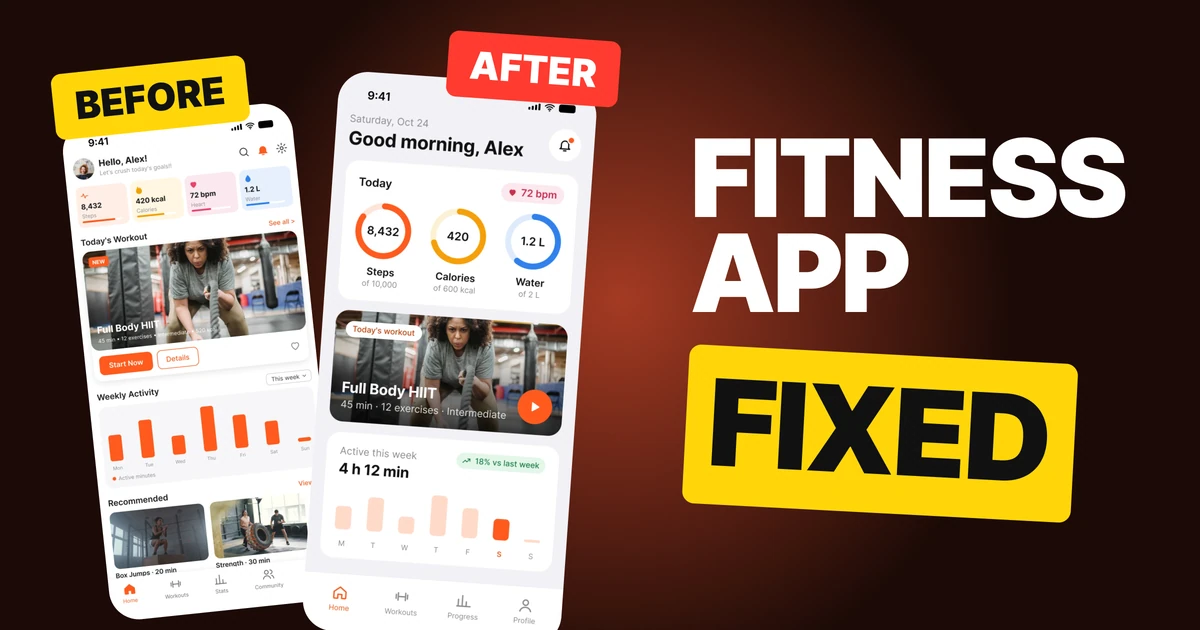
A fitness app's home screen has one job: tell someone how today is going and give them one clear way to start. The first draft below has every right number, but it hands them over in four cramped tiles, white text on a busy photo and a chart with nothing to read. The fix keeps every feature and changes how much work each part asks of the eye.
The whole screen, before and after
Junior draft
Fixed
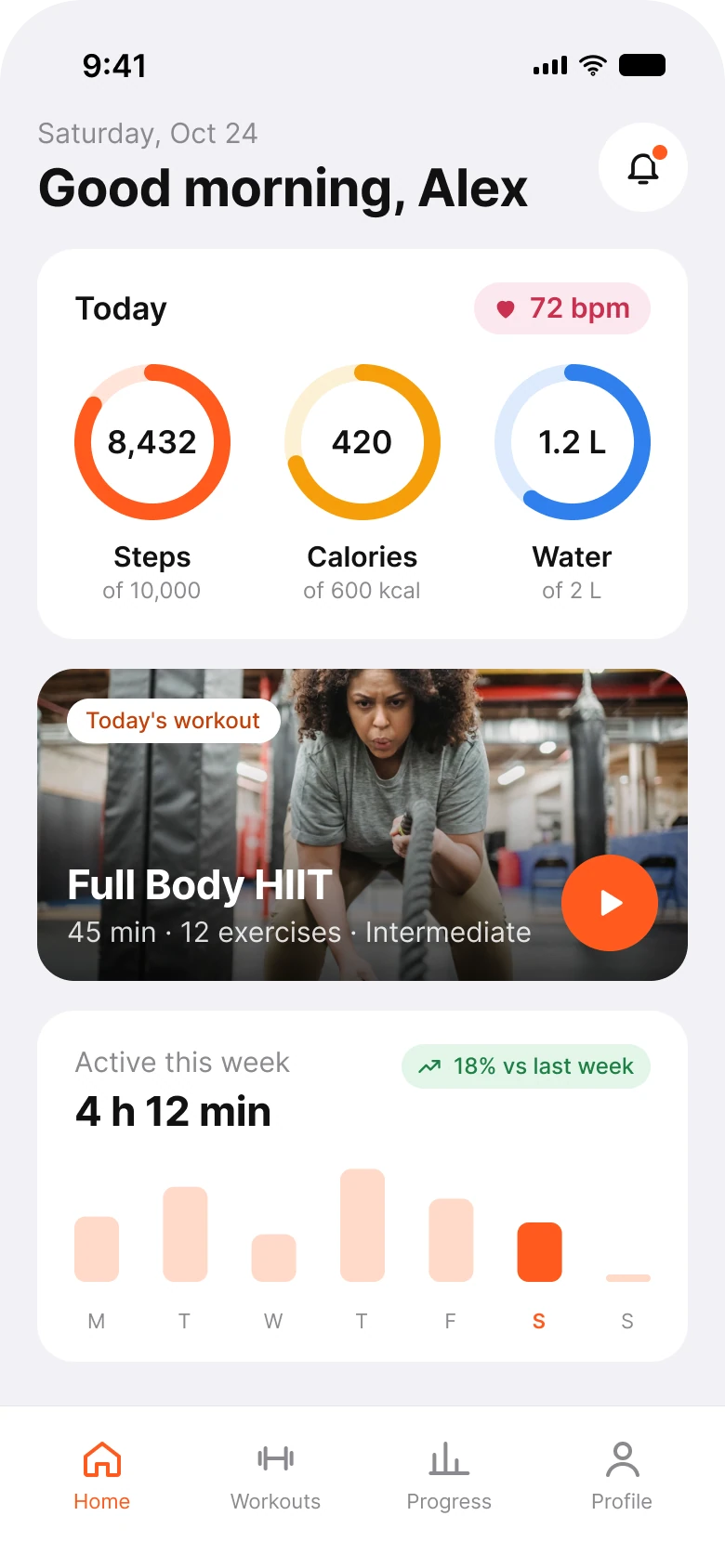
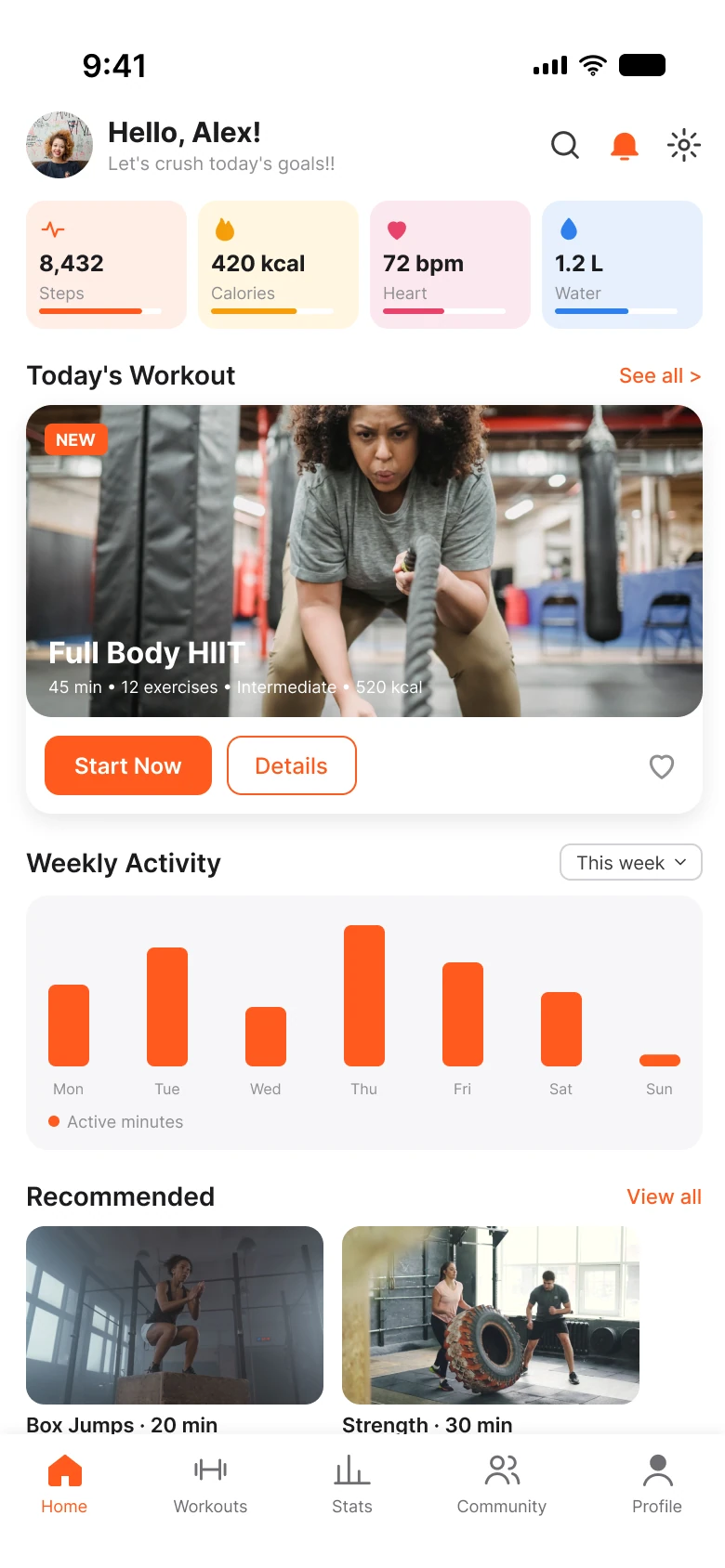
On the left, the eye meets a header of four things, then four tiles in four colors, then a photo, two buttons and a heart, a chart, and a second row of workouts cut off by the tab bar. On the right, there are three cards and a header: how today is going, what to do now, how the week looks.
Nothing was deleted from the feature list that a person would miss. Steps, calories, water, heart rate, the day's workout and the week's activity are all still there. They moved into fewer, bigger shapes.
| Junior draft | Fixed | |
|---|---|---|
| Header controls | 3 icons and an avatar | 1 button |
| Today's numbers | 4 tiles in 4 colors | 1 card, 3 rings and a heart rate chip |
| Buttons on the workout card | 2 buttons and a heart | 1 play button |
| Weekly chart | 7 orange bars, no numbers | The total, the trend, today in orange |
| Tabs | 5 | 4 |
| Side margin | 14 px left, 12 px right | 20 px on both sides |
| Text sizes | 8 to 16 px | 11 to 28 pt |
Fix 1: one card of rings instead of four tiles
Before
After
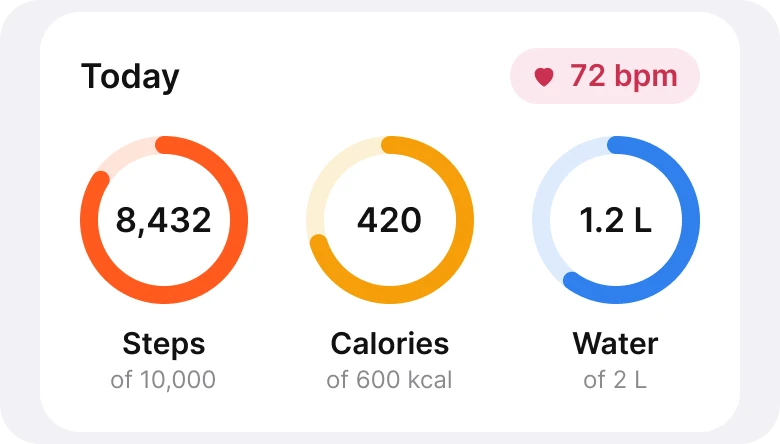
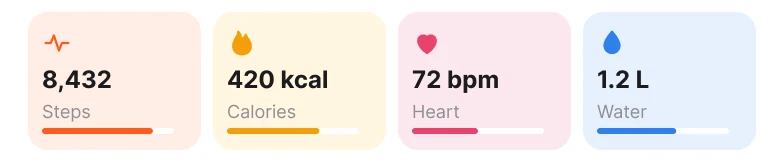
Four pastel tiles, each with an icon, a number, a label and a thin bar, against one card with three rings, the target under each label and the heart rate as a small chip.
Each tile in the draft says a number and draws a thin bar, but not what the bar is measuring against. 8,432 steps could be good or bad. The reader has to guess the goal from how far the bar runs, and the bars are thin.
The rings put the goal in words ("of 10,000", "of 600 kcal", "of 2 L") and in shape: a ring is full or it is not. One look answers "am I on track today?". Heart rate is a reading, not a goal, so it does not get a ring. It drops to a chip in the corner, which says it is a different kind of number.
The rule to reuse: if a number has a target, show the target. If it does not, do not dress it as progress.
Fix 2: one play button, a shade behind the words
Before
After
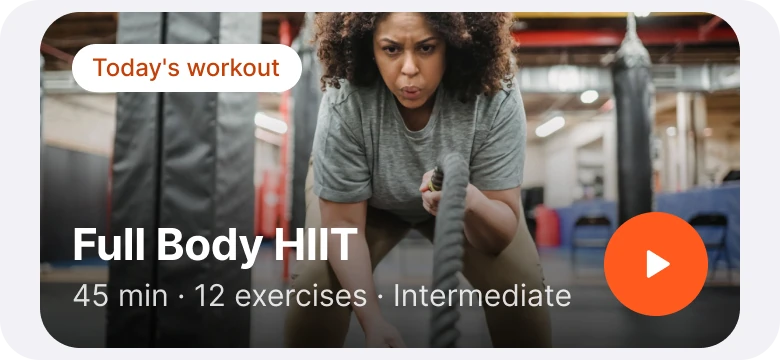
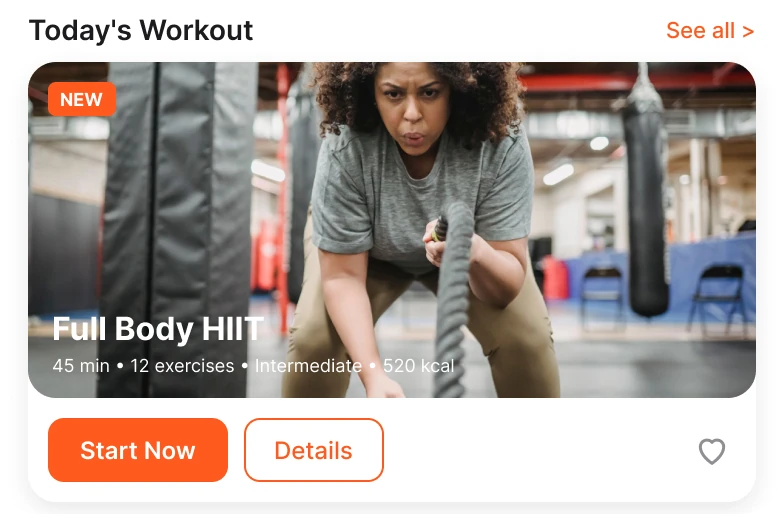
A section title, a NEW badge, 9 px white text on the photo and three controls underneath, against a labelled photo, larger text on a shade and one play button.
White text on a photo is only readable where the photo happens to be dark. In the draft the details line runs across the lightest part of the image, a gym floor and a grey shirt, and at 9 px it disappears. The fix lays a black shade over the photo that reaches 72% at the bottom edge, exactly where the words sit, and sets them larger.
The draft also asks a question before the person can act: Start Now, or Details, or save it with the heart? There is one thing to do with today's workout, which is start it. A single round play button says that without a word. The details are one tap away when someone wants them, but they no longer compete with the main action.
The "NEW" badge and the "Today's workout" section title said nearly the same thing twice. The fix keeps one label, a chip on the photo.
Fix 3: lead the chart with the total
Before
After
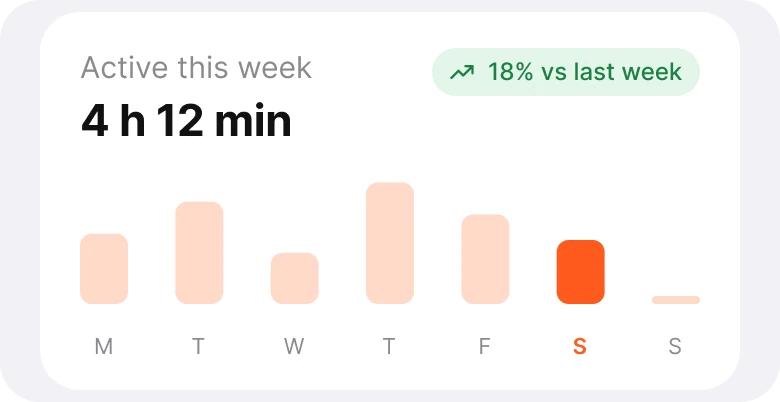
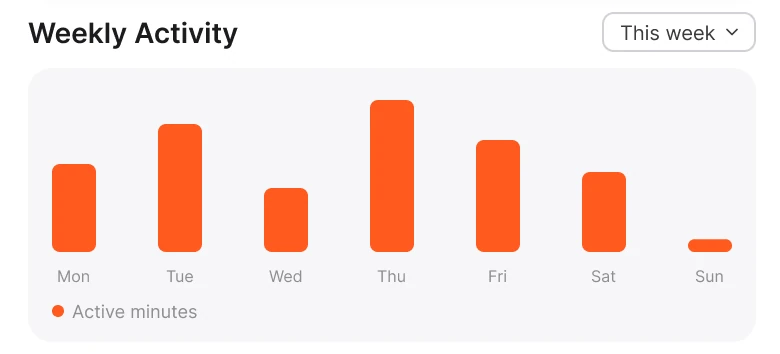
Seven equal orange bars with a dropdown and a legend, against the week's total in large type, a trend chip and one bar in solid orange.
A chart answers a question, and the draft's chart does not say which. Seven bars in the same strong orange, no values and a legend for the only series, so the reader has to decide for themselves what to take from it. The fix answers the likely question in words first: 4 h 12 min this week, 18% more than last week.
The bars are now context, not the message. Five are a pale tint of the brand color, and today, Saturday, is solid orange, so the eye lands on where the person is in the week. Sunday stays a short stub, so the week reads left to right up to today. The "This week" dropdown and the "Active minutes" legend went away because the title already says both.
The rule to reuse: put the number the chart would take a minute to explain at the top, and let the bars do the rest.
Fix 4: one button in the header
Before

After

An avatar, a greeting with an exclamation mark, a second line with two more, and three icons, against the date, a greeting and one notifications button.
The draft header holds seven things before any content: an avatar, two lines of greeting and three icons. The avatar leads to the person's account, and the app already has a Profile tab, so the fix drops it from the header. The search and settings icons go with it, which leaves room for the greeting.
The fix keeps the one thing that earns the top corner: notifications, with a dot when there is something new. The greeting becomes the date and a name in large type, which tells the reader what day today's numbers belong to without an exclamation mark.
The smaller fixes
- Four tabs, not five. Home, Workouts, Progress and Profile. Stats and Community gave way to one Progress tab.
- One margin. The draft used 14 px on the left and 12 px on the right, so cards looked slightly off center. The fix uses 20 px on both sides and 16 px between cards.
- One color for action. The draft used peach, yellow, pink and blue tiles plus orange. The fix uses orange for action and keeps amber and blue only on two of the rings, where they tell the rings apart.
- A real type scale. Text went from 8 to 16 px to the iOS text sizes of 11 to 28 pt, so nothing on the screen is smaller than the system's smallest caption.
- No Recommended row. The draft's second photo row was cut off by the tab bar. The fix ends the home screen after the chart.
- Calmer greeting. "Let's crush today's goals!!" became the date above the name.
Audit your own fitness app
| Question | Why it matters |
|---|---|
| Does every progress number show its goal? | A number without a target is not progress |
| Is there one clear action on the workout card? | Two buttons and a heart ask for a decision |
| Is any text laid straight over a photo? | Readability should not depend on the photo |
| Does the chart say its point in words first? | Bars with no values leave the reader to guess |
| Does the header duplicate any tab? | Two doors to one room add noise |
Get the Figma file
The free file has both screens as components, every fix as a before and after pair, the color variables and the iOS text styles.
Free Figma file
Fitness home screen, before and after
Both screens and every fixed part as Figma components. Free, view only, duplicate it to your drafts.
FAQ
What should a fitness app home screen show first?
How today is going: steps, calories and water against their goals, in one card. Put the day's workout directly below it with one clear way to start.
Are progress rings better than progress bars in a fitness app?
For a few daily goals, yes. A ring is readable at a glance, shows full or not full without a scale, and fits a number in its center. Keep heart rate out of the rings, because it is a reading and has no goal to fill.
How do you make white text readable over a workout photo?
Put a dark shade behind the words, strongest where the text sits, and set the text at a readable size. Do not rely on the photo being dark in the right place.
How should a fitness activity chart be designed?
Lead with the total and the trend in words, then show the bars in a soft tint with the current day in the brand color. Drop legends and dropdowns the title already covers.
How many tabs should a fitness app have?
Four or five. Merge tabs that hold related numbers, such as Stats and Community, into one place like Progress.
Sources
- Both screens are our own, designed and measured in Figma.
- Photos via Pexels by pessoas uem, Julia Larson, Tima Miroshnichenko and Vitaly Gariev.
- Apple Human Interface Guidelines: Typography, for the iOS text sizes used in the fixed screen.
- First published as a carousel on App Brainy.
Want this for your own app? Our team redesigns app screens like this one, from the first audit to the finished components.
Get StartedGet new papers by email
New Brainy papers in your inbox. Confirm once, unsubscribe anytime.