
Banking App Design: A Home Screen Redesign, Before and After
A banking home screen that looks like a credit card ad, and the same screen fixed so the balance leads. Every change side by side, the reason behind each, and the free Figma file.
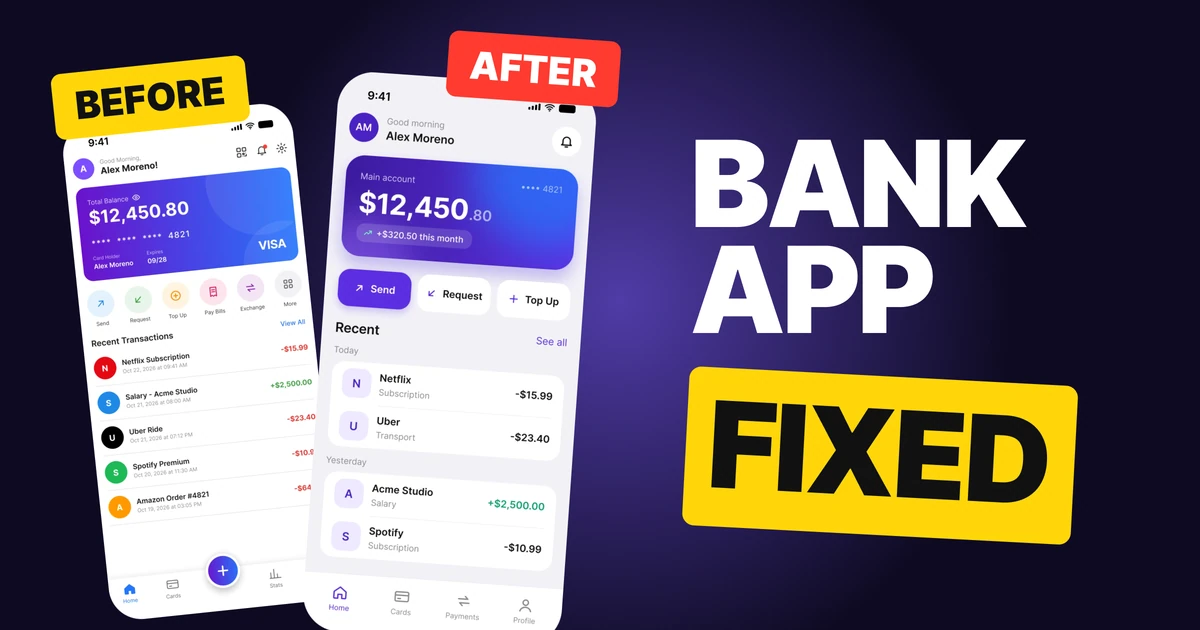
A banking app's home screen has to answer one question in under a second: how much money do I have? The first draft below is a handsome gradient card, but the card number is the biggest thing after the balance, the actions come in six colors and almost every transaction is red. It looks like an advert for a credit card.
The fix keeps the brand purple and every feature. It spends the color on the number that matters and quiets everything else.
The whole screen, before and after
Junior draft
Fixed
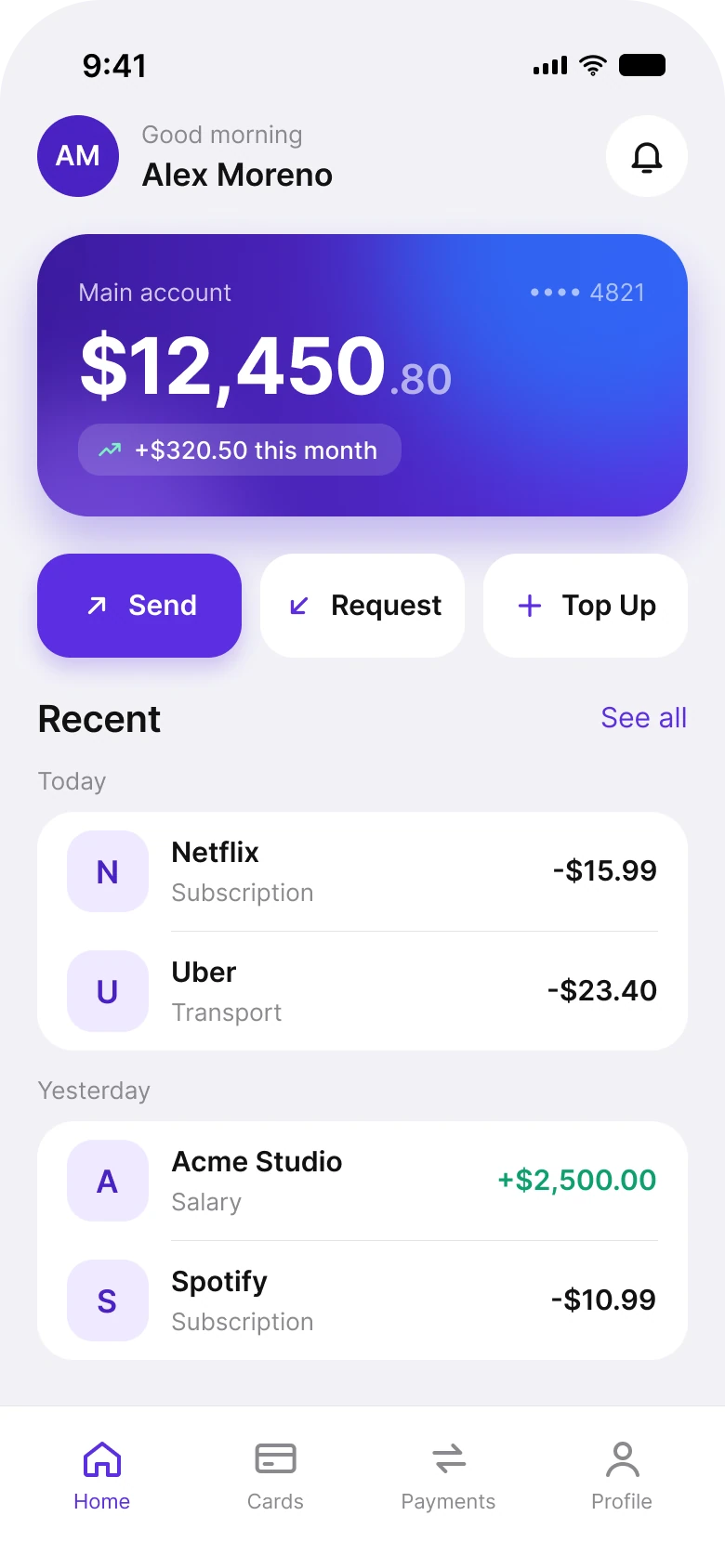
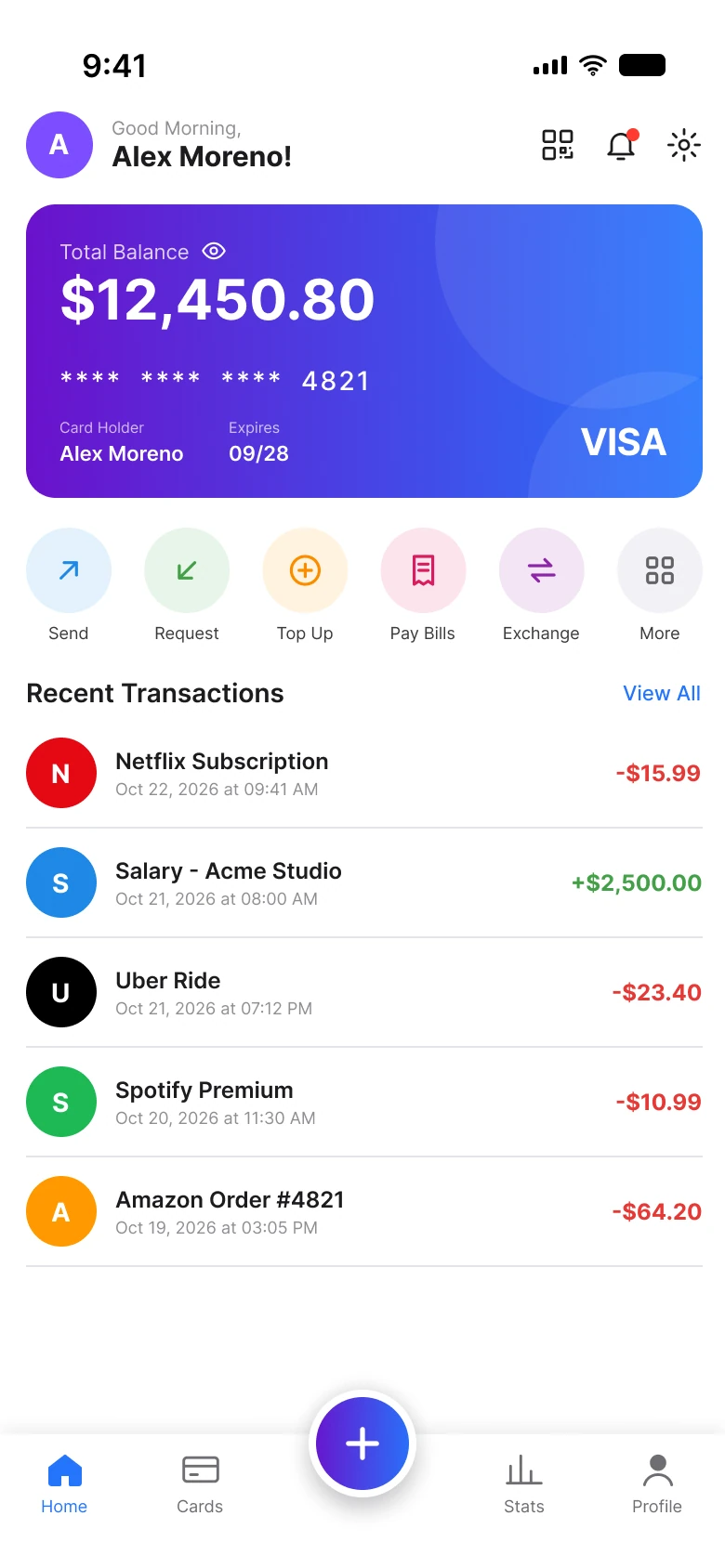
On the left, the card is a card: balance, a masked number, a holder name, an expiry date and a VISA logo, all on one gradient. Under it come six action circles in six colors, then a flat list of transactions where red appears on every expense and every merchant has its own logo color.
On the right, the card is a balance. It has the account name, the number in dollars, a line saying how it changed this month, and the last four digits tucked in the corner. Everything under it is calmer, so the balance is the one place the eye lands first.
| Junior draft | Fixed | |
|---|---|---|
| What the card shows | Balance, card number, holder, expiry, VISA logo | Account name, balance, change this month, last four digits |
| Quick actions | 6, in 6 colors | 3, one filled and two plain |
| Red on the list | Every expense | None |
| Green on the list | Income | Income only |
| Transaction icons | 5 brand colors | 1 icon style in the brand tint |
| Tabs | 4 plus a floating button | 4 |
Fix 1: spend the purple on the balance
Before
After
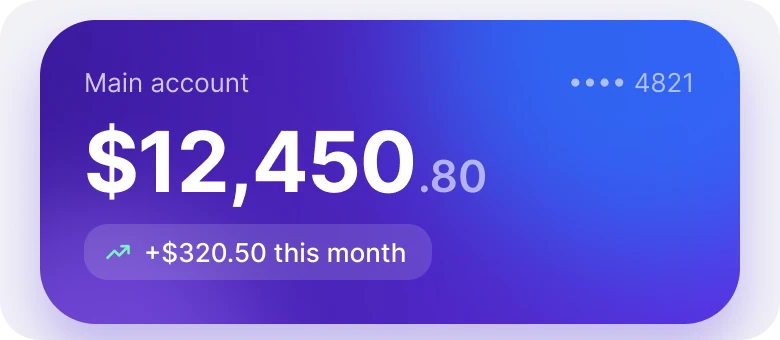
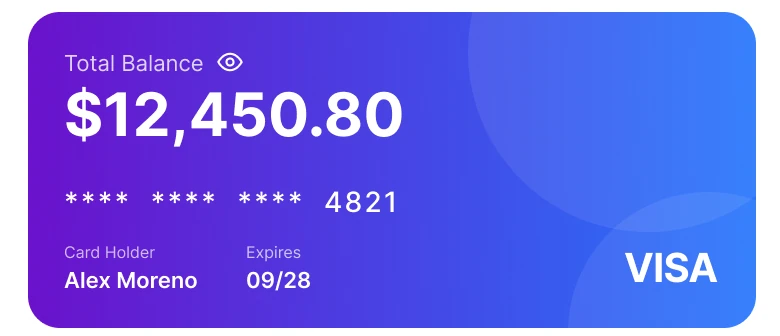
"Total Balance" with an eye icon and $12,450.80 at one size, a row of asterisks and 4821, Card Holder and Expires, and a VISA logo on a bright gradient, against "Main account" and 4821 in the corner, $12,450 with the .80 smaller, and a "+$320.50 this month" pill on a deeper purple.
The draft uses the brand gradient on a card that looks like a card, so the first read is "this is a credit card". The balance is the largest text, but the card number, holder name, expiry and VISA logo all compete for the same part of the card. Most of that is information a person already knows or only needs when paying online.
The fix keeps the same purple and blue family and puts it behind one idea. The dollars are 42 pt and the cents are 22 pt, because $12,450 is the number you read and .80 is the detail. A pill shows what changed this month, which is the second question people ask about a balance. The card number shrinks to a masked "4821" in the corner, enough to tell which account this is.
Rule to reuse: when your brand color is loud, give it one job.
Fix 2: three actions, not six
Before

After

Six round icons in blue, green, orange, pink, purple and grey: Send, Request, Top Up, Pay Bills, Exchange and More, against three wide buttons: a filled Send, then Request and Top Up in plain white.
Six colors on six actions say "these are equally important and all different". They are neither. The three that stay are the ones every account needs: Send, Request and Top Up. Pay Bills, Exchange and More are gone from this screen, and the new Payments tab gives that kind of action a home of its own.
The fix also gives the three a hierarchy. Send is filled with the brand color, because it is the action people come for. Request and Top Up are plain, so they are there without shouting. The buttons are wide, so they are easy to hit, and the label sits beside the icon instead of beneath it.
Fix 3: group transactions by day, use color for meaning
Before
After
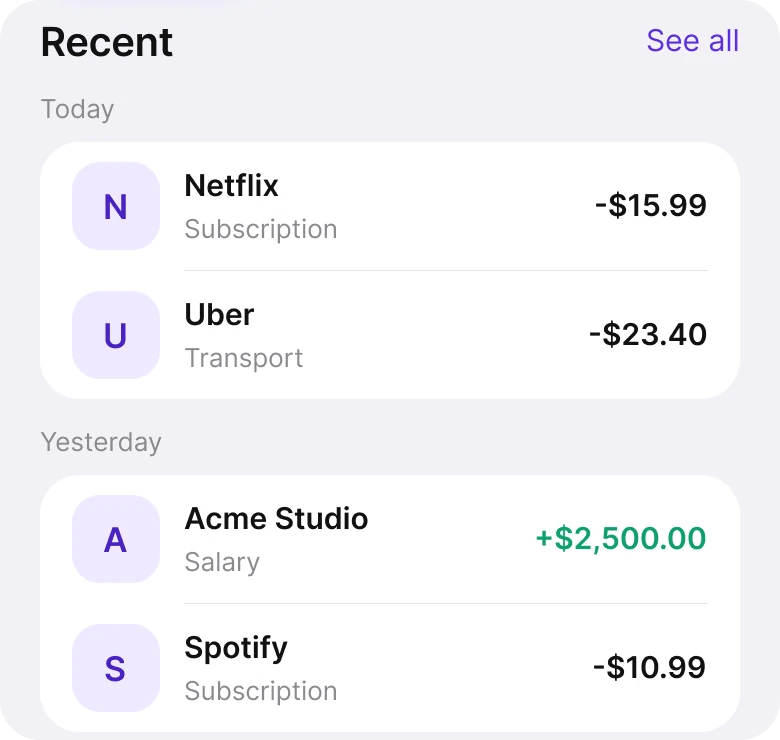
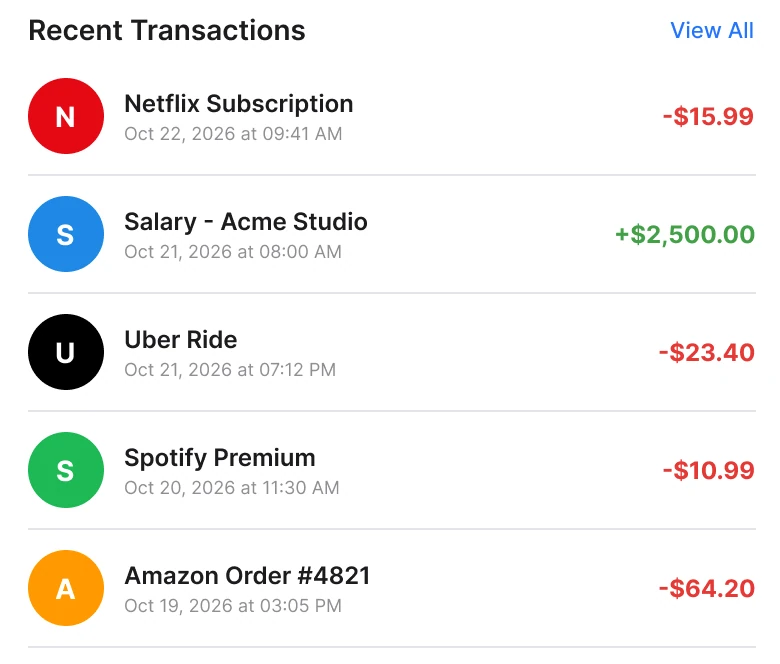
A flat list of five transactions, each with a colored brand circle, a long timestamp like "Oct 22, 2026 at 09:41 AM", and amounts in red or green, against two groups, Today and Yesterday, each in one white card with purple letter tiles, a category under each name, black amounts and one green +$2,500.00.
Red means stop. A banking app that colors every expense red turns normal life, a streaming bill, a ride, a coffee, into a row of small alarms. The fix leaves outgoing money in plain text and uses green for the one thing that is good news: money coming in.
The timestamps also changed. A full date and time on every row is mostly repeated information. Grouping under "Today" and "Yesterday" says the date once, and the second line of each row says what the payment was for: "Subscription", "Transport", "Salary". That is the question people actually ask when they scan a list.
The merchants lost their brand colors too. A red N, a black U, a green S and an orange A look lively, but they turn the list into a rainbow with nothing to say. One tinted tile with a letter keeps the rows even, so the amounts and names are what you read.
Fix 4: four tabs, no floating plus
Before
After
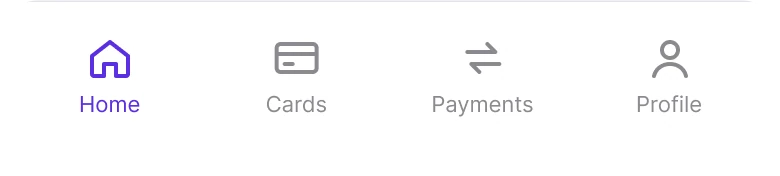
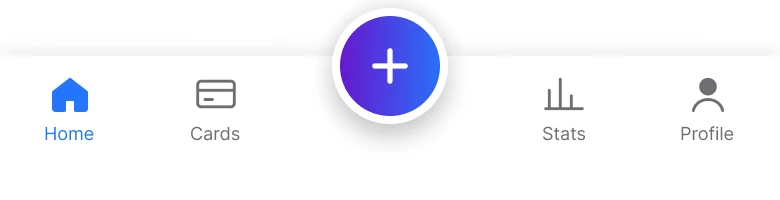
Home, Cards, a large floating plus button, Stats and Profile, against Home, Cards, Payments and Profile with the active tab in purple.
The floating plus button asks "add what?". In a banking app it could mean send, request, add a card or top up, and a person has to open it to find out. It also sits on top of the content and splits the tab bar in two.
The fix replaces it with a tab called Payments, which says what is behind it. Stats leaves the tab bar, and the balance card now carries the one number from it people see every day: this month's change.
The smaller fixes
- A header with one icon. The draft has a QR code, a bell and a settings icon next to the greeting. The fix keeps only the bell.
- A real initials avatar. The purple circle with "AM" is solid brand purple, so it stands out from the ground.
- One margin and one spacing scale. Rows sit on a 20 point margin, with gaps from a short list.
- A calmer greeting. "Good Morning, Alex Moreno!" with a capital M and an exclamation mark became "Good morning" and a name.
- Cards that group. Each day's transactions sit in one white container, with a thin divider between rows and none between groups.
Audit your own banking app
| Question | Why it matters |
|---|---|
| Is the balance the largest thing on the screen? | It is the question people open the app to answer |
| Are the cents smaller than the dollars? | Cents are detail, not the headline |
| Does red appear only where something is wrong? | Normal spending is not an error |
| Do actions have a hierarchy? | Six equal choices are no choice |
| Does the card number need to be on the home screen? | A last-four hint is enough to identify an account |
| Does any tab or button need a label to be understood? | A floating plus makes people guess |
Get the Figma file
The free file has both screens, every fixed part as a before and after component, the UI color variables, the iOS text styles and a read-me with the credits.
Free Figma file
Banking home screen, before and after
Both screens and every fixed part as Figma components. Free, view only, duplicate it to your drafts.
FAQ
What should a banking app home screen show first?
The balance, large, with a short line on how it changed this month. Quick actions come next, then recent transactions.
How many quick actions should a banking app have?
Three works well: Send, Request and Top Up. Make the most common one filled and the others plain, and move rarer actions to a Payments tab.
Should expenses be red in a banking app?
No. Red reads as a warning, and ordinary spending is not one. Keep outgoing amounts in plain text and use green only for money coming in.
How should a card number appear on a banking app home screen?
Masked and small, with only the last four digits, so people can tell which account they are looking at. The full details belong on the Cards screen.
Should a banking app have a floating plus button?
Usually not. A plus does not say what it adds, so replace it with a labeled tab such as Payments.
Sources
- Both screens are our own, designed and measured in Figma. The merchant names are generic examples.
- First published as a carousel on App Brainy.
Want this for your own app? Our team redesigns app screens like this one, from the first audit to the finished components.
Get StartedGet new papers by email
New Brainy papers in your inbox. Confirm once, unsubscribe anytime.