
Plant Shop App Design: An Ecommerce Home Screen Redesign
A junior plant shop app home screen with four header icons, three dropdown filters and seven things under every photo, and the same screen fixed. Every change side by side, the reason behind each, and the free Figma file.
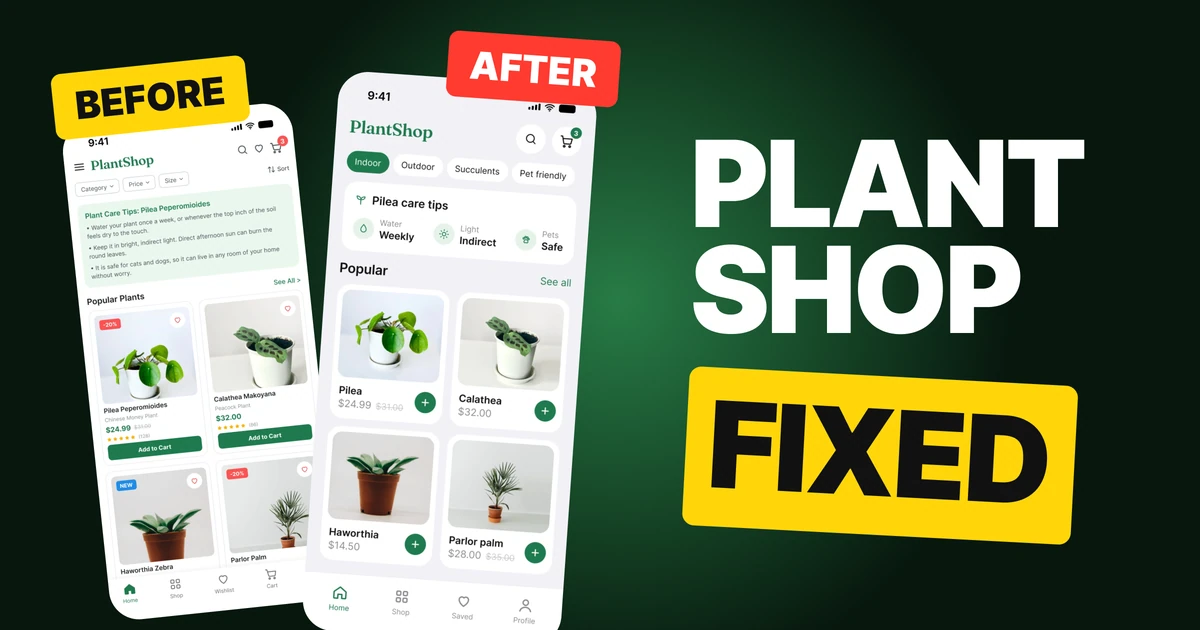
A plant shop has the easy part solved: the products photograph well. The first draft below has real plants and real photos, then buries them under a crowded header, three dropdown filters, a long block of care tips and seven things under every card. The fix keeps every feature and gives the plants the room.
The whole screen, before and after
Junior draft
Fixed
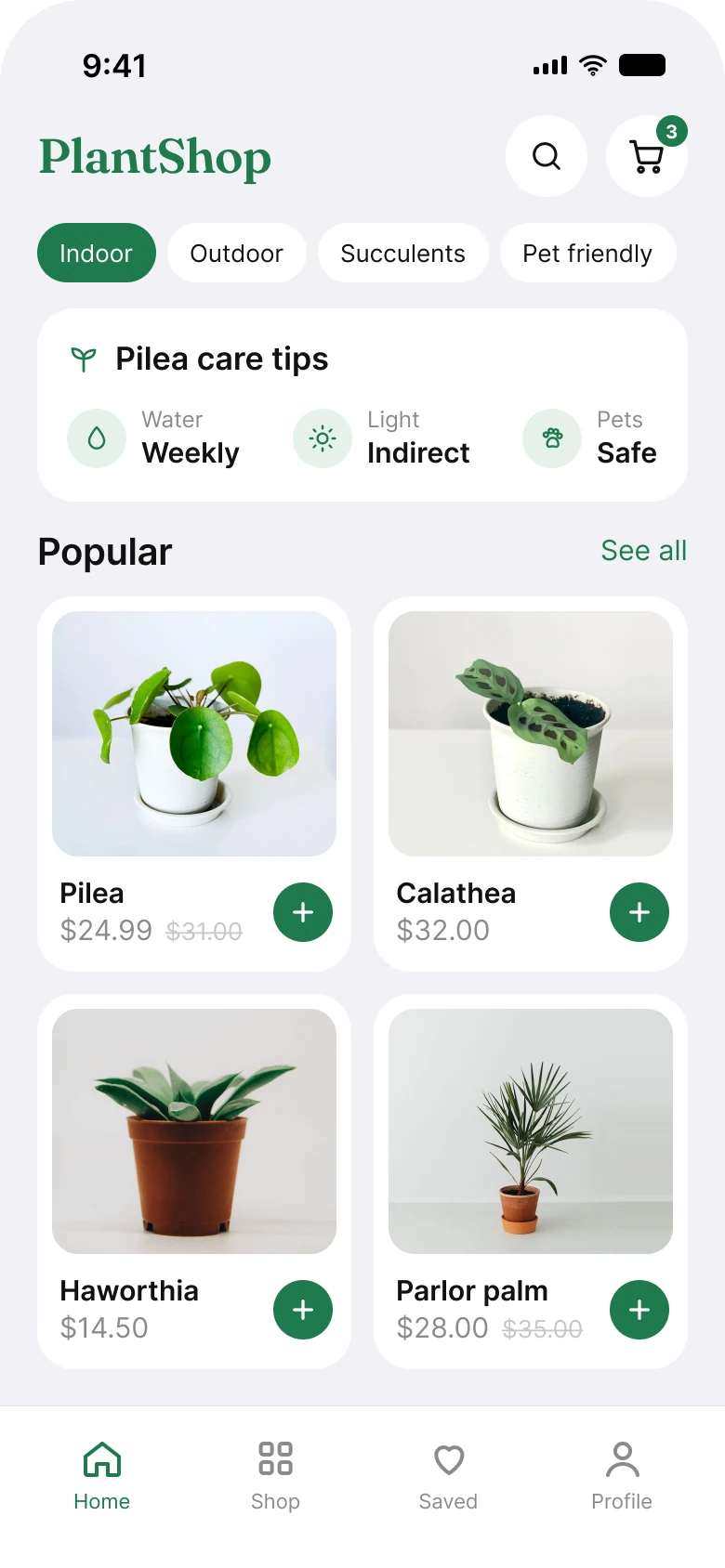
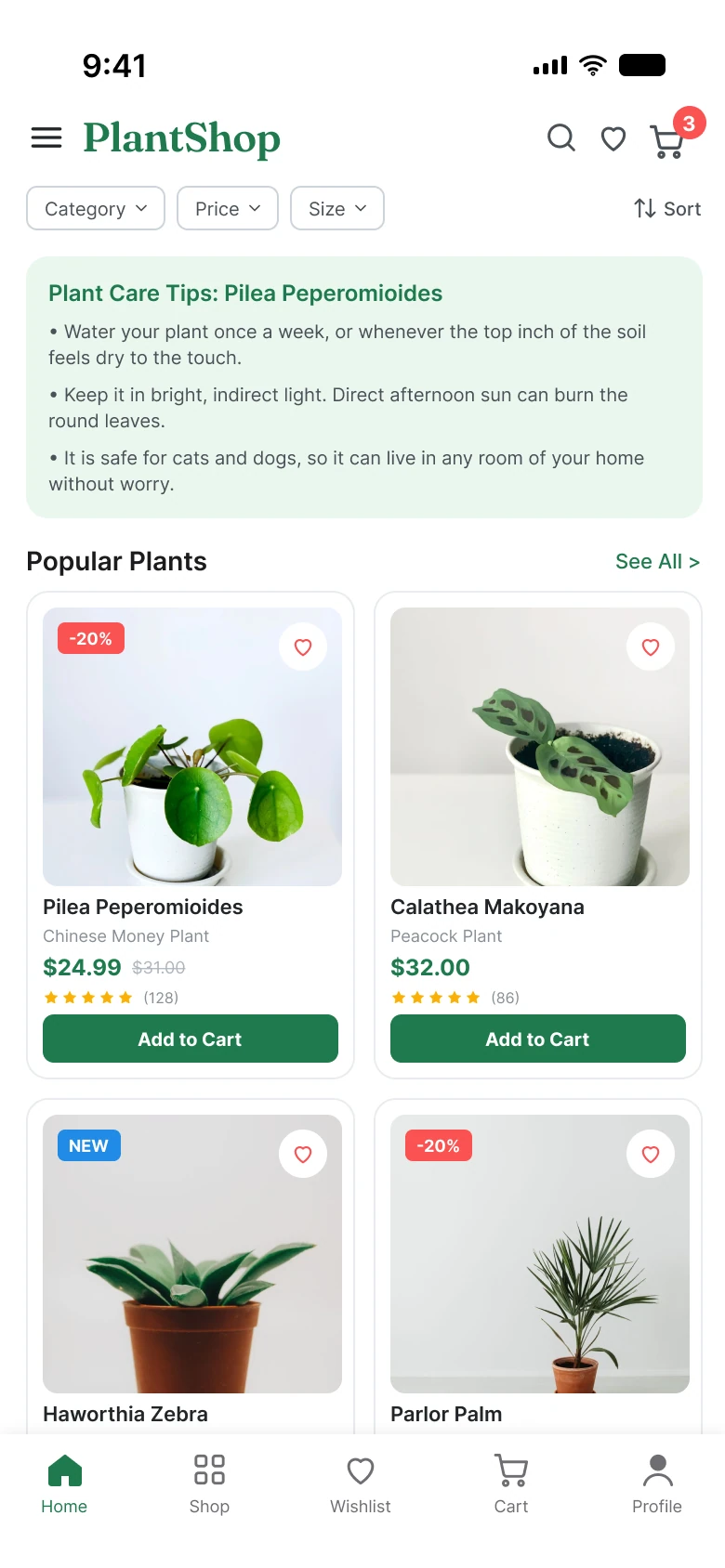
On the left, a shopper has to read through a header, a filter bar, three sentences of advice and a stack of product details before one plant is fully in view. On the right, the first plants appear straight after three short blocks, each card is a whole plant with a price, and the green is used for one job: things you can tap.
The sale stays on both screens. The Pilea is $24.99 with $31.00 struck through, and the parlor palm is $28.00 with $35.00 struck through. The shop, its prices and its reviews are made up for the exercise; the plants are real.
| Junior draft | Fixed | |
|---|---|---|
| Header icons next to the logo | 4 | 2 |
| Filters | 3 dropdowns and a sort link | 4 tappable chips |
| Care tips | 3 long sentences | 3 short facts with icons |
| Things under each card photo | 7 | 2, plus one add button |
| Tabs | 5 | 4 |
| Side margin | 14 px left, 12 px right | 20 px on both sides |
| Text sizes | 8 to 20 px | 11 to 20 pt |
Fix 1: the logo, search and cart, nothing else
Before

After

A menu, the logo and three small icons, against the same logo with two large round buttons.
The draft header carries a menu, the logo, search, a heart and a cart. The heart is a wishlist, and the fixed screen gives the wishlist a tab, Saved, so the heart no longer has to live in the header. The cart keeps its place because it is the one control a shopper expects to find at the top of a store, and its badge shows how many things are in it.
The remaining icons are bigger: two 44 px buttons instead of four small icons. A phone is held in one hand, and a larger target is easier to hit. The logo is the same wordmark on both screens, which is the point: the header was fixed by taking things away, not by restyling the brand.
The badge changed from red to the brand green. A red dot says something is wrong or urgent. An item count is neither.
Fix 2: filters you can see, not dropdowns
Before

After

Category, Price and Size as closed dropdowns plus a Sort link, against Indoor, Outdoor, Succulents and Pet friendly as chips, with Indoor selected.
A dropdown hides its options. To use one, a shopper taps it, reads a list, picks, and the list closes again. Three dropdowns are three of those trips before any plant has changed on the screen. They also say what kind of filter exists, not what is in it.
The chips show the choices in the open. Indoor, outdoor, succulents and pet friendly are the questions a plant buyer actually has, so one tap answers one of them, and the selected chip in green shows the current state. The four chips fit the 350 px row with 6 px to spare, so none is cut off and none needs a scroll.
Fix 3: a card that is the whole plant
Before
After
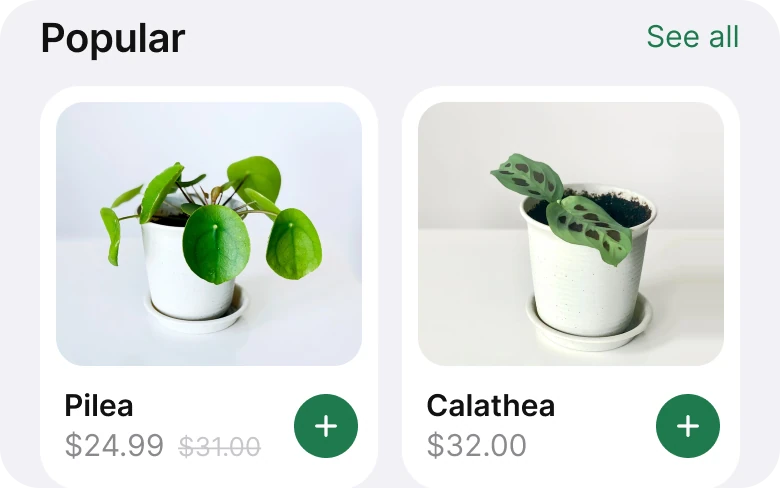
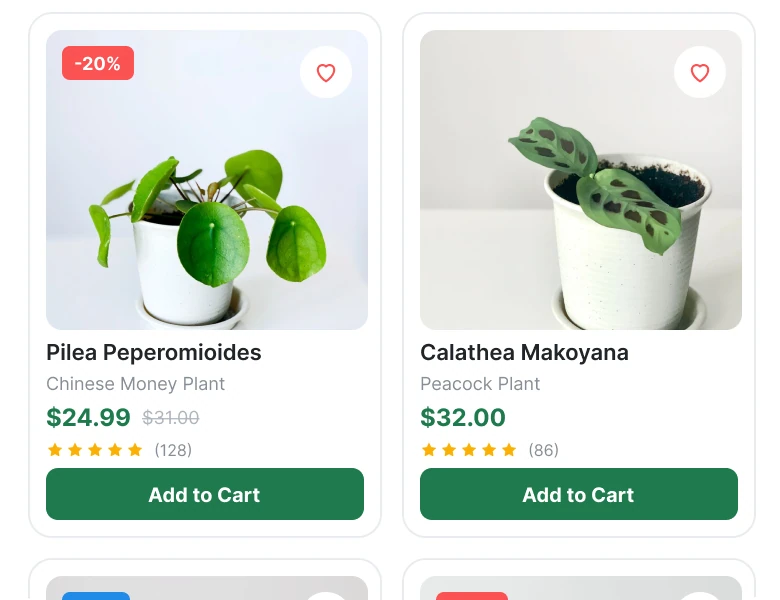
A photo, a badge, a heart, two names, a price, stars, a review count and a full-width button, against a photo, a short name, a price and one round button.
The draft card stacks seven things under the photo: the plant's Latin name, its common name, the price, the old price, the stars, the review count and a full-width Add to Cart button. On the photo itself sit a discount badge and a heart. All of that sits in a card half the screen wide.
The fix keeps two lines and one button. The name is short ("Pilea", "Calathea") and the price sits under it, with the old price struck through where there is a sale. A round plus button replaces the wide Add to Cart bar, because a plus on a product card is a pattern shoppers already know.
The photos changed too. The draft's crops cut the plants and the pots do not line up. The fix crops every photo so the whole plant fills about 70% of the frame height, centered, with each pot on the same line. A row of cards then reads as a row, not as four different pictures.
Fix 4: care tips as three facts
Before
After
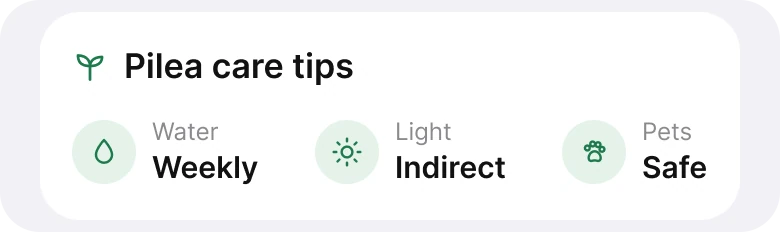
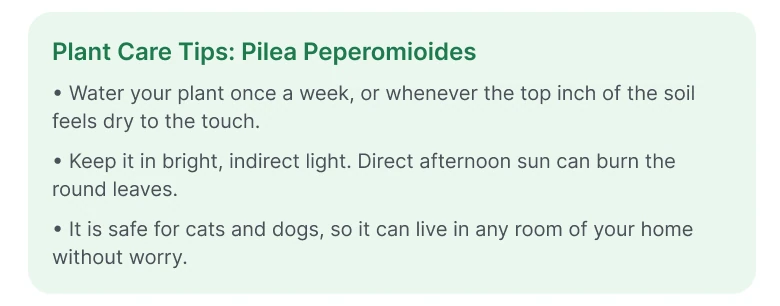
Three sentences of advice in a green box, against three icons with a label and one word each.
The draft says the right things, but a shopper has to read three sentences to find them. The three facts are water, light and whether the plant is safe for pets, and each can be said in one word: weekly, indirect, safe.
The fix gives each fact an icon, a small label and that word in bold. The whole card reads in a glance. A plant buyer scanning for "can I put this near my cat?" finds "Pets: Safe" without reading.
The smaller fixes
- Four tabs, not five. Home, Shop, Saved and Profile. Wishlist became Saved, and the cart moved from the tab bar to the header.
- One margin. The draft used 14 px on the left and 12 px on the right. The fix uses 20 px on both sides and 12 to 14 px between blocks.
- No badges on photos. The red -20% and blue NEW badges and the heart on every photo are gone. The sale is still visible, because the struck-through price stays.
- One accent color. The draft's green was joined by red and blue badges. The fix uses one brand green, #1F7A4D, for anything tappable.
- A real type scale. Text went from 8 to 20 px to the iOS sizes of 11 to 20 pt.
- A shorter section title. "Popular Plants" became "Popular", because the screen is already about plants.
Audit your own shop app
| Question | Why it matters |
|---|---|
| Can the header be reduced to logo, search and cart? | Each extra icon competes with the one people use |
| Can any dropdown be chips instead? | Visible choices need no extra tap |
| Does each product card show one price and one action? | Seven details make a card a form |
| Do photos show the whole product at the same scale? | Cut-off crops make a grid look uneven |
| Can any paragraph of advice become three short facts? | Shoppers scan, they do not read |
Get the Figma file
The free file has both screens as components, every fix as a before and after pair, the color variables and the iOS text styles.
Free Figma file
Plant shop home screen, before and after
Both screens and every fixed part as Figma components. Free, view only, duplicate it to your drafts.
FAQ
What should an ecommerce app home screen show first?
A short header with the logo, search and cart, then filters as chips and the first products. Keep everything that is not a product, such as tips or banners, small.
Should filters be dropdowns or chips on a shop app?
Chips, for the few filters people use most. Chips show the choices without a tap, and the selected one shows the current state. Keep dropdowns or a filter sheet for long lists like price and size.
What should a product card on a shopping app show?
A photo of the whole product, a name, a price and one add button. Details such as ratings and the long name can sit on the product page.
How do you show care instructions in an app?
As a few short facts with icons, one word each, such as Water: Weekly. Long sentences can live one tap deeper.
How many tabs should a shopping app have?
Four or five. Fold duplicates into the places people already look, such as the cart in the header and the wishlist in a Saved tab.
Sources
- Both screens are our own, designed and measured in Figma. The shop, its prices and its reviews are made up; the plant names are real.
- Photos via Pexels by Kulbir, Gül Işık and Kaboompics.
- Apple Human Interface Guidelines: Typography, for the iOS text sizes used in the fixed screen.
- First published as a carousel on App Brainy.
Want this for your own app? Our team redesigns app screens like this one, from the first audit to the finished components.
Get StartedGet new papers by email
New Brainy papers in your inbox. Confirm once, unsubscribe anytime.