
Figma Weave: A Designer's Guide to Figma's AI Design Generation Tool
What Figma Weave actually does, where it slots into a real designer workflow, and the prompts and patterns that get usable output instead of generic AI mush.
Figma Weave: A Designer's Guide to Figma's AI Design Generation Tool
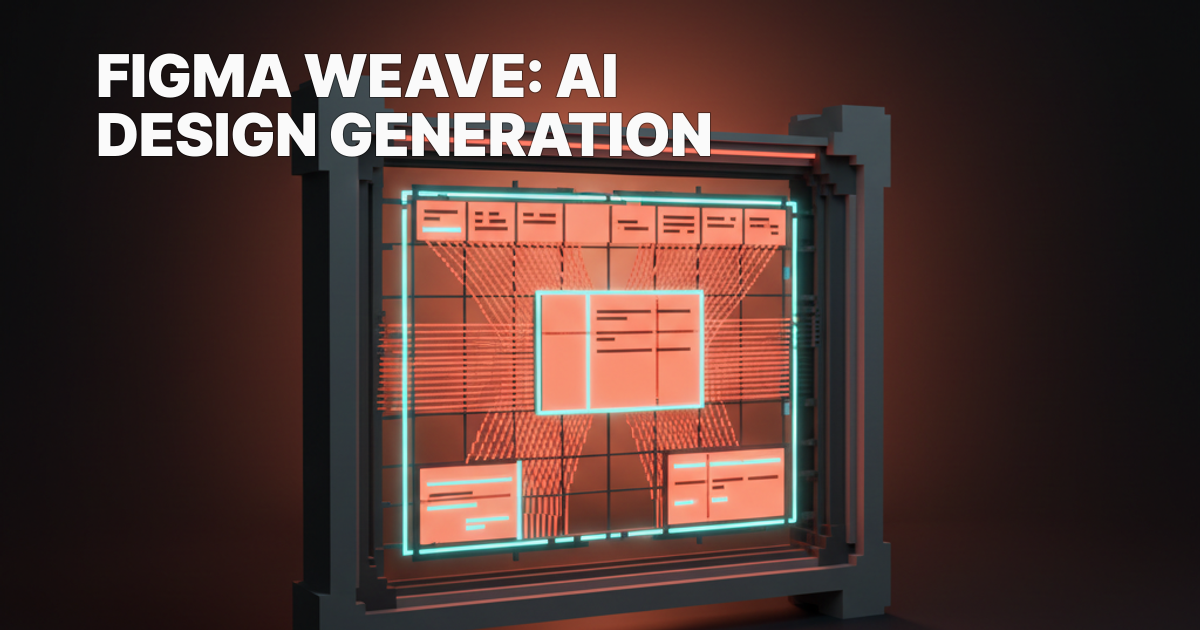
Figma Weave is a prompt-first AI surface built into Figma that generates layout scaffolds from plain-text descriptions. It is not a plugin, not a code exporter, and not a finished-design generator. It is a starting-point machine, and the designers getting real value from it treat it exactly that way.
What Figma Weave Is, in One Paragraph
Weave takes a text prompt and returns a structured Figma frame with layout, placeholder content, and inferred component-like elements.
The output looks like a wireframe that had opinions about typography. It runs inside Figma's editor, works without leaving your file, and drops results directly onto your canvas as editable layers. Think of it as an AI design tool that scaffolds structure rather than one that polishes pixels.
Where Weave Fits Inside Figma (It Is Not a Plugin)
Weave is native to Figma, not a third-party plugin you install from the Community tab.
See the Figma editor on figma.com
It surfaces as a panel inside the editor, accessible when you create a new frame or activate it from the AI menu. That nativeness matters: the output lands directly on your canvas as real Figma layers, not an embedded iframe or an exported asset you paste in.
The positioning is deliberate. Figma is betting that the prompt surfaces layer lives inside the tool where production work happens, not beside it. That is the right call. Leaving your design tool to prompt a generator, then copy-pasting the result back in, kills the workflow before it starts.
How Prompts Route to Layout Output
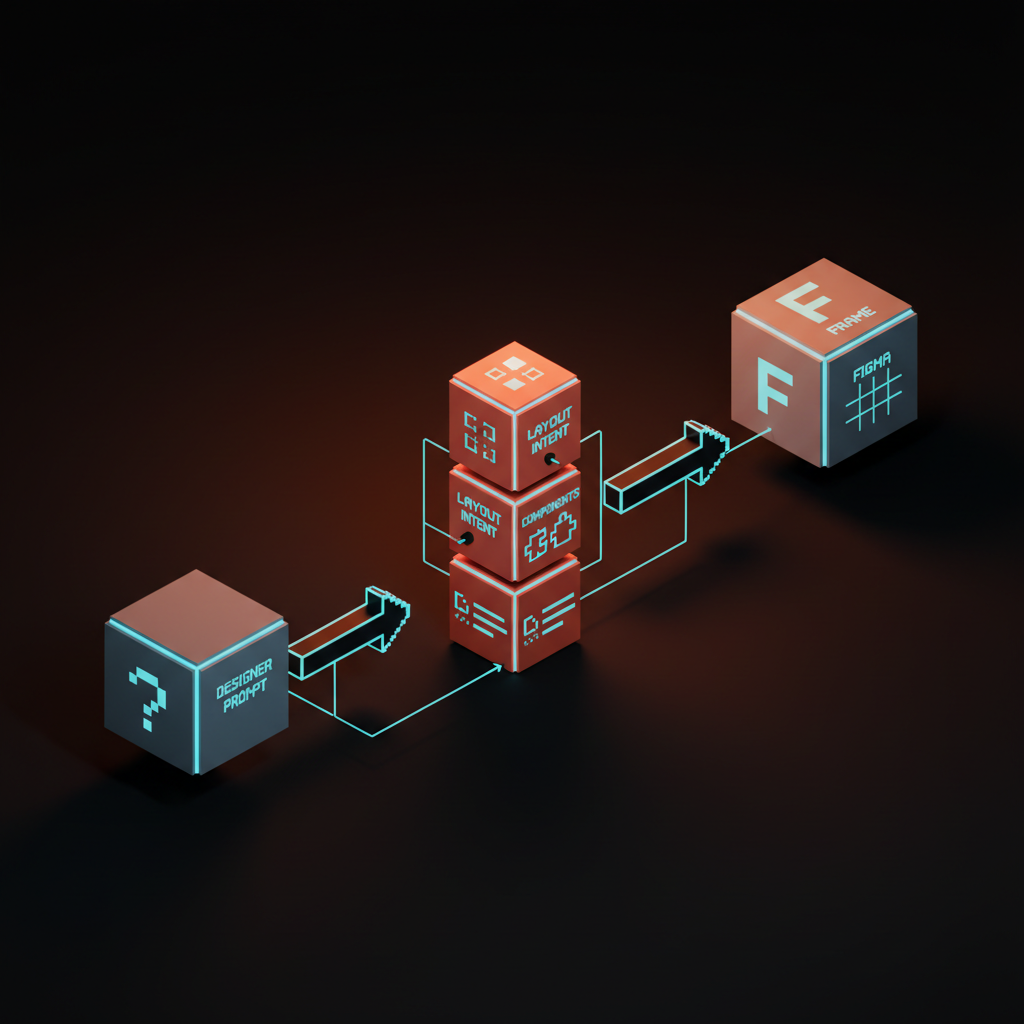
Weave reads your prompt and decomposes it into three inferences before assembling a frame:
- Layout intent: how many sections, rough hierarchy, spacing rhythm.
- Component intent: what UI element types belong where (buttons, cards, tables, nav).
- Content intent: what placeholder copy fits each region.
It then assembles a frame that reflects those guesses.
The generation is not pixel-perfect and is not trying to be. Weave makes educated structural guesses. What you get is a skeleton with spatial opinions. Those opinions are sometimes right, sometimes wrong, and always faster to edit than to build from scratch.
One thing Weave does not do: it does not query your component library. The generated elements are generic shapes and styles, not instances of your actual design system components. That gap is the main reason a "use Weave output as-is" workflow does not exist for any serious designer working at scale.
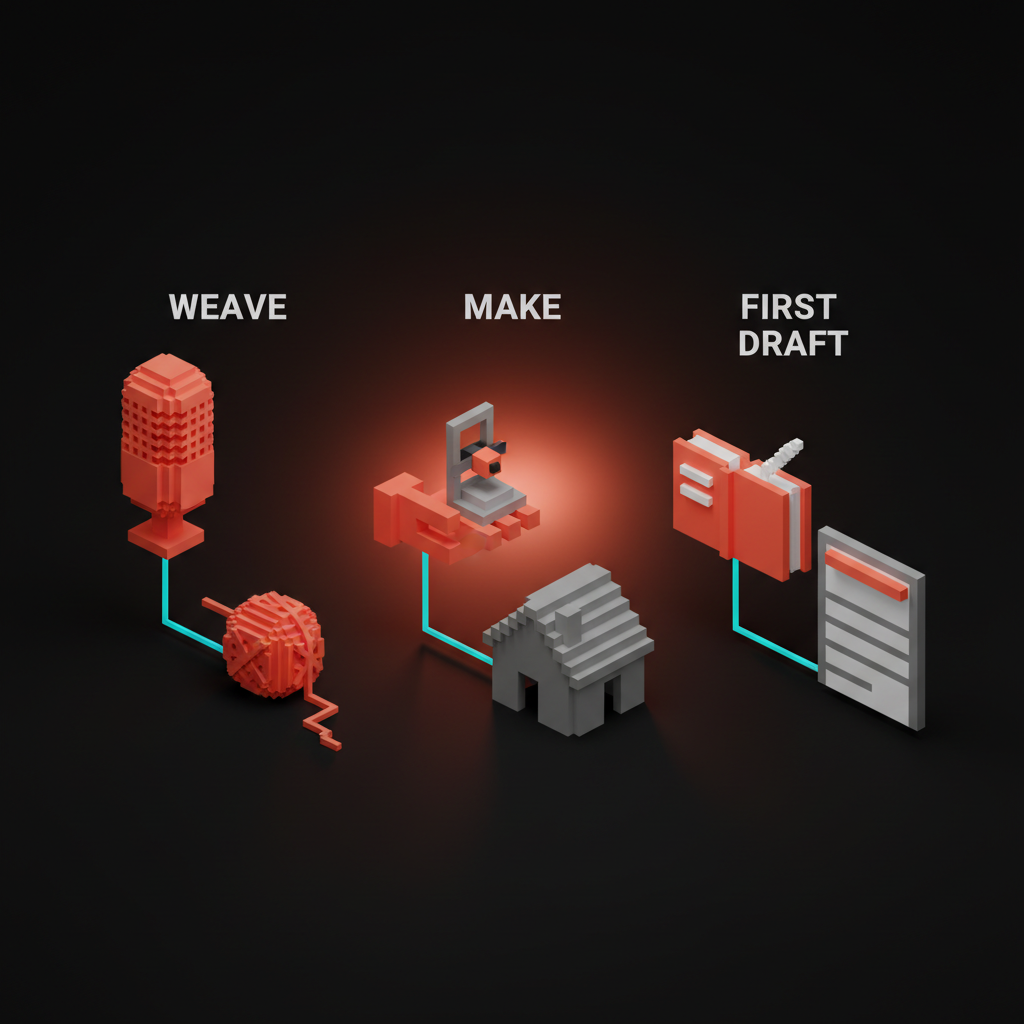
Weave vs Figma Make vs First Draft
Figma now ships three AI-assisted starting-point tools and they are easy to conflate.
Try the freeform canvas on tldraw.com
They solve different problems and belong in different moments of the design process.
| Tool | Entry Point | What It Produces | Best For |
|---|---|---|---|
| Weave | Plain-text prompt | Layout scaffold in a Figma frame | Exploring structure at the start of a project |
| Figma Make | Prompt + prototype intent | Interactive prototype with transitions | Validating flows and user journeys quickly |
| First Draft | Template selection | Pre-styled, component-populated screen | Filling out a known screen type fast |
The cleaner mental model: Weave answers "what should this page contain and how should it be arranged?" Make answers "how should this flow work?" First Draft answers "I know exactly what I am making, I just need it filled in."
Most designers reach for Weave on greenfield layout exploration and First Draft on known-pattern screens. Make lives closer to prototyping than to design generation.
Prompt Patterns That Produce Shippable Output
Generic prompts produce generic output.
See the full landing on modal.com
"Design a landing page" returns something that looks like every landing page ever built and is useful as a base for none of them. Prompts that produce shippable scaffolds follow a consistent structure: format, purpose, audience, constraints.
SaaS landing page "5-section SaaS landing for a B2B AI inbox tool. Sections: hero with email capture, social proof logos row, 3-column features grid, pricing table with 2 tiers, bottom CTA banner. Dense information hierarchy. No full-bleed hero image."
Analytics dashboard "Analytics dashboard for a logistics SaaS. Left nav with 6 items, top bar with search and avatar, main area: 2 KPI cards row, 1 large line chart, 1 recent-activity table. Compact, data-heavy layout."
Mobile onboarding step "Single onboarding step for a fintech app. Centered card layout."
"Progress indicator at top (step 3 of 5). Form: 2 text fields, 1 dropdown, 1 checkbox. Primary CTA bottom-right. No sidebar."
Mobile home tab "Mobile home screen for a fitness tracking app. Status bar, greeting header with user avatar, activity ring summary, today's workout card, recent logs list, bottom tab bar with 4 items."
The pattern is specificity about sections, count, content type, and layout behavior. Weave does not need flowery language. It needs structure cues.
Want a design system that survives the AI tooling churn? Brainy builds component libraries that work with Weave, Make, and whatever ships next. Hire Brainy.
What Weave Still Cannot Do
Weave has four concrete limitations that matter before your first generation run.
Browse components on ui.shadcn.com
- No component library access. Every output uses generic styled elements, not real instances from your library. You will always need a swap pass after generation.
- No design token access. Colors, type scales, and spacing systems in your variables panel are invisible to Weave. The scaffold arrives with hardcoded values you replace.
- No brand context. Like v0, Claude's Artifacts, and Lovable, Weave produces structurally valid output that is brand-neutral by default. Neutral works as scaffolding. It is not a finished screen.
- No reliable accessible output. Contrast ratios, heading hierarchy, and focus order need a human pass regardless of how strong the layout skeleton looks.

A Workflow for Moving Weave Output into a Real Design File
The mistake most designers make with Weave is treating the generated frame as a canvas to iterate on in place.
See Cursor in action on cursor.com
The better move is to treat it as a reference layer and build the real version alongside it.
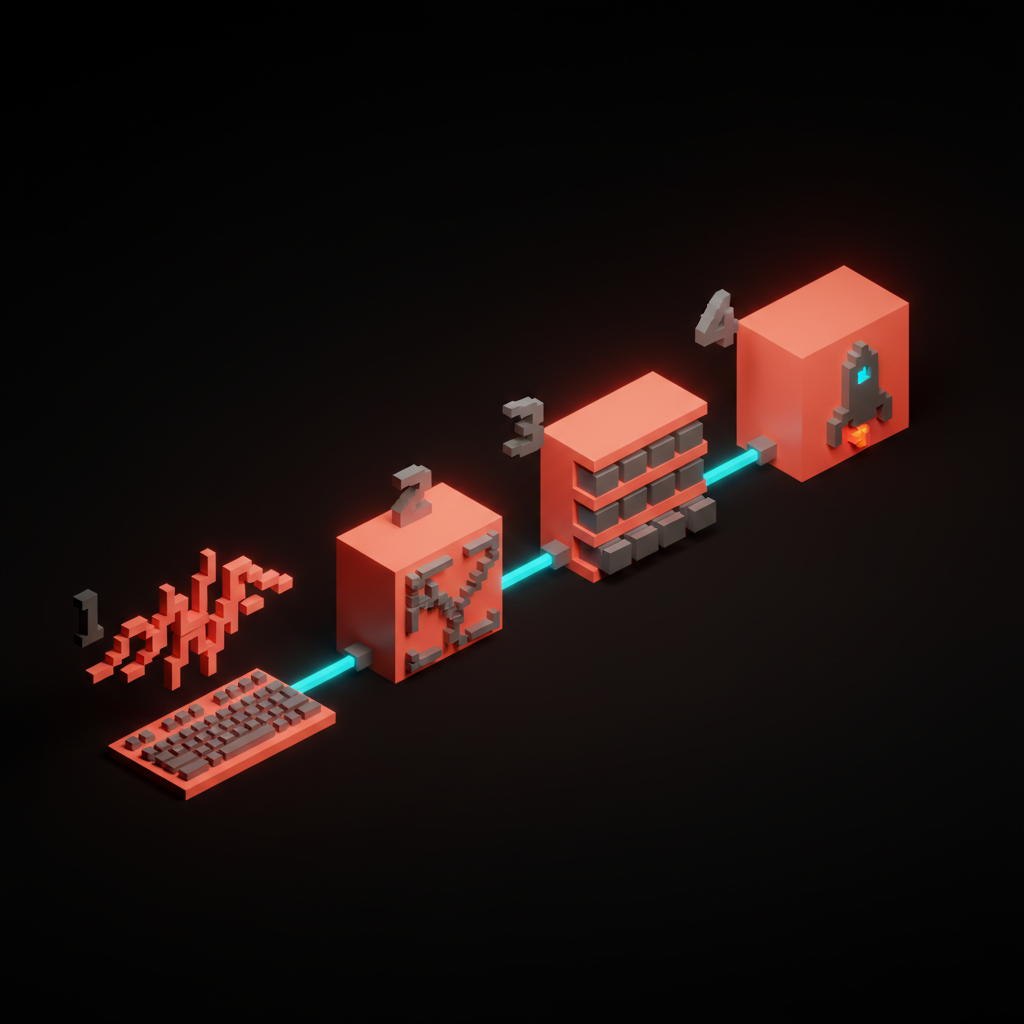
Step 1: Prompt Weave with a specific prompt using the patterns above. Generate two or three variants with slight wording differences.
Step 2: Extract the skeleton. Study the output for layout logic: section count, spacing rhythm, column structure, content hierarchy. Annotate what is worth keeping.
Step 3: Build with your library. Open your component library and build the actual screen using real component instances. Use the Weave frame as a spatial reference, not a base layer to edit.
Step 4: Ship. The final file contains only real components. The Weave frame is deleted or moved to a reference page.
This workflow is slower than editing Weave output directly but produces files that are actually maintainable. Editing generated layers produces a graveyard your engineers cannot hand off.
When to Reach for Weave (and When Not To)
AI accelerates the parts of the process where you have not yet made decisions.
Once decisions are made, it tends to slow you down. That pattern holds across all AI for designers tooling, and Weave is no exception.
| Situation | Reach for Weave? |
|---|---|
| Greenfield layout exploration | Yes |
| Communicating page structure to a client before component work | Yes |
| Validating how much content a layout can carry | Yes |
| Working in an established design system from the start | No |
| Handoff-ready, production-grade screens | No |
| Brand-specific visual language (Weave cannot infer it) | No |
| Accessibility-critical first drafts | No |
Weave earns its place in AI-native product design and greenfield explorations. It does not earn a place in mature system work.
FAQ
Is Figma Weave available to all Figma users?
Weave is available on Figma Professional plans and above. As of mid-2026 it is still rolling out progressively, so access depends on your plan tier and region. Check Figma's pricing page for current access terms before assuming you have it.
How is Figma Weave different from just using a Figma template?
Templates give you a finished design you customize. Weave gives you a generated layout based on what you described. Templates are static starting points; Weave responds to your specific prompt. The tradeoff: templates are polished but entirely generic, Weave output is responsive to intent but requires more cleanup to reach production quality.
Can Weave generate mobile screens?
Yes. Weave generates for whatever frame size you imply or specify. Stating "mobile" or describing mobile-specific patterns (bottom nav, swipe affordances) pushes the output that way.
Component inference still skews desktop-biased, so mobile layouts need more explicit constraint in the prompt.
Does Weave replace a design system?
No. Weave generates layout scaffolds using generic elements. A design system is a library of maintained components with real tokens.
Weave is the starting point. Your design system is the production layer.
How does Weave compare to v0 or Lovable?
v0 and Lovable generate code-backed UI. Weave generates Figma frames. If your workflow ends with a developer handoff from Figma, Weave keeps you inside the tool you already use.
If your workflow ends with deployed code you can see running, v0 or Lovable may fit better. They are adjacent tools targeting different output formats.
Will Weave work with my existing Figma variables?
Not automatically. Weave does not query variables or your library during generation.
You will always need a swap pass to apply tokens and replace generated elements with real components. This is a known gap, not a misconfiguration.
The Bigger Pattern: AI as Scaffolding, Not Output
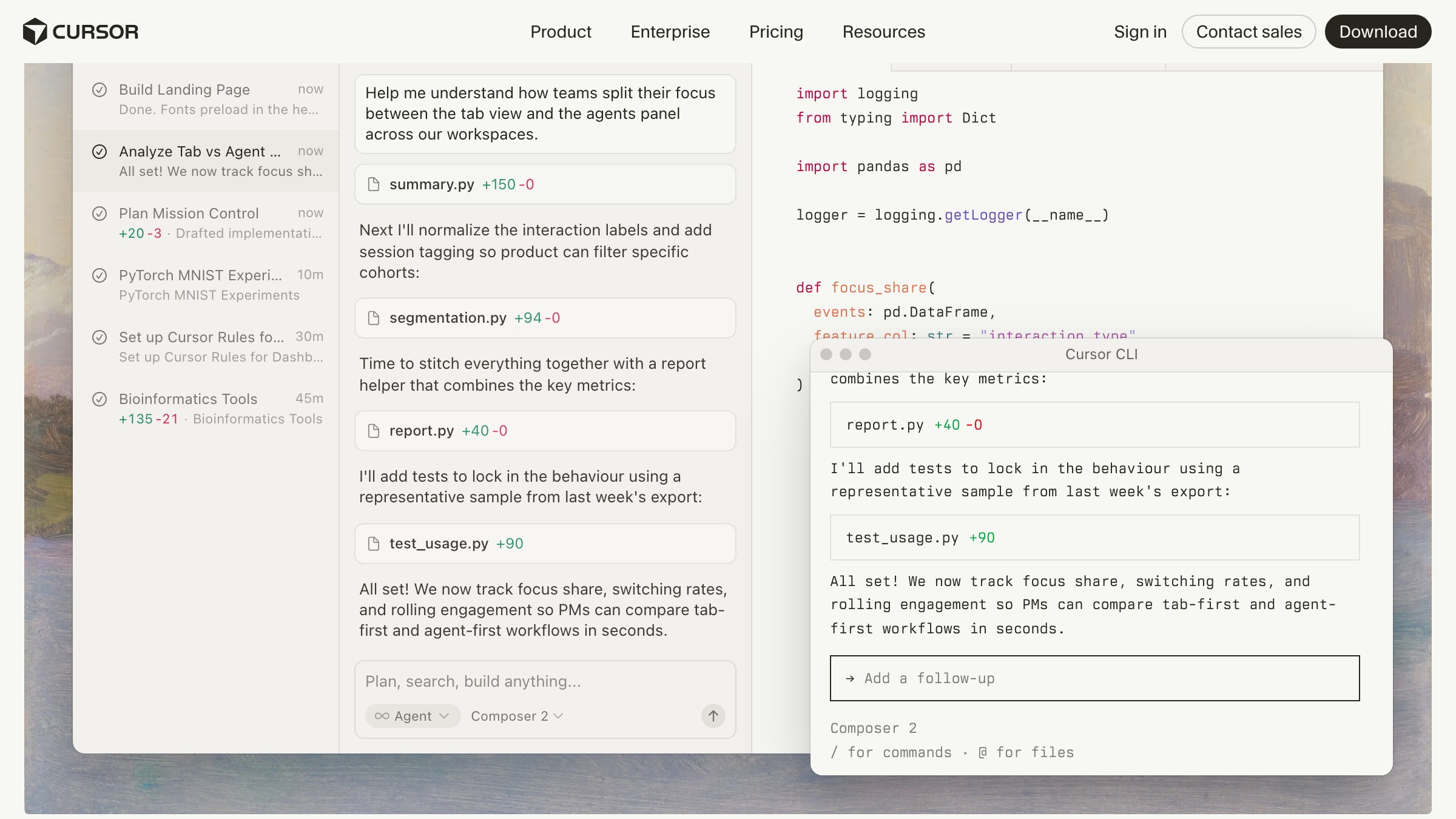
Every prompt-first tool in the design space, whether it is Weave, v0, Cursor for code, Lovable for apps, or Claude for copy, is operating on the same premise: the hard part of the blank canvas is getting structure on it fast enough that you can start making real decisions.
Weave solves that problem inside Figma.
What Weave is not is a decision-maker. It cannot tell you whether your information architecture is sound, whether your content hierarchy serves your users, or whether your layout will survive an edge-case content load.
Those calls belong to a designer who understands the problem. Weave gives you a surface to react to. You bring everything else.
The Figma bet is that the prompt layer belongs inside the production tool, not outside it. That is the right architecture.
Designers who keep Weave in their workflow do so because it shrinks the gap between "I have a brief" and "I have a frame worth reacting to."
That gap is where most early-stage energy gets wasted. Closing it is worth the learning curve.
Want a design system that survives the AI tooling churn? Brainy builds component libraries that work with Weave, Make, and whatever ships next.
Get StartedGet new papers by email
New Brainy papers in your inbox. Confirm once, unsubscribe anytime.