

Figma Plugins for Designers: The Short List That Actually Earns Its Keep in 2026
Most Figma plugin lists are noise. Here are the eleven plugins real designers use every week, what each one is for, and the ones to delete.

Open your Figma plugin menu right now. Count how many plugins you have installed. Now count how many you opened this week. The gap between those two numbers is the problem.
Almost every designer installs plugins like they install browser extensions. A tweet says a plugin is "a game changer," the install button is right there, click, done, never opened again. Six months later the search bar is full of tools with cute names that solved a problem you do not remember having.
This piece is the opposite of a roundup. It is a cut-down. Eleven plugins earn their slot on a working designer's machine in 2026. The rest are noise, duplicates of built-in Figma features, or dopamine hits from 2022 that Figma itself replaced two releases ago.
Before the list, the rule. Without the rule, you will just install eleven more things and keep the other forty.
Most plugins are abandoned dopamine
Figma's plugin directory has over ten thousand plugins. The long tail of that graph is brutal.
Thousands of those plugins have not been updated since 2023. Hundreds do something Figma now does natively. Maybe a dozen genuinely change the way you work.
The median designer has 30-60 plugins installed and actively uses four. The rest sit there slowing down the plugin menu and creating decision friction every time you open it.
The goal is not a maximal toolbox. The goal is a machine where the plugins you have are the plugins you use, and the ones you use are the ones that pay off every week.
The 90-day install rule
Run this audit once and you will never need to run it again. After today, everything new you install goes through the same filter.
Step one: open the plugin manager in Figma. Go through every installed plugin. For each one, ask three questions in order.
- Did I open this in the last 90 days
- Does it solve a problem I actually have more than once a month
- Does it do something Figma does not already do natively
If any answer is "no," delete it. Most plugins fail question three. Figma has spent three years absorbing the useful parts of its own plugin ecosystem.
Variables ate a dozen token plugins. Dev Mode ate a dozen handoff plugins. Auto-layout v4 ate most of the layout helpers. The plugin you installed in 2023 was probably fixing a Figma gap that Figma has since fixed.
The survivors, after the cut, are the plugins below.

The short list: tokens and accessibility
Sorted by workflow, not popularity. If a plugin is not on this list, it probably did not survive question three.
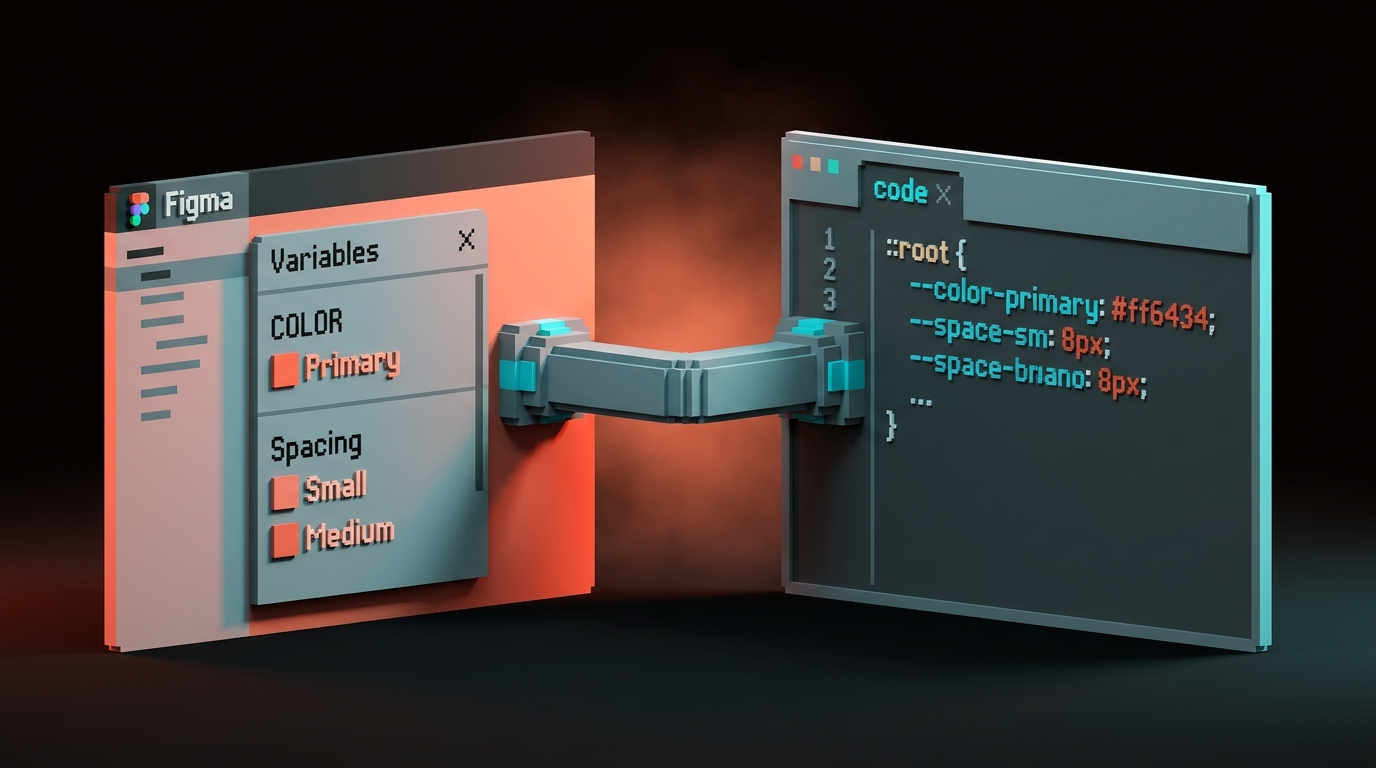
Tokens Studio for Figma. The one plugin that does something Figma's native Variables still cannot. It lets you version, export, and sync your design tokens with a code-side tokens file (JSON, Style Dictionary, Tailwind config, whatever your dev team uses). If you have a real design system, this is how it stays in sync with production.
Variables2CSS. A lightweight companion for teams without a full token pipeline. Exports Figma variables to CSS custom properties in one click. Delete if you are using Tokens Studio.
Stark. Still the best accessibility plugin in Figma. Runs WCAG contrast checks, simulates color blindness, flags text-size violations, and annotates the file with fixes.
If your team ships to consumers, this is not optional. For the underlying concepts, see accessible color contrast.
Able. Free alternative to Stark for solo designers who do not need the team features. Contrast checking only. Keep only if Stark is out of budget.
The short list: handoff, content, assets
Figma to Code (via Dev Mode). Figma's own Dev Mode replaced most third-party handoff plugins in 2024. The one plugin still worth adding is the official Code Connect plugin. It maps Figma components to your actual code components so devs do not rebuild the same button for the fifteenth time.
Keep if you have a code-side component library. Delete every other handoff plugin you have.
Content Reel. Generates real-looking names, avatars, phone numbers, and copy blocks in one click. Kills the "John Doe / Jane Smith / placeholder text" syndrome dead.
Google Sheets Sync. Pulls data from a Google Sheet into Figma text layers. Useful the moment you have a design that needs to reflect 50 variations of real product data.
Iconify. Over 200,000 open-source icons searchable from inside Figma. Beats opening Noun Project or scrounging GitHub.
Remove BG. Removes backgrounds from pasted images without leaving Figma. Niche but reliable.
Figmotion. Keyframe animation inside Figma. Smart Animate is better for UI transitions. Figmotion is better for marketing hero animations, microinteractions that need Bezier control, and exporting to Lottie.
Translator. Auto-translates text layers to 40+ languages for mockup purposes. Good for checking "does this layout break in German and Arabic." Not a substitute for a real localization workflow.
That is eleven. Everything else on your install list is up for deletion.
If you want more design tool breakdowns, browse the rest of Brainy Papers. If you would rather skip the audit and have someone do it for you, have Brainy audit and wire up your Figma stack.
The plugins that used to matter and do not anymore
Calling these out by category so nobody gets dragged personally. If you still have anything in these buckets, delete with confidence.
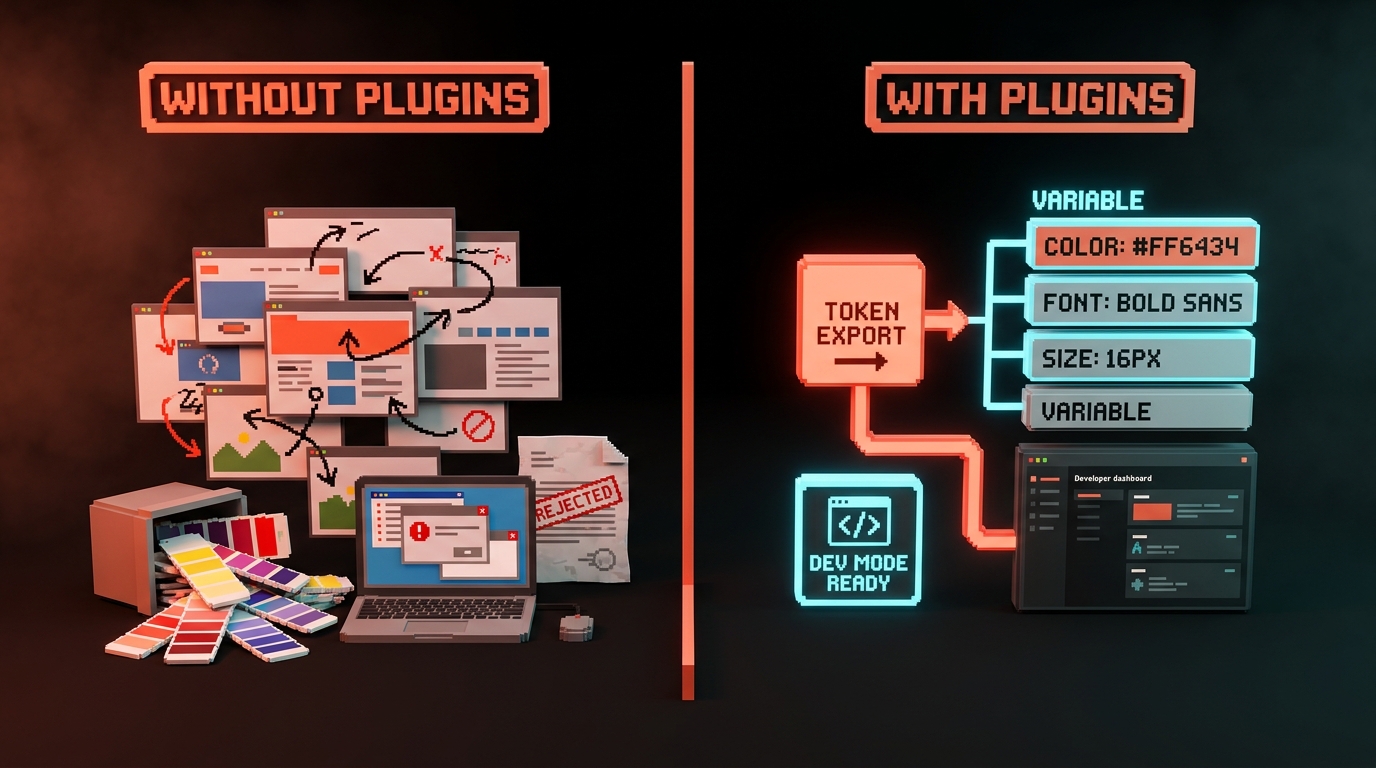
Color palette generators. Figma's Variables panel, combined with a plugin like Tokens Studio, makes standalone color plugins redundant. You do not need seven "coolors"-style generators. Build a real palette once, save it as variables, move on.
Auto-layout helpers. Auto-layout v4 closed most of the gaps. If you are still using a plugin to fix auto-layout, you are probably using auto-layout wrong.
Basic handoff inspectors. Dev Mode replaced them. Anything that shows CSS values or measurements was fighting a losing battle the day Dev Mode shipped.
"AI magic" plugins from 2023. The first wave of AI plugins in Figma was mostly "generate a component from a prompt." Most of them produce worse output than Figma's own AI features, and a dramatically worse output than using Figma MCP with a real coding agent. Delete.
Any plugin that has not been updated in 12 months. The plugin ecosystem has a high abandonment rate. An unmaintained plugin is a security risk, not a tool.
| Category | Why delete | What to use instead |
|---|---|---|
| Color palette generators | Redundant with Variables | Tokens Studio + Variables |
| Auto-layout helpers | Absorbed into Figma | Native auto-layout v4 |
| Basic handoff inspectors | Replaced by Dev Mode | Dev Mode |
| Pre-2024 "AI magic" | Outclassed by Figma AI and MCP | Figma AI, Figma MCP |
| Unmaintained 12mo+ | Security and stability risk | Delete, do not replace |
Plugins that are really AI plugins in disguise
Worth separating these out because the category got crowded fast and most of it is noise.
A small number of AI-in-Figma plugins are useful. They do narrow, specific jobs: generate placeholder imagery that matches a mood, write draft microcopy in-place, translate text while preserving variable references, suggest component names that match your naming convention. These are fine.
The ones to avoid are the "generate this whole screen from a prompt" plugins. The output is usually worse than anything you would ship, and more importantly, it trains you to accept mediocre generated work as a starting point. If you want AI-generated screens, you want a real coding agent with Figma MCP reading a real design system, not a Figma plugin dumping a guess into your file.
Rule of thumb: AI plugins are good at narrow assistive tasks and bad at end-to-end generation. Match the plugin to the task size, not the hype.
Building your own plugin (when to bother)
Most designers should never write a Figma plugin. That is not a skill issue. It is a time issue.
Figma plugins are JavaScript apps that run in a sandboxed iframe against the Figma API. Building one is real engineering. It takes a few days to ship a basic plugin, a week or more to ship one that is actually robust, and ongoing maintenance forever because Figma's API changes.
The only time it is worth building your own is when the plugin solves a problem unique to your team that no public plugin solves, and the problem is chronic enough that automating it saves a measurable number of hours per month. Examples where it pays off: a plugin that syncs a team-specific naming convention, a plugin that exports your proprietary spec format to an internal handoff tool, a plugin that enforces your design system rules on every file save.
If the problem is generic, somebody already built the plugin. If the problem is one-off, just do it by hand.
For teams that decide to build, the setup is straightforward: npm create figma-plugin@latest, a TypeScript template, and the Figma Plugin API docs. If your team is already using Claude Code, a basic plugin scaffold is a thirty-minute job with the right prompt engineering. The trap is not the first version. It is the maintenance.
Security: what plugins can see in your file
Worth reading before the next time you click "install" without thinking.
A Figma plugin, once granted access, can read the layer tree, text content, images, variables, components, and comments of the file it is opened in. Some plugins also request network access, which means they can send that data to an external server. Others request user-identifier access, which means they know who ran the plugin and on which team.
For internal work this is usually fine. For client NDAs and unreleased product designs, it is worth checking the plugin's permissions before install. Figma shows the requested scopes in the install dialog. Ignore that dialog once, and a month later you might learn your "quick icon generator" plugin was shipping every file it opened to somebody else's analytics server.
Hard rules:
- Enterprise teams: use the admin panel to allowlist approved plugins only.
- Solo designers on NDA work: read the permissions dialog, every time.
- Anyone: stick to plugins from publishers with a track record and a real company behind them, not "made by anonymous" weekend projects.
A plugin you do not trust is a plugin you do not install. A plugin you forgot you had is a plugin you are trusting by default. Audit them.
FAQ
How many Figma plugins is too many?
More than 15 actively used plugins is a sign something is wrong. Either you are working across too many disconnected workflows, or you have duplicates. The designers shipping the most work usually have 5-10 plugins in active rotation.
Do Figma plugins work on the web and desktop?
Yes. Most plugins run identically in Figma desktop and the web app. A small number of plugins require local file system access (like export tools) and only work on desktop. The plugin's description page will flag this.
Are paid Figma plugins worth it?
For individual designers, usually no. The free tier of Tokens Studio, Stark, and Content Reel covers most serious work. Paid tiers become worthwhile at team scale, where the time saved across ten people makes the cost trivial. Evaluate on team ROI, not individual cost.
Delete, install, go back to work
The only thing sitting between you and a faster Figma is the thirty minutes it takes to audit your plugin list tonight.
Open the plugin manager. Walk down the list. Three questions each: used in 90 days, solves a monthly problem, does something Figma does not already do.
If any answer is no, delete. Install the short list above. Write the rule down somewhere you will see it the next time a tweet tells you a plugin is a "must have."
A plugin stack is a tool, not a collection. The designers you think are fast are not fast because they have more plugins than you. They are fast because they have fewer plugins than you, and every plugin they kept is doing real work every week.
Delete the dead plugins. The ones that are left will feel twice as useful by Friday.
Want your Figma stack audited, cleaned up, and wired into a real token pipeline? Brainy ships the setup and keeps it maintained.
Get StartedGet new papers by email
New Brainy papers in your inbox. Confirm once, unsubscribe anytime.