
Figma MCP: Connecting Figma to Claude Code and AI Coding Agents
What Figma MCP actually does, how to install it in ten minutes, the five workflows it unlocks, and where it still breaks.
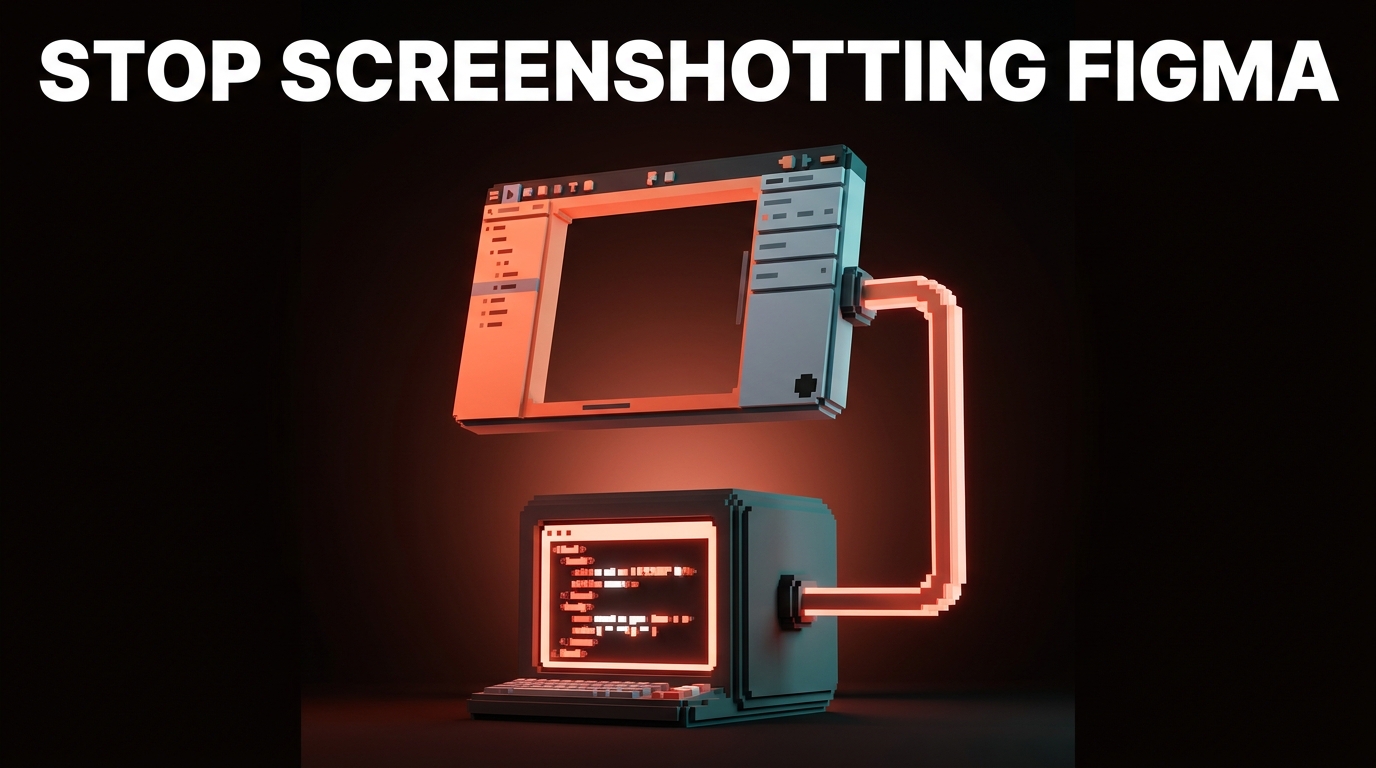
Screenshotting a Figma frame and pasting it into Claude Code is how you get vibes. Wiring up Figma MCP is how you get components that match your design system down to the token.
The gap between those two workflows is about five minutes of setup. Most designers have not done it because every tutorial makes it sound technical. It is not. It is a single command plus enabling one toggle inside Figma. That is the whole thing.
Once it is connected, the AI agent stops guessing what "20px gap" means and starts reading the actual spacing token you assigned. It stops inventing colors and starts pulling from your real palette. It stops approximating your Button and starts calling the one you already built. This only works if the design system on the other end is real.
MCP is a translator, not a magic wand
MCP stands for Model Context Protocol. Anthropic shipped it in late 2024. Figma released an official server for it in 2025. Every AI tool worth using in 2026 supports it.
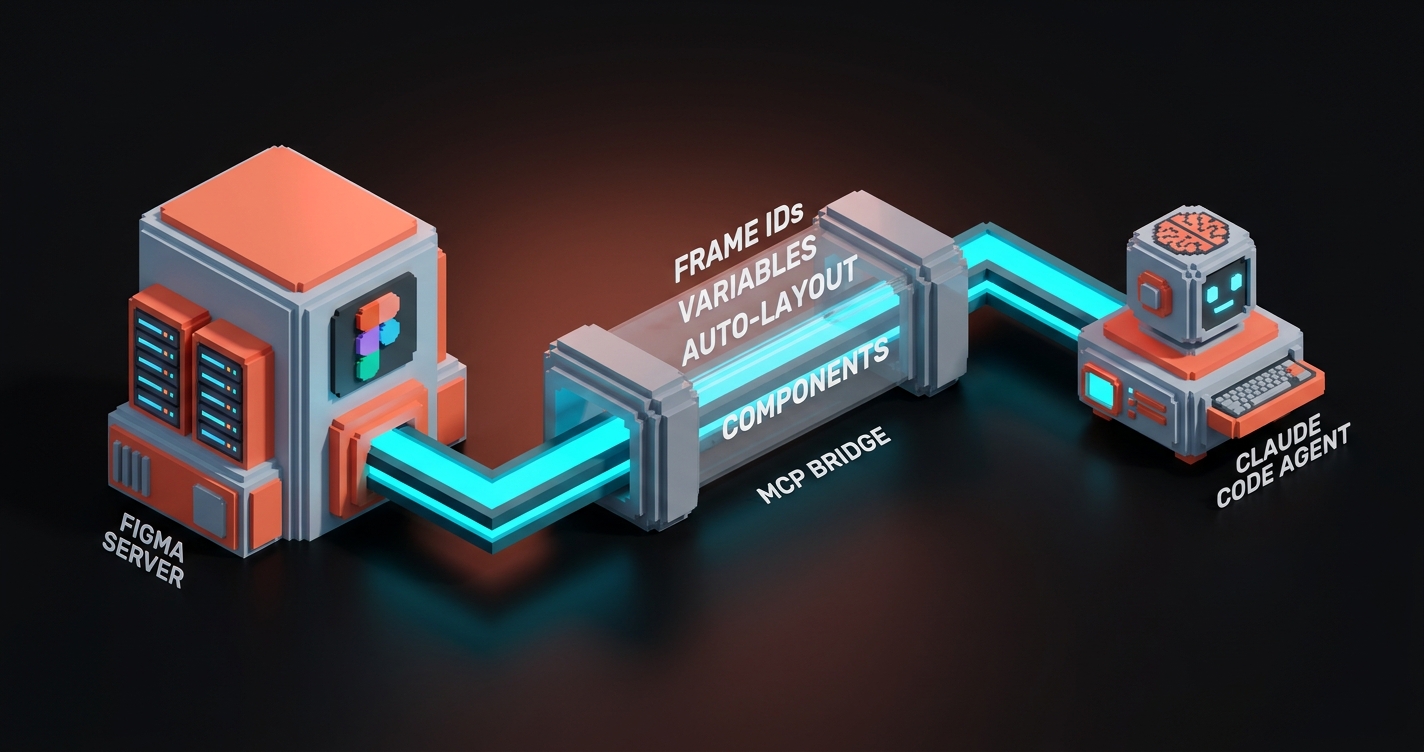
Think of MCP like a USB port for AI agents. Before MCP, every tool that wanted to talk to an AI model had to build a custom integration. After MCP, tools just speak the protocol and any MCP-aware agent can read them. Figma, GitHub, Slack, Linear, your filesystem, databases, whatever. One protocol, standardized, reusable.
What Figma's MCP server does specifically: it exposes the structural data inside your Figma files to any AI agent you connect. Frame IDs, layer names, nested components, spacing values, color variables, typography styles, auto-layout settings, all of it. The AI reads what your file actually contains, not what a JPEG of your file looks like.
MCP is not magic. It is a cable. The work still has to be good on both ends.
What Figma's MCP server actually exposes
The server gives AI agents read access to a specific set of your Figma data. Knowing exactly what it can and cannot see matters for both results and security.
| What AI can read | Why it matters |
|---|---|
| Frame structure (IDs, names, hierarchy) | Agent knows what to target |
| Auto-layout settings (direction, gap, padding) | Spacing translates exactly |
| Variable references (color tokens, spacing tokens, typography) | Output matches your system |
| Component instances and overrides | Agent calls existing components |
| Text styles and content | Copy lands in the right place |
| Image fills (URLs only, not pixel data by default) | Images referenced cleanly |
What it cannot read: private files you have not authorized, other team libraries not connected to this file, comments, version history, or anything outside the specific file you point it at.
That scope matters because it means one badly trained AI cannot wander around your Figma workspace. It reads what you hand it, nothing more.
Install it in Claude Code (five minutes)
If you already have Claude Code running (if not, see Claude Code for Designers), MCP is one configuration edit away.
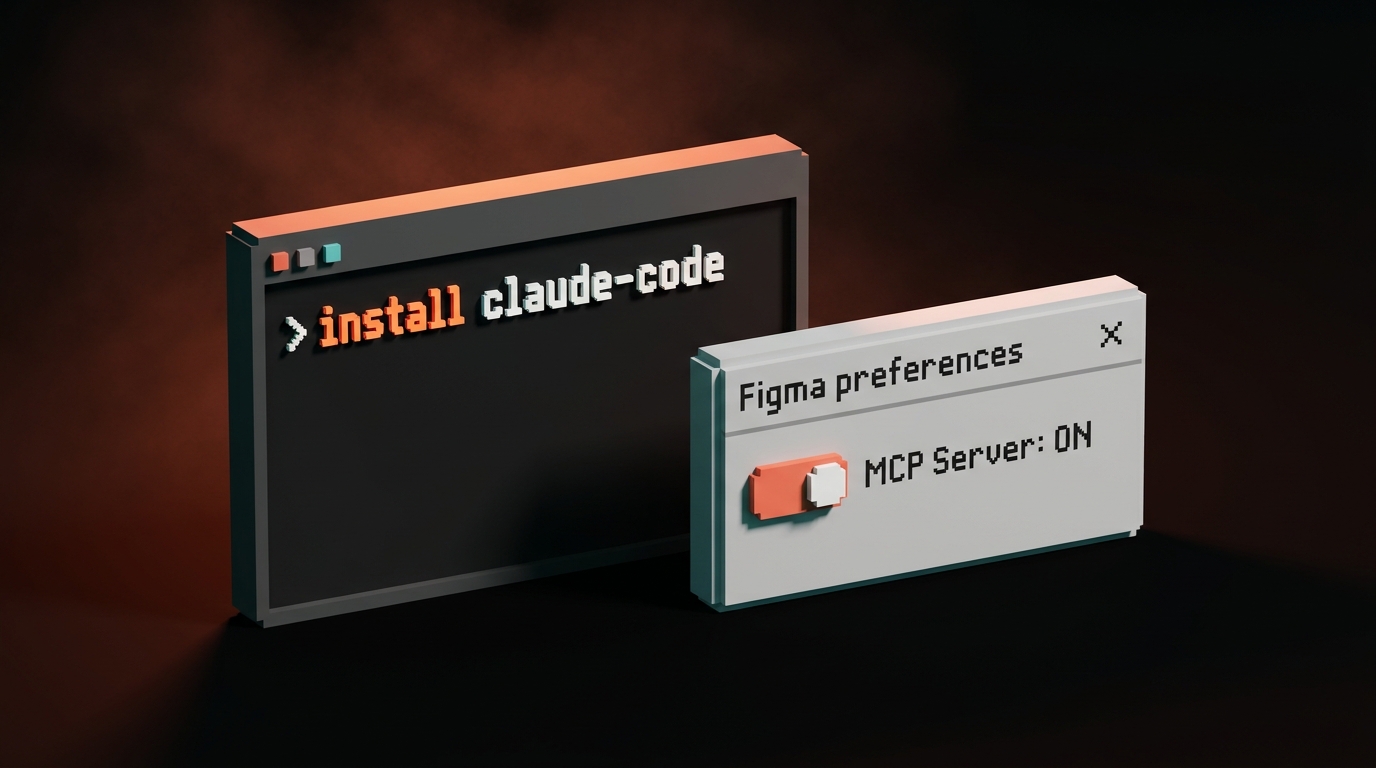
Step 1: In Figma desktop, go to Preferences, and enable "Enable local MCP server" under the Dev Mode settings. Figma will start a server on your machine at the default port.
Step 2: In your terminal, open the Claude Code settings file:
claude mcp add figma http://127.0.0.1:3845/mcp --transport http
That single command registers Figma's local MCP server with Claude Code. No JSON editing, no config file hunting.
Step 3: Restart Claude Code. In your next session, Claude Code will automatically see Figma available.
Verify with: /mcp inside a Claude Code session. You should see Figma listed.
To use it, paste a Figma URL into your prompt. Claude Code resolves the frame through MCP, not a screenshot, and works with the real structure.
Install it in Cursor (also five minutes)
For Cursor users, the flow is slightly different but the same idea.
Step 1: Same as above. Enable Figma's local MCP server in Figma desktop.
Step 2: In Cursor, open Settings, go to the MCP section, click "Add MCP Server." Paste:
Name: figma
URL: http://127.0.0.1:3845/mcp
Transport: HTTP
Step 3: Save and restart Cursor. Figma will appear as an available data source in the agent panel.
Cursor handles MCP slightly more visually than Claude Code, with a UI-based toggle per server. Functionally, the two experiences are identical: you paste a Figma URL, the agent reads the real frame, the output matches your system.
The five workflows it unlocks
Design-to-code at fidelity. You paste a Figma frame URL. Claude Code pulls the layer structure, the auto-layout values, the variable bindings, the component instances. The generated React component uses your actual Button, your actual Card, your actual spacing tokens. No approximations, no made-up classes. This is the flagship workflow and it is worth the five-minute install by itself.
Code Connect verification. If you already use Figma's Code Connect feature (which maps Figma components to your code components), MCP lets the agent verify the mapping when it generates code. It will not build a new component that duplicates one Code Connect has already registered. Fewer accidental reinventions.
Variable sync checks. Say you renamed a color token last week. Ask Claude Code: "Read the frame at this Figma URL and list any variable references that do not match our current tokens file." It will flag drift in one pass. That used to be a 45-minute Loom session with a dev.
Screenshot-to-component fallback. If MCP cannot read the file (client-owned, not shared, or not an auto-layout frame), the agent falls back to image analysis. You can mix: MCP for your own work, screenshots for one-off client references. Same prompt, both work.
Design QA. Reverse direction. Ask Claude Code to compare a deployed page screenshot to a Figma frame: "Here is the URL of the production page. Here is the Figma URL it should match. List the visual differences." This catches the "designer signed off but dev shipped wrong padding" problem before it reaches production.
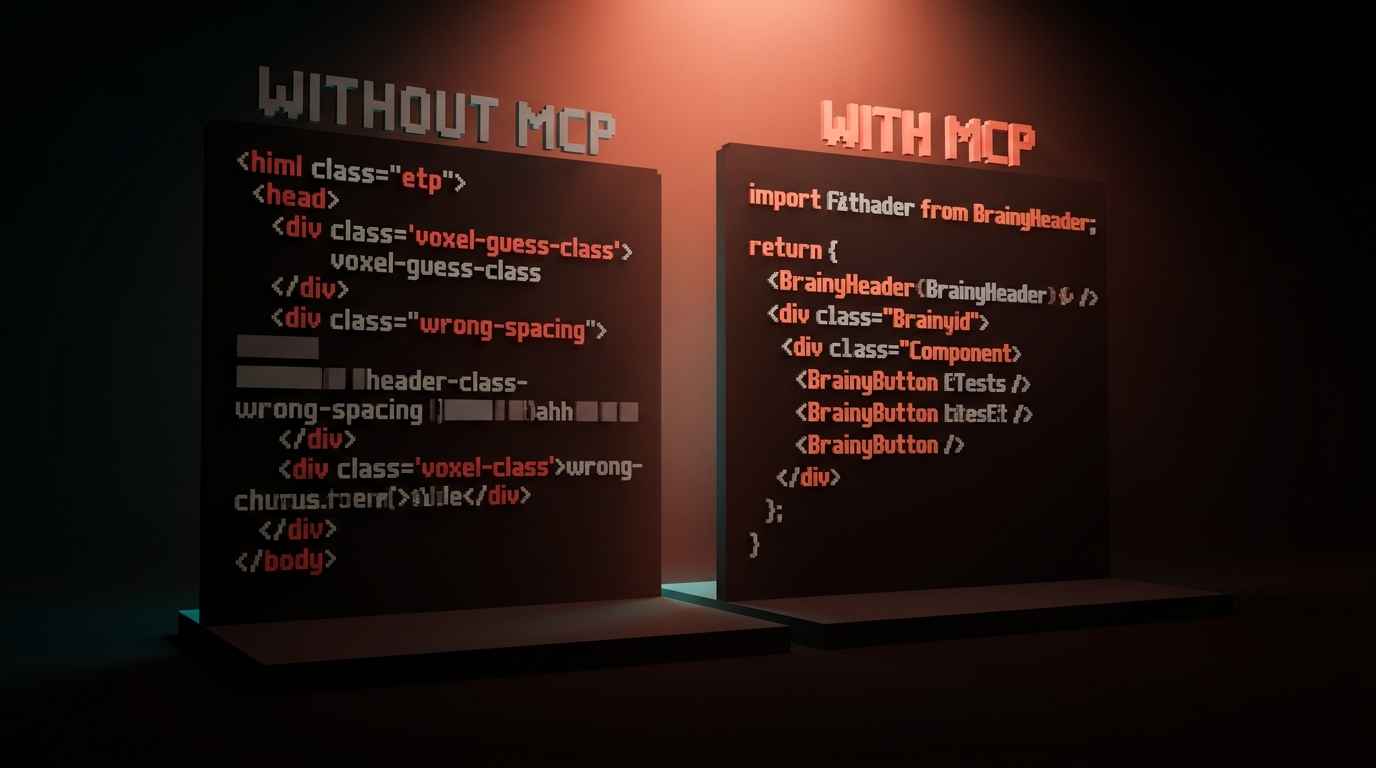
| Workflow | Without MCP | With MCP |
|---|---|---|
| Design-to-code | Vibes-based, requires manual correction | Token-accurate, first-pass usable |
| Code Connect | Separate manual step | Automatic verification |
| Variable drift | Manual audit, hours | One-liner, minutes |
| Screenshot fallback | Only option you had | Fallback when MCP unavailable |
| Design QA | Manual comparison | Diff report in seconds |
If you want more AI workflow breakdowns, browse the rest of Brainy Papers. If you want MCP wired into your team's full design-to-code pipeline, hire Brainy.
Security: what Figma sees and what your AI sees
Two separate questions, both worth understanding.
What Figma sees. The MCP server runs locally on your machine, not on Figma's servers. Figma does see that you have enabled MCP and which files are being accessed, because the authentication flows through your Figma session. For enterprise accounts, admins can disable local MCP at the org level.
What the AI agent sees. Whatever Figma file URL you paste. The agent does not get browse access to your entire Figma workspace. It does not see other team libraries unless you specifically reference them. It does not see comments, version history, or unrelated files. Each prompt is scoped to what you hand it.
What leaves your machine. If you are using Claude Code with Anthropic's API, the frame data you request gets sent to Anthropic as part of the prompt context. That matters if your Figma file contains confidential client work or unreleased product designs. Read your team's AI policy before wiring up MCP on sensitive files.
For most design work, this is fine. For regulated industries or NDAs with strict data clauses, check first.
Where Figma MCP still falls short
Be honest. This is Figma MCP in April 2026, not some polished future version.
Image asset handling is limited. MCP gives the agent image fill URLs, not the actual pixel data. For layouts where the image is doing heavy compositional work, the agent still has to guess.
Prototypes and interactions do not translate. MCP exposes the static structure. If your Figma file has prototype connections, hover states, smart animate, or variant switching, the agent sees none of that. You still write animation logic by hand.
Plugins are not readable. If a Figma plugin generated content in your file (charts, icons, data visualizations), the agent sees the output as a static layer. It cannot regenerate the plugin's logic.
Performance degrades on massive files. A file with 500+ frames takes longer to resolve than a file with 20 frames. Work in scoped pages, not one monster file, for best results.
Auto-layout assumptions matter. The agent produces its cleanest output when your Figma frames use auto-layout properly. Absolutely-positioned free-form layouts translate badly. This is a Figma discipline problem, not an MCP problem, but it shows up most visibly here.
None of these are dealbreakers. All of them are reasons to pair MCP with good prompt engineering, not blind trust.
FAQ
Is Figma MCP free to use?
Yes. The MCP server is built into Figma desktop at no additional cost. You pay for Figma and you pay for your AI tool (Claude, Cursor, etc). The connection itself is free.
Does Figma MCP work on the web version?
The local MCP server is a Figma desktop feature. Web-only users do not have access to it yet. For serious design-to-code work, desktop is the better setup anyway.
Can I use MCP with multiple AI tools at once?
Yes. Multiple agents can read the same local MCP server. Claude Code, Cursor, Claude Desktop, and any other MCP-aware client can all connect simultaneously.
What happens if I switch Figma files during a session?
The agent resolves the frame at the URL you give it. Switching URLs switches contexts. You can reference multiple files in one conversation without restarting anything.
Does MCP replace Figma Dev Mode?
No. Dev Mode is the human-facing inspection tool. MCP is the agent-facing data layer. They are complementary. In fact, the same data Dev Mode shows is what MCP exposes to the agent.
Stop screenshotting Figma
Every design team has a shared bad habit: taking a screenshot of a Figma frame, pasting it into ChatGPT or Claude, and asking for code. The output is always vibes, never tokens. Then you spend an hour fixing the vibes by hand.
Five minutes of install and that workflow is dead. The agent reads the actual frame. The spacing is real. The components are the real components. The tokens are the real tokens. The code comes out the first time closer to shippable.
Enable MCP in Figma. Install the connector in your AI tool. Paste URLs, not screenshots.
The difference in output quality between "before MCP" and "after MCP" is not subtle. It is the single biggest per-minute ROI install in the modern designer's toolkit.
Stop screenshotting Figma.
Want Figma MCP wired into your team's workflow without the setup headaches? Brainy installs it end-to-end.
Get StartedGet new papers by email
New Brainy papers in your inbox. Confirm once, unsubscribe anytime.