
डिज़ाइनर्स के लिए Figma Plugins: वो छोटी लिस्ट जो 2026 में सच में काम आती है
ज़्यादातर Figma plugin लिस्ट बकवास होती हैं। यहाँ हैं वो ग्यारह plugins जो असली डिज़ाइनर हर हफ़्ते इस्तेमाल करते हैं, हर एक किस काम का है, और कौन से delete करने हैं।
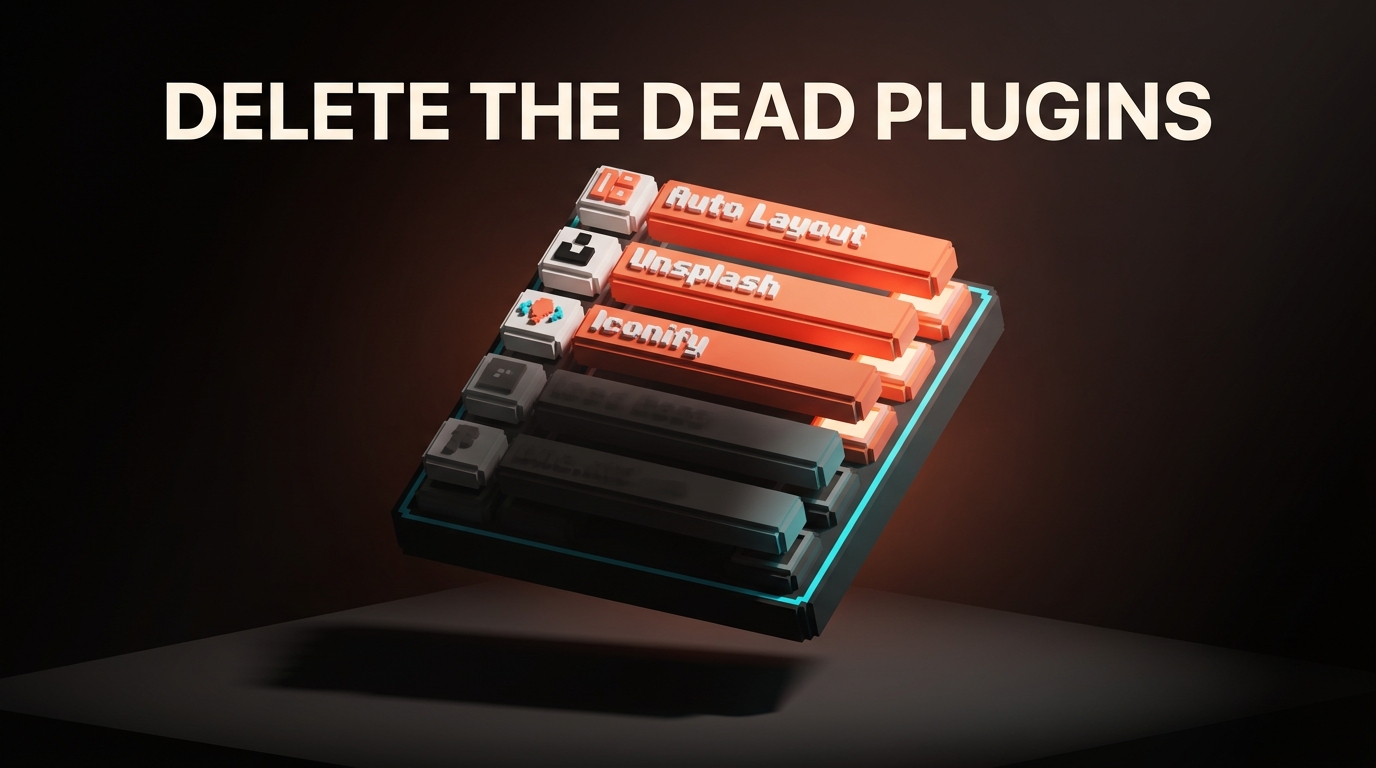
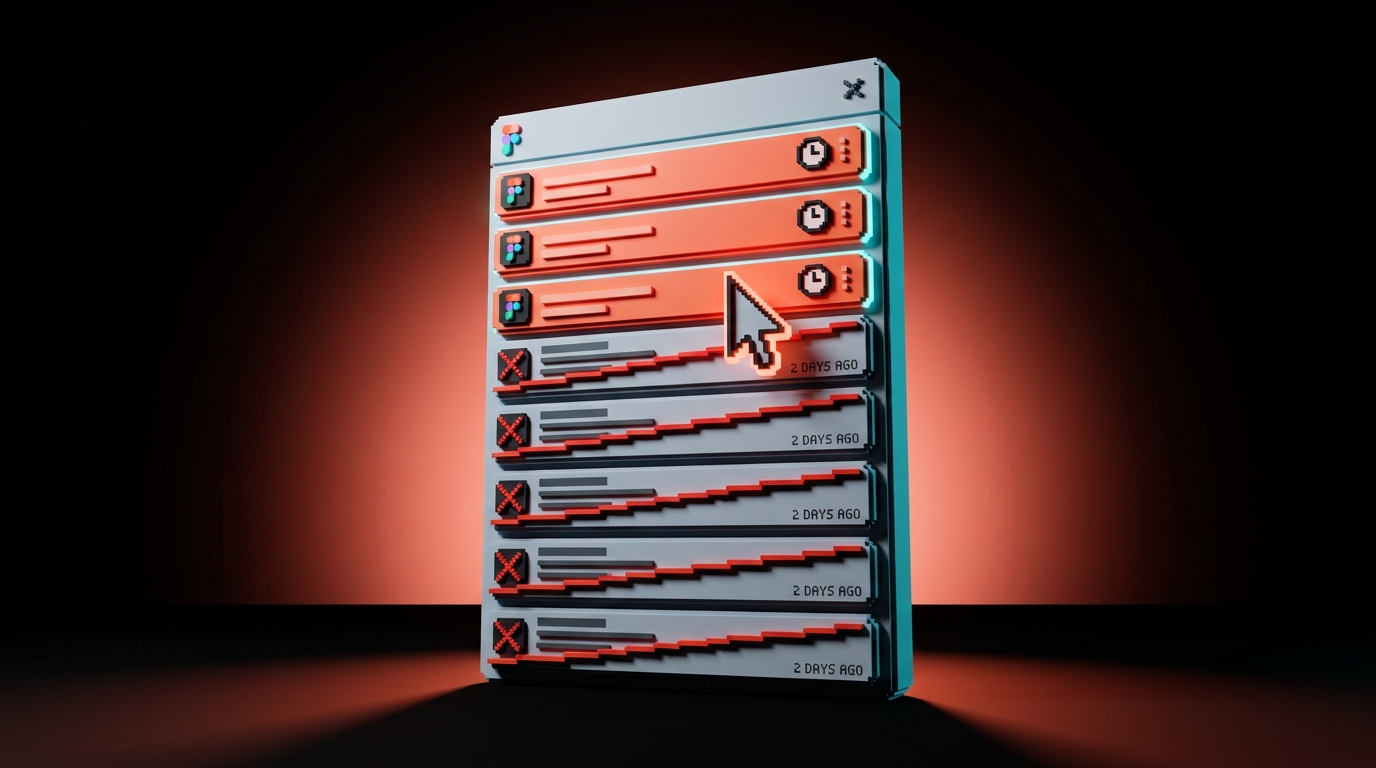
अभी अपना Figma plugin menu खोलें। गिनें कितने plugins इंस्टॉल हैं। अब गिनें इस हफ़्ते कितने खोले। इन दोनों नंबरों के बीच का फ़र्क़ ही असली समस्या है।
लगभग हर डिज़ाइनर plugins इंस्टॉल करता है जैसे browser extensions इंस्टॉल करता है। कोई tweet कहता है plugin "game changer" है, install button सामने है, click किया, हो गया, फिर कभी नहीं खोला। छह महीने बाद search bar उन tools से भरी है जिनके प्यारे नाम हैं और जो किसी ऐसी समस्या का हल थे जो अब याद भी नहीं।
यह लेख किसी roundup का उल्टा है। यह एक कटौती है। 2026 में किसी काम करने वाले डिज़ाइनर की machine पर ग्यारह plugins ही टिकने लायक हैं। बाकी सब शोर हैं, built-in Figma features के duplicates हैं, या 2022 के dopamine hits हैं जिन्हें Figma ने खुद दो releases पहले replace कर दिया।
List से पहले, rule। Rule के बिना आप बस ग्यारह चीज़ें और इंस्टॉल करेंगे और बाकी चालीस रखेंगे।
ज़्यादातर plugins abandoned dopamine हैं
Figma की plugin directory में दस हज़ार से ज़्यादा plugins हैं। उस graph की long tail बेरहम है।
उन हज़ारों plugins को 2023 से update नहीं किया गया। सैकड़ों वो काम करते हैं जो Figma अब natively करता है। शायद एक दर्जन सच में आपके काम करने का तरीका बदलते हैं।
औसत डिज़ाइनर के 30-60 plugins इंस्टॉल हैं और actively चार इस्तेमाल करता है। बाकी बैठे हैं, plugin menu को slow करते हैं और हर बार खोलने पर decision friction पैदा करते हैं।
लक्ष्य एक बड़ा toolbox नहीं है। लक्ष्य एक ऐसी machine है जहाँ जो plugins हैं वो इस्तेमाल होते हैं, और जो इस्तेमाल होते हैं वो हर हफ़्ते result देते हैं।
90-दिन का install rule
यह audit एक बार करें और फिर कभी करने की ज़रूरत नहीं। आज के बाद, जो कुछ भी install करें वो इसी filter से गुज़रे।
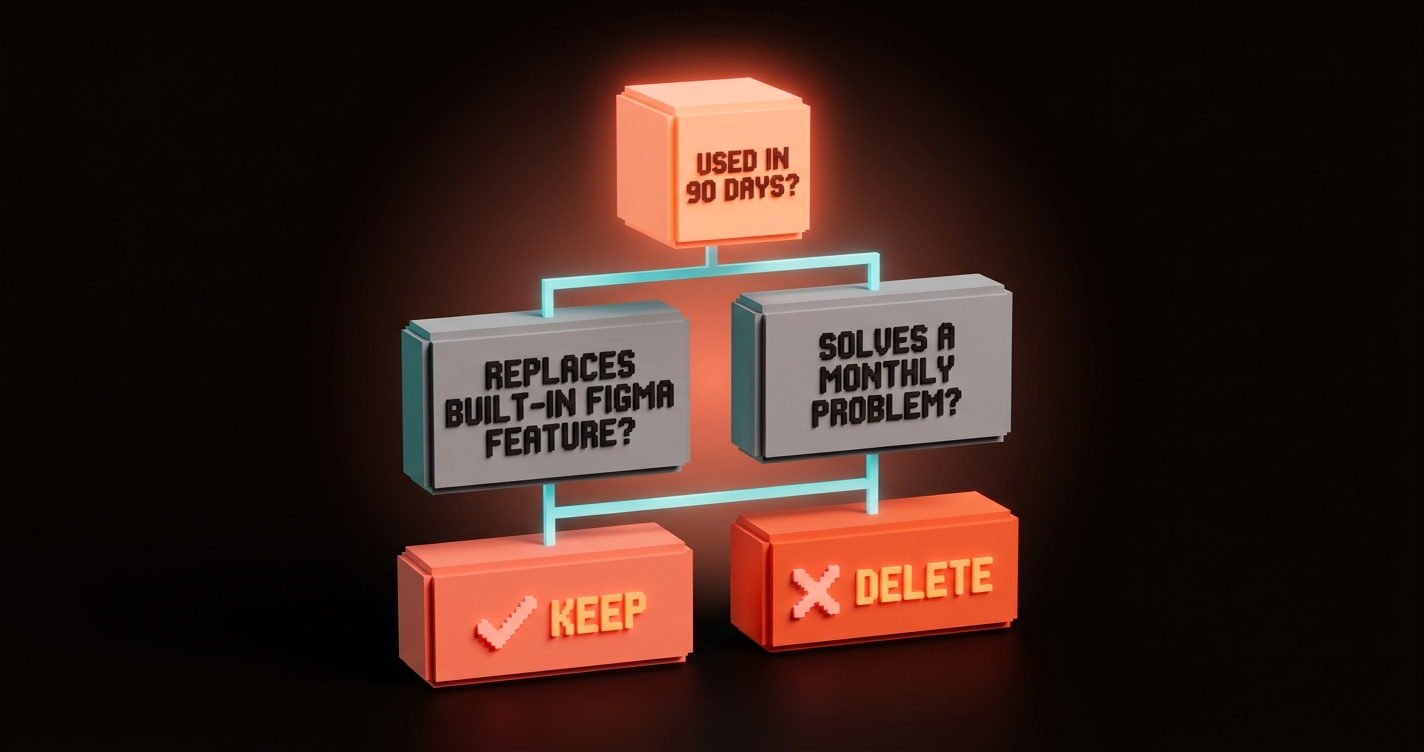
पहला कदम: Figma में plugin manager खोलें। हर installed plugin पर जाएँ। हर एक के लिए क्रम से तीन सवाल पूछें।
- क्या मैंने इसे पिछले 90 दिनों में खोला था
- क्या यह किसी ऐसी समस्या को solve करता है जो मुझे महीने में एक से ज़्यादा बार होती है
- क्या यह कुछ ऐसा करता है जो Figma पहले से natively नहीं करता
अगर कोई भी जवाब "नहीं" है, delete करें। ज़्यादातर plugins तीसरे सवाल पर fail होते हैं। Figma ने तीन साल बिताए अपने plugin ecosystem के useful हिस्सों को absorb करने में।
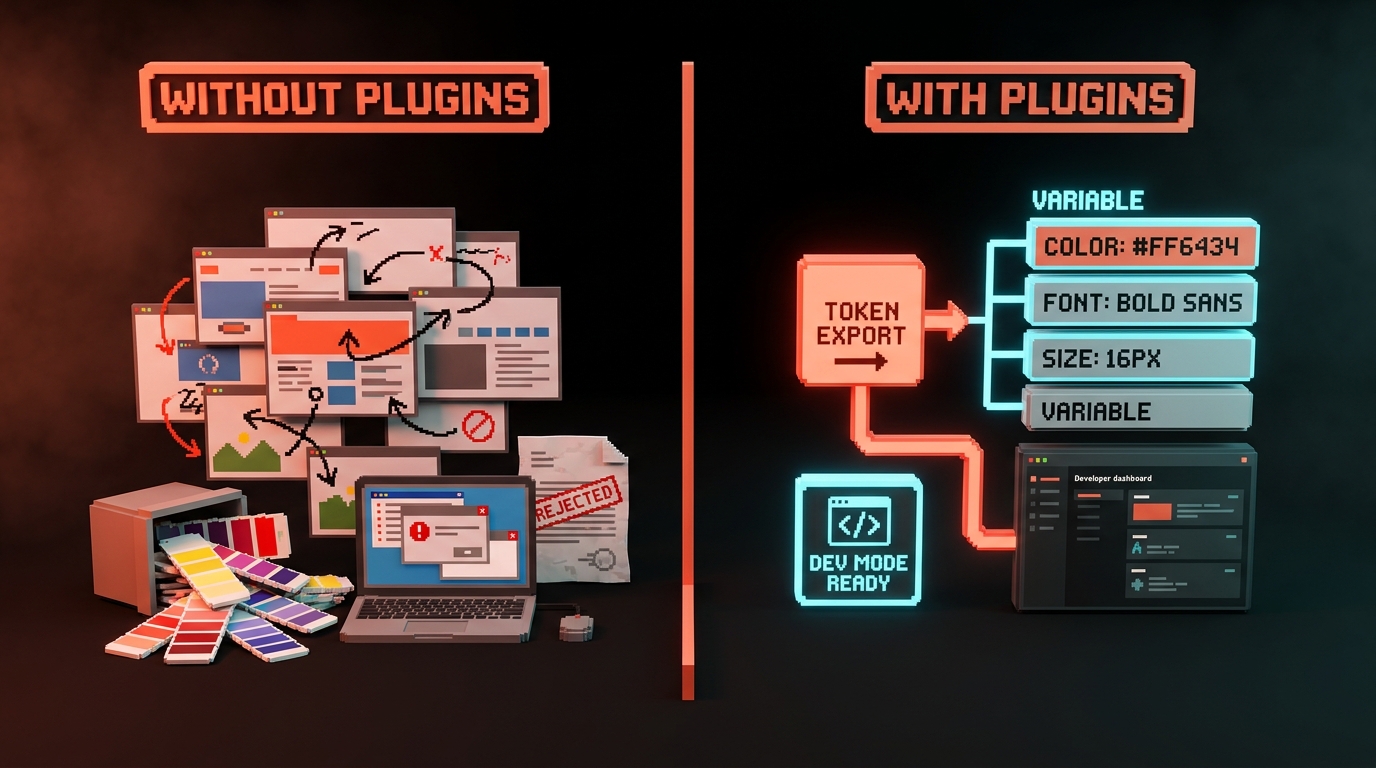
Variables ने एक दर्जन token plugins खा लिए। Dev Mode ने एक दर्जन handoff plugins खा लिए। Auto-layout v4 ने ज़्यादातर layout helpers खा लिए। जो plugin आपने 2023 में इंस्टॉल किया था वो शायद Figma के किसी gap को fix कर रहा था जिसे Figma ने तब से fix कर लिया है।
जो बचते हैं, कटौती के बाद, वो नीचे दिए plugins हैं।
छोटी लिस्ट: tokens और accessibility
Workflow के हिसाब से sorted, popularity के हिसाब से नहीं। अगर कोई plugin इस लिस्ट में नहीं है, तो शायद तीसरे सवाल पर survive नहीं किया।
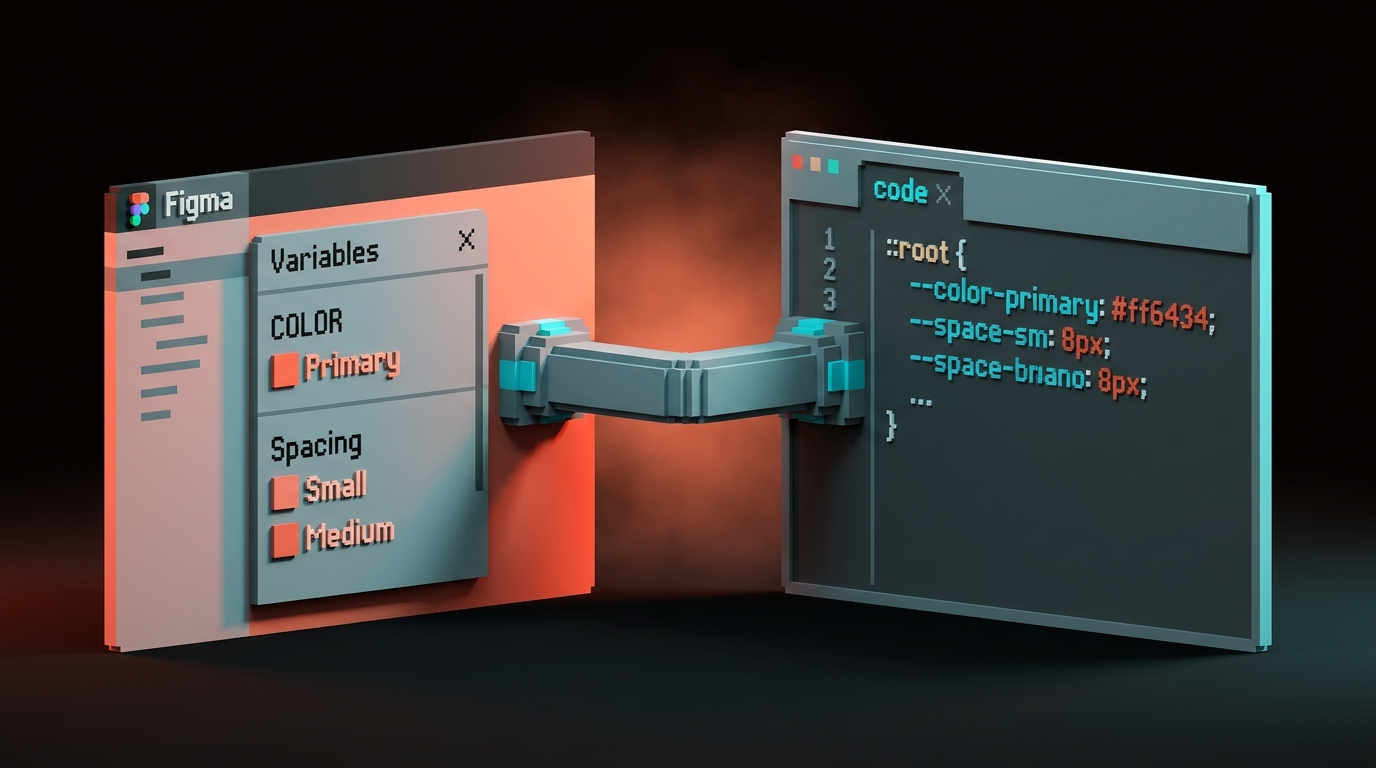
Tokens Studio for Figma. वो एक plugin जो Figma के native Variables अभी भी नहीं कर सकते। यह आपको design tokens को code-side tokens file (JSON, Style Dictionary, Tailwind config, जो भी dev team इस्तेमाल करे) के साथ version, export, और sync करने देता है। अगर आपका एक असली design system है, तो यही तरीका है जिससे वो production के साथ sync रहता है।
Variables2CSS. उन teams के लिए एक lightweight companion जिनके पास full token pipeline नहीं है। Figma variables को एक click में CSS custom properties में export करता है। Delete करें अगर Tokens Studio इस्तेमाल कर रहे हैं।
Stark. Figma में अभी भी सबसे अच्छा accessibility plugin है। WCAG contrast checks चलाता है, color blindness simulate करता है, text-size violations flag करता है, और fixes के साथ file annotate करता है।
अगर आपकी team consumers के लिए ship करती है, तो यह optional नहीं है। Underlying concepts के लिए देखें accessible color contrast।
Able. Solo designers के लिए Stark का free alternative जिन्हें team features की ज़रूरत नहीं। केवल contrast checking। रखें सिर्फ तब जब Stark budget से बाहर हो।
छोटी लिस्ट: handoff, content, assets
Figma to Code (Dev Mode के ज़रिए). Figma का अपना Dev Mode 2024 में ज़्यादातर third-party handoff plugins को replace कर चुका है। एक plugin जो अभी भी add करने लायक है वो है official Code Connect plugin। यह Figma components को आपके actual code components से map करता है ताकि devs पंद्रहवीं बार वही button rebuild न करें।
रखें अगर आपके पास code-side component library है। बाकी सभी handoff plugins delete करें।
Content Reel. एक click में असली दिखने वाले नाम, avatars, phone numbers, और copy blocks generate करता है। "John Doe / Jane Smith / placeholder text" syndrome को जड़ से खत्म करता है।
Google Sheets Sync. Google Sheet से data को Figma text layers में खींचता है। उस पल उपयोगी जब आपके पास ऐसा design हो जिसे 50 variations के real product data reflect करने हों।
Iconify. Figma के अंदर से searchable 200,000 से ज़्यादा open-source icons। Noun Project खोलने या GitHub पर ढूंढने से बेहतर।
Remove BG. Figma छोड़े बिना pasted images से backgrounds हटाता है। Niche लेकिन reliable।
Figmotion. Figma के अंदर keyframe animation। Smart Animate UI transitions के लिए बेहतर है। Figmotion marketing hero animations, microinteractions जिन्हें Bezier control चाहिए, और Lottie को export करने के लिए बेहतर है।
Translator. Mockup purposes के लिए text layers को 40+ languages में auto-translate करता है। यह check करने के लिए अच्छा है कि "क्या यह layout German और Arabic में टूट जाता है।" Real localization workflow का substitute नहीं।
बस ग्यारह। आपकी install list में बाकी सब कुछ deletion के लिए है।
अगर आप ज़्यादा design tool breakdowns चाहते हैं, तो Brainy Papers के बाकी हिस्से browse करें। अगर आप audit खुद नहीं करना चाहते और चाहते हैं कि कोई करे, तो Brainy से अपना Figma stack audit और wire up करवाएँ।
वो plugins जो पहले matter करते थे और अब नहीं करते
Category के हिसाब से बता रहे हैं ताकि कोई personally targeted न हो। अगर अभी भी इन buckets में कुछ है, तो confidence के साथ delete करें।
Color palette generators. Figma का Variables panel, Tokens Studio जैसे plugin के साथ, standalone color plugins को redundant बनाता है। आपको सात "coolors"-style generators की ज़रूरत नहीं। एक असली palette एक बार बनाएँ, variables के रूप में save करें, आगे बढ़ें।
Auto-layout helpers. Auto-layout v4 ने ज़्यादातर gaps बंद कर दिए। अगर अभी भी auto-layout fix करने के लिए plugin इस्तेमाल कर रहे हैं, तो शायद auto-layout गलत तरीके से इस्तेमाल कर रहे हैं।
Basic handoff inspectors. Dev Mode ने replace कर दिया। CSS values या measurements दिखाने वाला कोई भी tool उस दिन से हारी हुई लड़ाई लड़ रहा था जिस दिन Dev Mode आया।
2023 के "AI magic" plugins. Figma में AI plugins की पहली wave ज़्यादातर "prompt से component generate करो" थी। उनमें से ज़्यादातर Figma के अपने AI features से भी बदतर output देते हैं, और एक real coding agent के साथ Figma MCP इस्तेमाल करने से dramatically बदतर। Delete करें।
कोई भी plugin जो 12 महीनों में update नहीं हुआ। Plugin ecosystem में abandonment rate बहुत ज़्यादा है। एक unmaintained plugin एक security risk है, tool नहीं।
| Category | Delete क्यों करें | इसकी जगह क्या इस्तेमाल करें |
|---|---|---|
| Color palette generators | Variables के साथ redundant | Tokens Studio + Variables |
| Auto-layout helpers | Figma में absorb हो गए | Native auto-layout v4 |
| Basic handoff inspectors | Dev Mode ने replace किया | Dev Mode |
| Pre-2024 "AI magic" | Figma AI और MCP से मात | Figma AI, Figma MCP |
| 12 महीने+ से unmaintained | Security और stability risk | Delete करें, replace न करें |
Plugins जो असल में disguise में AI plugins हैं
इन्हें अलग करना ज़रूरी है क्योंकि category जल्दी भीड़भाड़ वाली हो गई और ज़्यादातर शोर है।
Figma-में-AI plugins की एक छोटी संख्या उपयोगी है। वो narrow, specific काम करते हैं: एक mood से match करने वाली placeholder imagery generate करना, in-place draft microcopy लिखना, variable references preserve करते हुए text translate करना, ऐसे component names suggest करना जो आपकी naming convention से match करें। ये ठीक हैं।
जिनसे बचना है वो हैं "prompt से पूरी screen generate करो" plugins। Output आमतौर पर कुछ भी ship करने लायक नहीं होता, और इससे भी महत्वपूर्ण बात यह है कि यह आपको mediocre generated work को starting point के रूप में accept करने की training देता है। अगर AI-generated screens चाहते हैं, तो आपको एक real coding agent चाहिए जिसके साथ Figma MCP एक real design system पढ़ रहा हो, न कि कोई Figma plugin जो आपकी file में एक guess dump कर रहा हो।
Rule of thumb: AI plugins narrow assistive tasks पर अच्छे हैं और end-to-end generation पर बुरे। Plugin को task की size से match करें, hype से नहीं।
अपना खुद का plugin बनाना (कब करना सही है)
ज़्यादातर designers को कभी Figma plugin नहीं लिखना चाहिए। यह skill issue नहीं है। Time issue है।
Figma plugins JavaScript apps हैं जो Figma API के खिलाफ sandboxed iframe में चलती हैं। एक बनाना real engineering है। एक basic plugin ship करने में कुछ दिन लगते हैं, एक robust plugin ship करने में एक हफ्ता या ज़्यादा, और ongoing maintenance हमेशा के लिए क्योंकि Figma की API बदलती रहती है।
अपना खुद का बनाने का एकमात्र सही समय तब है जब plugin एक ऐसी समस्या solve करे जो आपकी team के लिए unique हो जिसे कोई public plugin solve नहीं करता, और समस्या इतनी chronic हो कि उसे automate करने से महीने में measurable घंटे बचें। Examples जहाँ यह pay off करता है: एक plugin जो team-specific naming convention sync करे, एक plugin जो आपका proprietary spec format किसी internal handoff tool को export करे, एक plugin जो हर file save पर आपके design system rules enforce करे।
अगर समस्या generic है, तो किसी ने पहले से plugin बना दिया है। अगर समस्या one-off है, तो बस manually करें।
जो teams बनाने का फैसला करती हैं उनके लिए setup straightforward है: npm create figma-plugin@latest, एक TypeScript template, और Figma Plugin API docs। अगर आपकी team पहले से Claude Code इस्तेमाल कर रही है, तो एक basic plugin scaffold सही prompt engineering के साथ तीस मिनट का काम है। Trap पहला version नहीं है। Maintenance है।
Security: plugins आपकी file में क्या देख सकते हैं
अगली बार बिना सोचे install पर click करने से पहले यह पढ़ने लायक है।
एक Figma plugin, एक बार access मिलने पर, उस file का layer tree, text content, images, variables, components, और comments पढ़ सकता है जिसमें खोला गया है। कुछ plugins network access भी request करते हैं, जिसका मतलब है वो उस data को किसी external server पर भेज सकते हैं। दूसरे user-identifier access request करते हैं, जिसका मतलब है वो जानते हैं किसने plugin चलाया और किस team पर।
Internal work के लिए यह आमतौर पर ठीक है। Client NDAs और unreleased product designs के लिए, install से पहले plugin की permissions check करना ज़रूरी है। Figma install dialog में requested scopes दिखाता है। उस dialog को एक बार ignore करें, और एक महीने बाद पता चल सकता है कि आपका "quick icon generator" plugin हर file जो खोली उसे किसी और के analytics server पर भेज रहा था।
Hard rules:
- Enterprise teams: केवल approved plugins allowlist करने के लिए admin panel इस्तेमाल करें।
- NDA work पर solo designers: हर बार permissions dialog पढ़ें।
- कोई भी: ऐसे plugins से stick करें जिनके publishers का track record हो और जिनके पीछे real company हो, न कि "anonymous" weekend projects।
जिस plugin पर भरोसा नहीं है वो plugin install नहीं करते। जिस plugin को भूल गए हैं वो plugin default रूप से trust कर रहे हैं। Audit करें।
FAQ
कितने Figma plugins बहुत ज़्यादा हैं?
15 से ज़्यादा actively used plugins यह sign है कि कुछ गलत है। या तो आप बहुत ज़्यादा disconnected workflows पर काम कर रहे हैं, या duplicates हैं। सबसे ज़्यादा काम ship करने वाले designers के पास आमतौर पर active rotation में 5-10 plugins होते हैं।
क्या Figma plugins web और desktop पर काम करते हैं?
हाँ। ज़्यादातर plugins Figma desktop और web app में identically चलते हैं। कुछ plugins को local file system access चाहिए (जैसे export tools) और केवल desktop पर काम करते हैं। Plugin का description page यह flag करेगा।
क्या paid Figma plugins worth it हैं?
Individual designers के लिए, आमतौर पर नहीं। Tokens Studio, Stark, और Content Reel का free tier ज़्यादातर serious work cover करता है। Paid tiers team scale पर worthwhile हो जाते हैं, जहाँ दस लोगों के बीच बचाया गया time cost को trivial बनाता है। Team ROI पर evaluate करें, individual cost पर नहीं।
Delete करें, install करें, काम पर वापस जाएँ
आपके और faster Figma के बीच बस वही तीस मिनट बैठे हैं जो आज रात plugin list audit करने में लगेंगे।
Plugin manager खोलें। List से नीचे जाएँ। हर एक के लिए तीन सवाल: 90 दिनों में इस्तेमाल किया, monthly problem solve करता है, कुछ ऐसा करता है जो Figma पहले से नहीं करता।
अगर कोई भी जवाब नहीं है, delete करें। ऊपर की short list install करें। Rule कहीं लिख कर रखें जहाँ अगली बार देखेंगे जब कोई tweet कहे कि plugin "must have" है।
Plugin stack एक tool है, collection नहीं। जो designers आपको fast लगते हैं वो fast नहीं हैं क्योंकि उनके पास आपसे ज़्यादा plugins हैं। वो fast हैं क्योंकि उनके पास आपसे कम plugins हैं, और हर plugin जो उन्होंने रखा है वो हर हफ़्ते real काम कर रहा है।
Dead plugins delete करें। जो बचे हैं वो Friday तक दोगुने useful लगेंगे।
Want your Figma stack audited, cleaned up, and wired into a real token pipeline? Brainy ships the setup and keeps it maintained.
Get Started