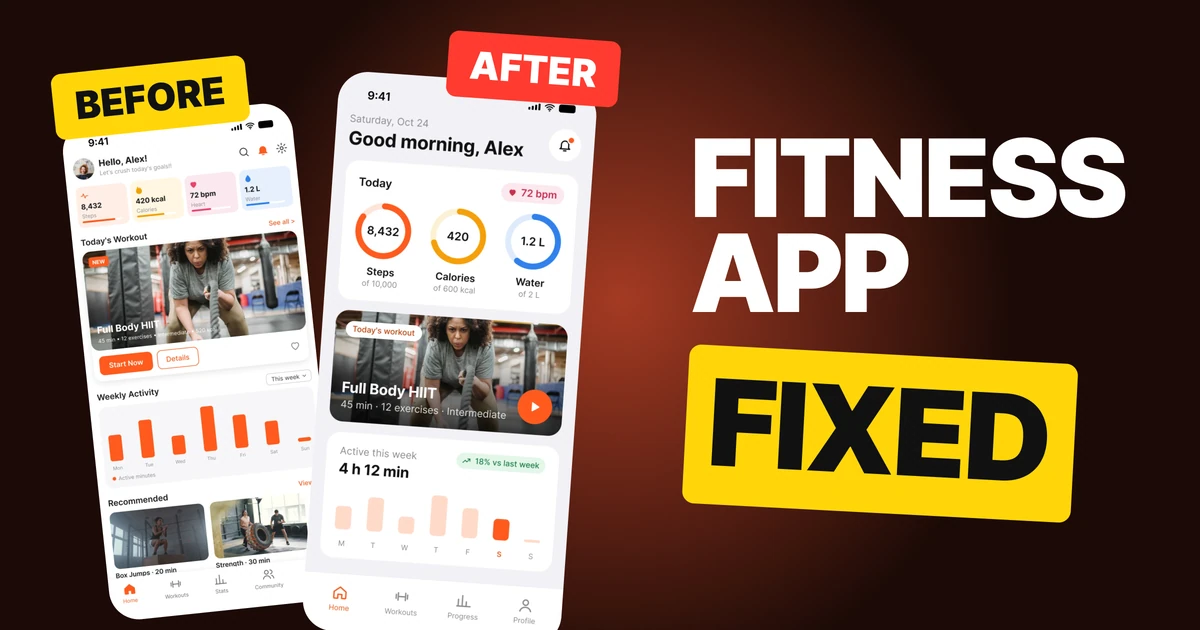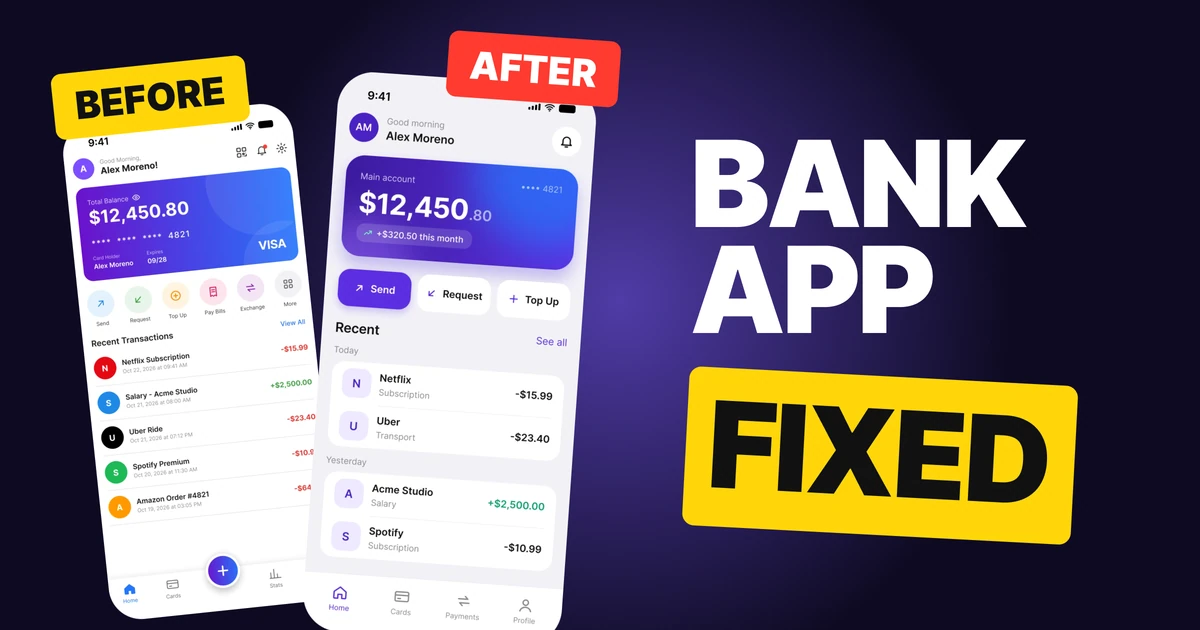

Food Delivery App Design: A Home Screen Redesign, Before and After
A junior food delivery home screen where every part shouts, and the same screen fixed. Four main changes, five smaller ones, the reason behind each, and the free Figma file.
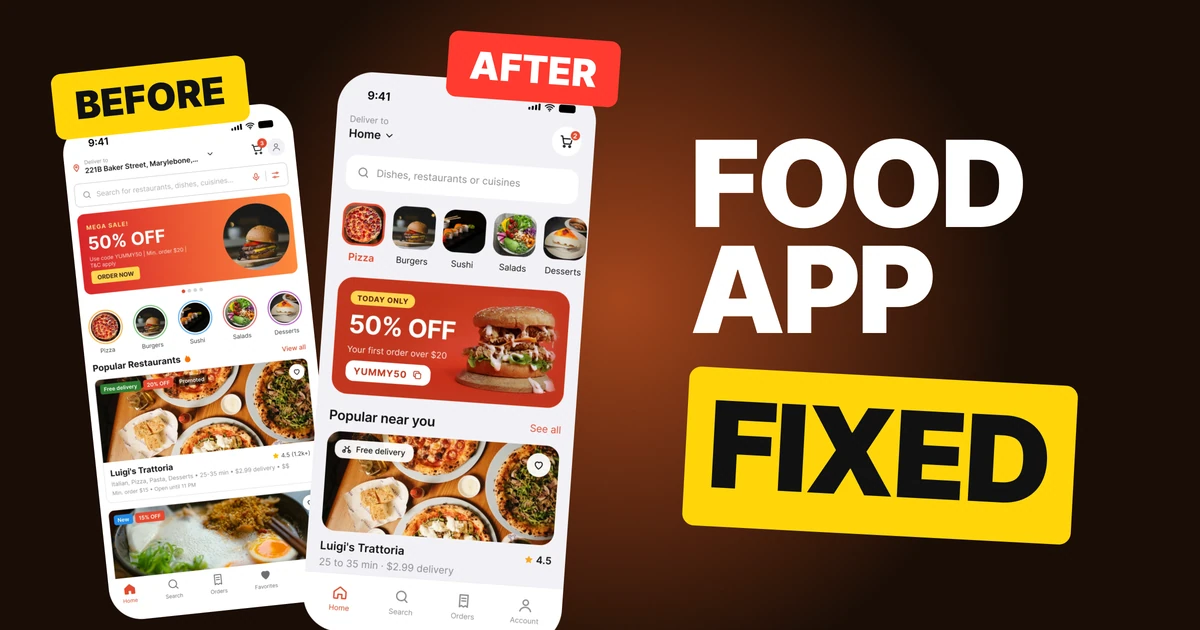
A food delivery home screen has one job: get a hungry person to a restaurant in a few seconds. The first draft below fails at that job, not because any one part is ugly, but because every part asks for attention at once. The fix was not new features or a new style. It was taking things away until each part said one thing.
The whole screen, before and after
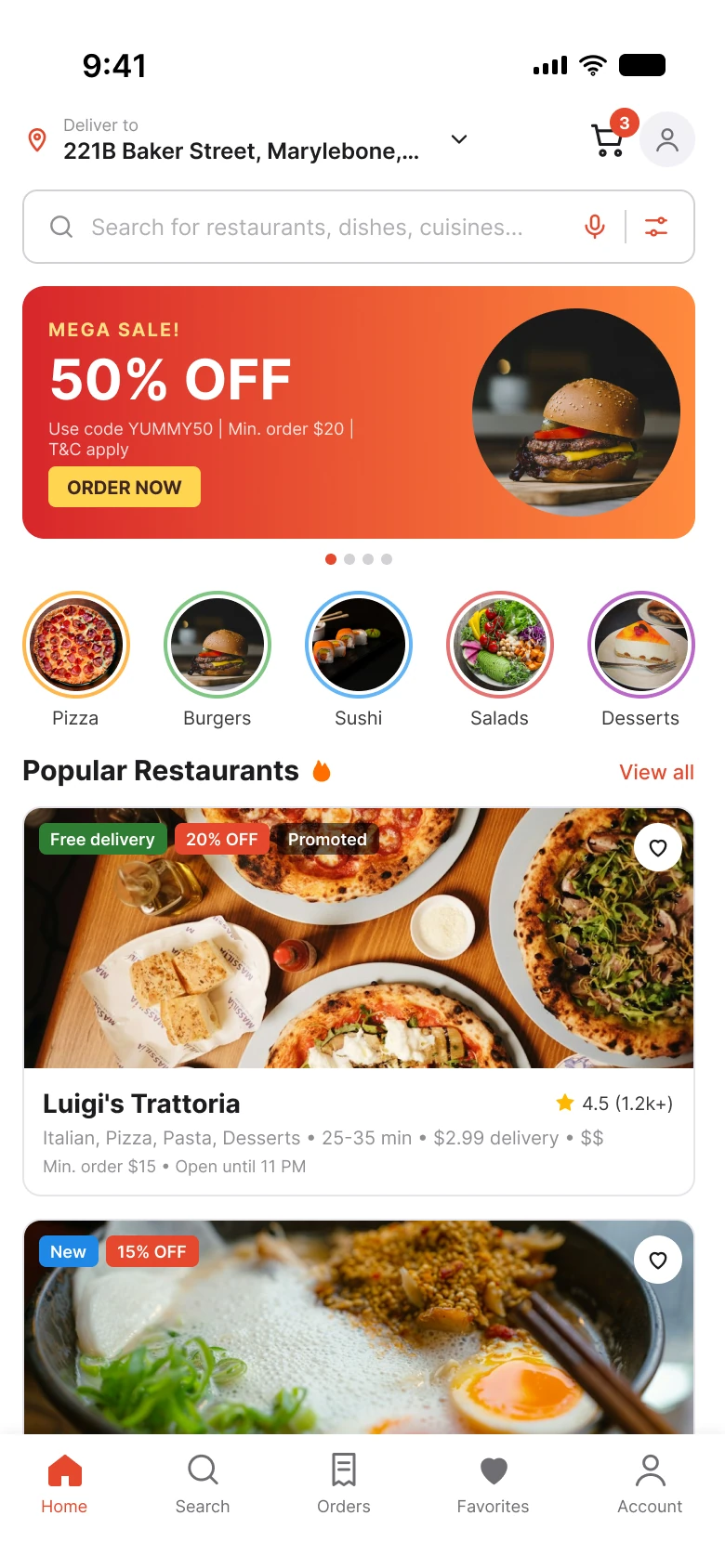
Junior draft
Fixed
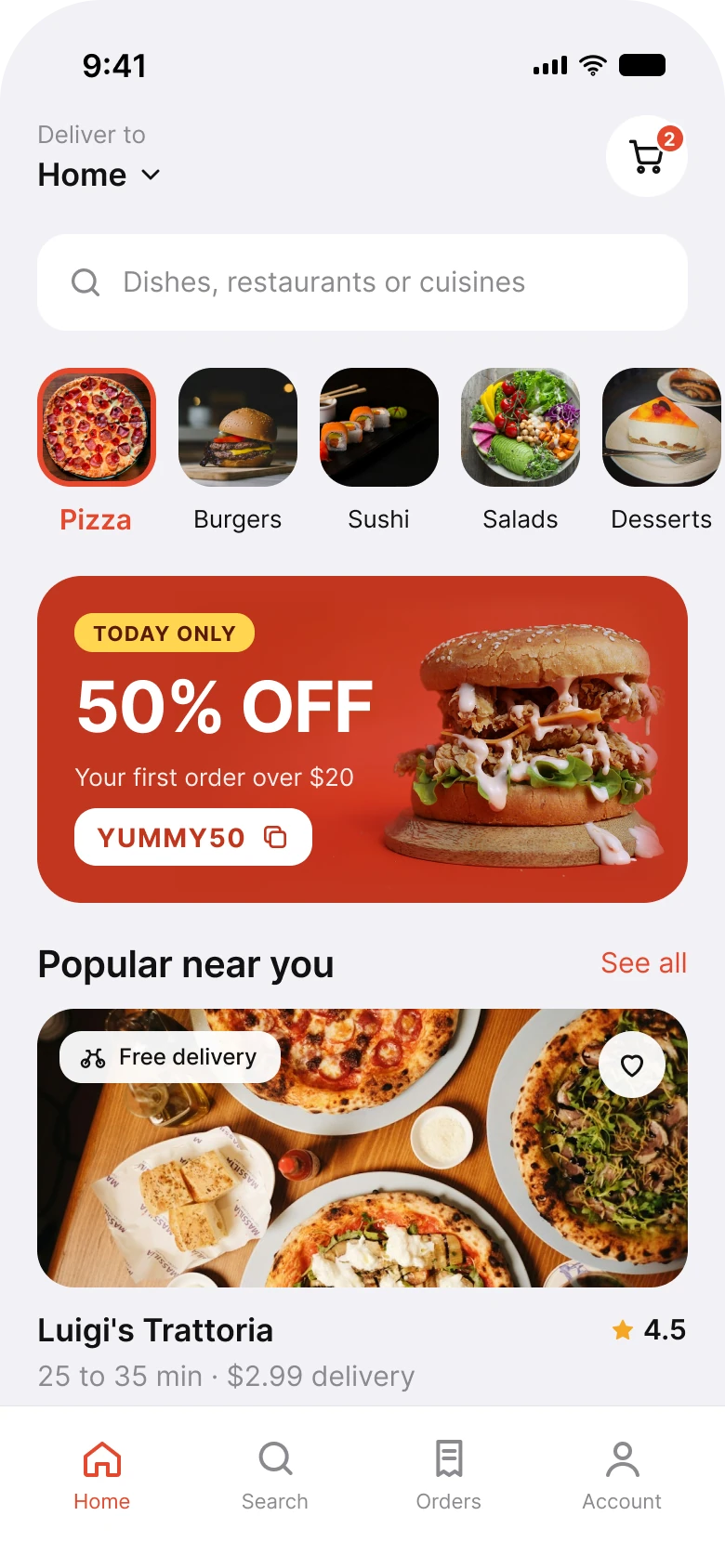
Count what the eye has to process before it reaches the first restaurant. On the left: a full street address, two header icons, a search bar with two more icons, a gradient banner with three lines of copy and a button, carousel dots, five rings in five colors, a section title with a flame icon, and three badges on one photo. On the right: a place name, a cart, a search bar, five tiles, one offer and one card.
Nothing on the right is missing a feature the left had. The address, the search, the categories, the offer and the restaurants are all still there. Each one simply stopped competing with the others.
| Junior draft | Fixed | |
|---|---|---|
| Side margins | 12 px left, 16 px right | 20 px on both sides |
| Text sizes | 9 to 30 px, no system | iOS text styles, 11 to 22 pt |
| Category ring colors | 5 | 1, only on the selected tile |
| Badges on the first card | 3 | 1 |
| Facts under the restaurant name | 6 | 2 |
| Tabs | 5 | 4 |
Fix 1: say where, in one word
Before

After

The draft shows the full street address, 221B Baker Street, cut off mid word in small type next to a pin. The fix shows the name the person gave that address, "Home", large, with a chevron that says it can be changed.
Nobody opens a delivery app to read their own address. They need to confirm one thing: is this going to the right place? A label they chose themselves, Home, Work, Mum's, answers that faster than a street name, and it stays readable at any length because it is one word. The full address belongs one tap away, on the screen where you edit it.
The fix also drops the profile icon from the header. The draft had it twice, once at the top and once as the Account tab. Two doors to the same room make people wonder whether they lead to different rooms.
Fix 2: one shape, one selected state
Before
After
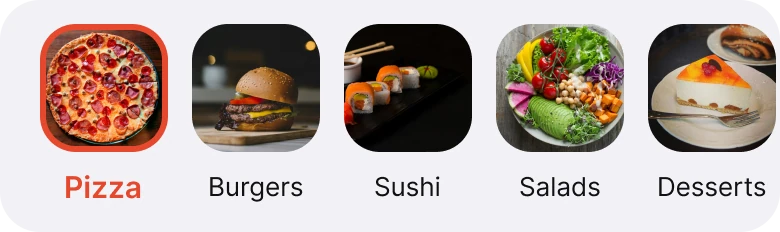
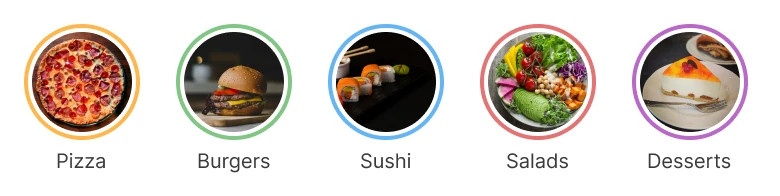
Before, each of the 5 categories sits in a circle with its own colored ring: yellow, green, blue, pink, purple. After, the tiles share one shape and one neutral frame, and only the selected one, Pizza, gets the brand red on its border and its label.
Color in an interface is a signal, and five colors send five signals. A reader scanning the row has to ask what green means and why sushi is blue. The answer is nothing, which is the problem: decoration that looks like information.
When color is spent on one thing only, it means something. A single red tile says "you are here" without a word. The photos do the rest, because food photos are already the most colorful thing on the screen and do not need help.
Fix 3: one offer, one message
Before
After
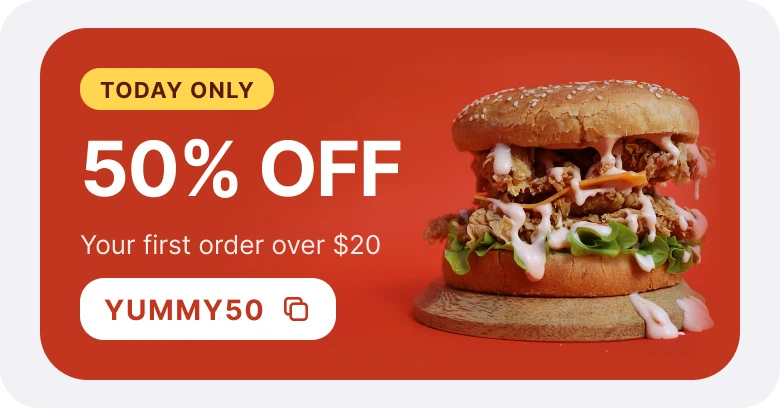
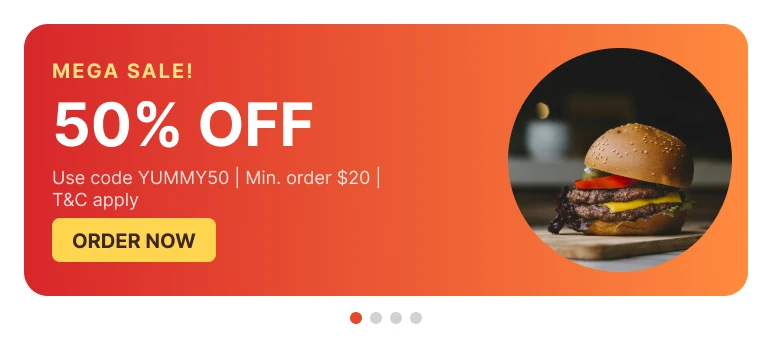
The draft banner stacks "MEGA SALE!", the offer, the code, the minimum order and "T&C apply" in tiny type, then a button. The fix keeps the 50% OFF and says three things: when (Today only), who it is for (your first order over $20) and the code, as a button you can copy.
The offer was never the problem. 50% off is a good reason to order, and the fix keeps it at the same size.
What changed is everything around it. "MEGA SALE!" and "50% OFF" said the same thing twice. The small print packed four facts onto one line at 9 px, separated by bars. The "Order now" button had nowhere to go, because there is no single restaurant to order from yet.
The code is now the action. Tapping it copies YUMMY50, which is the one thing a person needs to carry from this banner to the checkout. The terms move to the checkout too, where they apply.
The image changed as well. The draft cuts the burger into a circle floating on an orange gradient. The fix photographs it on the brand red, so the food sits on the card itself instead of in a sticker on top of it.
Fix 4: one badge, two facts
Before
After
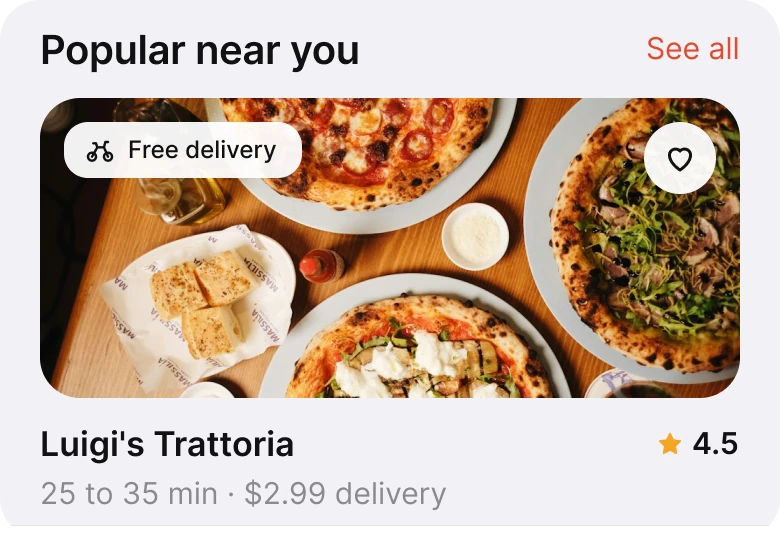
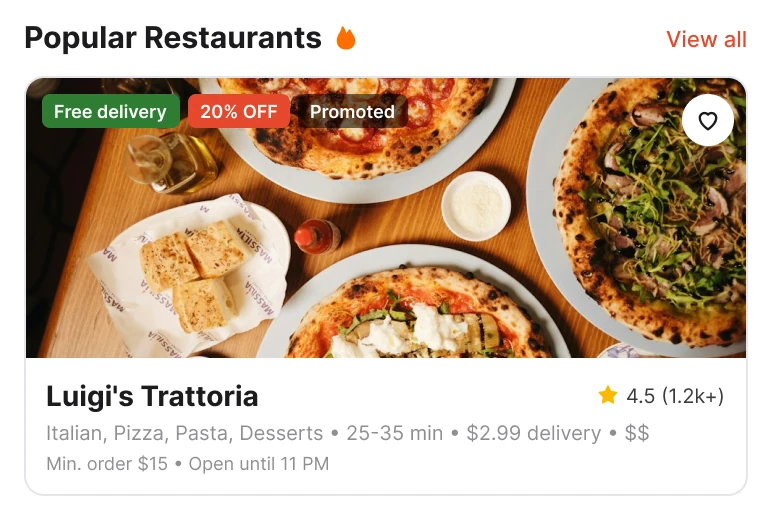
Before, the photo carries three badges (Free delivery, 20% OFF, Promoted) and the text below lists cuisines, delivery time, fee, price level, minimum order and opening hours. After, one badge, the name, the rating and two facts: how long and how much.
A restaurant card in a list is read in about a second, and in that second a person decides two things: do I want this food, and is it worth the wait and the fee. The fixed card answers exactly those. The photo answers the first. "25 to 35 min, $2.99 delivery" answers the second.
Everything else on the old card is real information, just not first-look information. The cuisine list is already visible in the photo. The minimum order of $15 and the 11 PM closing time matter only once you have chosen, so they belong on the restaurant's own page.
"Promoted" is for the business, not the customer, and three badges side by side cancel each other out. One badge, picked by priority, gets read.
Five smaller fixes
The four parts above are the big ones. These five changes are just as deliberate:
- One margin. The draft used 12 px on the left and 16 px on the right, so nothing lined up with anything. The fix uses 20 px on both sides, and every edge on the screen sits on that line.
- A type system. The draft had text from 9 to 30 px with no steps between them. The fix uses the iOS text styles, from 11 to 22 pt, so every size has a role and nothing is too small to read.
- A quieter search bar. The draft's search had a microphone and a filter icon inside it, and a placeholder long enough to be cut off. The fix keeps one icon and a shorter prompt: "Dishes, restaurants or cuisines".
- No carousel dots. Dots under a banner promise more banners. Most people never swipe them, and the dots add one more thing to look at. One offer needs no dots.
- Four tabs, not five. Favorites left the tab bar. Saving still happens on the heart of every card, and four tabs give each one more room and an easier target.
Audit your own home screen
Hold your app's home screen next to this checklist. Every "no" is a part that is shouting.
| Question | Why it matters |
|---|---|
| Can someone tell where it delivers in one glance? | They check it every time; make it one word |
| Does color mean something everywhere it is used? | Decorative color reads as a signal |
| Does each promo say one offer, once? | Repeated claims and small print are skipped |
| Can a card be judged in one second? | Choose the two facts that decide an order |
| Do all the edges line up on one margin? | Misalignment reads as unfinished |
| Is every text size from one scale? | Random sizes make hierarchy impossible |
Get the Figma file
The free file has both screens as components, every fix as a before and after pair, the color variables and the iOS text styles.
Free Figma file
Food delivery home screen, before and after
Both screens and every fixed part as Figma components. Free, view only, duplicate it to your drafts.
FAQ
What should a food delivery app home screen show first?
Where the order is going, a search bar, the categories and one offer, then restaurants. Each restaurant card needs a photo, the name, the rating, the delivery time and the delivery fee.
How many badges should a restaurant card have?
One. Three badges side by side cancel each other out; pick the one that matters most to the customer, like free delivery.
Should a food app use a different color for each category?
No. Give every category the same shape and a neutral frame, and spend the brand color only on the selected one, so the color means "you are here".
How do you design a promo banner that converts?
Say one offer once: the discount, who it is for and the code. Make the code the action, tappable to copy, and move the terms to checkout.
How many tabs should a food delivery app have?
Four or five at most. Here four (Home, Search, Orders, Account) gave each tab more room, with saving handled by the heart on every card.
Sources
- Both screens are our own, designed and measured in Figma. Measurements in the table are from the Figma files.
- Food photos via Unsplash by Fernando Andrade, sina piryae, Mahmoud Fawzy, Anna Pelzer, Alana Harris, Thimotius Timmy and Poul Hoang. Promo burger by Elements Interactive on Pexels, with its studio background replaced by the brand red by color, without AI.
- iOS text sizes from Apple's Human Interface Guidelines, Typography.
- First published as a carousel on App Brainy.
Want this for your own app? Our team redesigns app screens like this one, from the first audit to the finished components.
Get StartedGet new papers by email
New Brainy papers in your inbox. Confirm once, unsubscribe anytime.