
Real Estate App Design: A Home Screen Redesign, Before and After
A real estate home screen that asks you to read everything at once, and the same screen fixed. Every change side by side, the reason behind each, and the free Figma file.
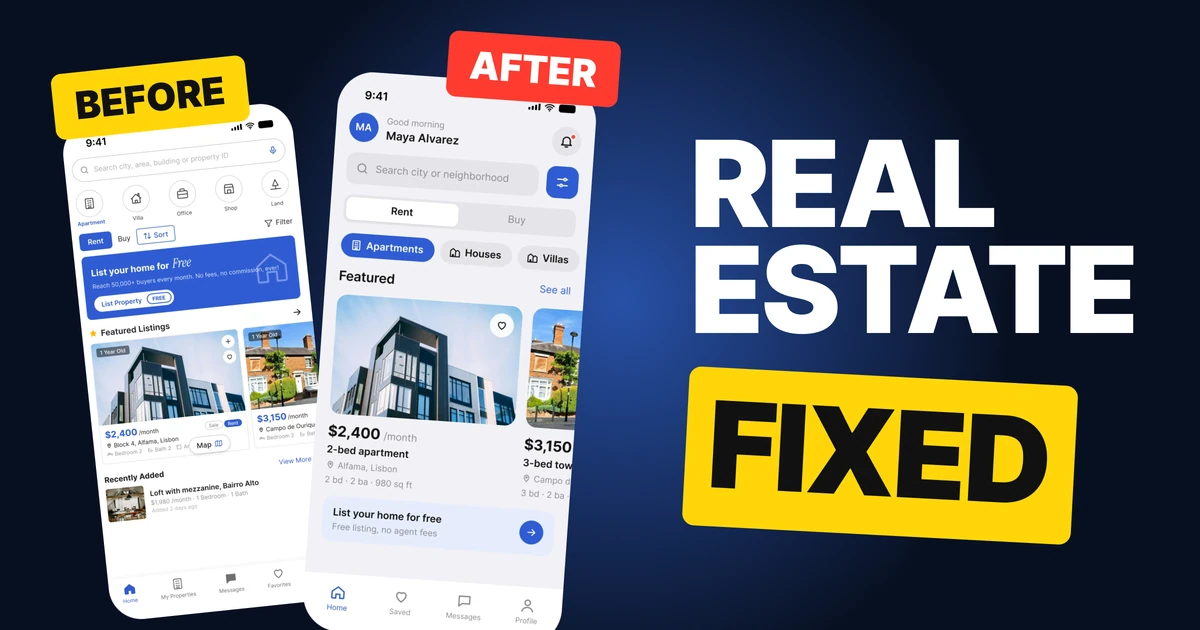
A real estate home screen has one job: get a person from "I am looking" to a listing they want to open. The first draft below does not break anything. Every feature works. It just asks the reader to take in everything at once: a search field, five round categories, four different buttons, a banner and a card with nine small details.
The fix keeps every feature and changes the order, the size and the number of styles.
The whole screen, before and after
Junior draft
Fixed
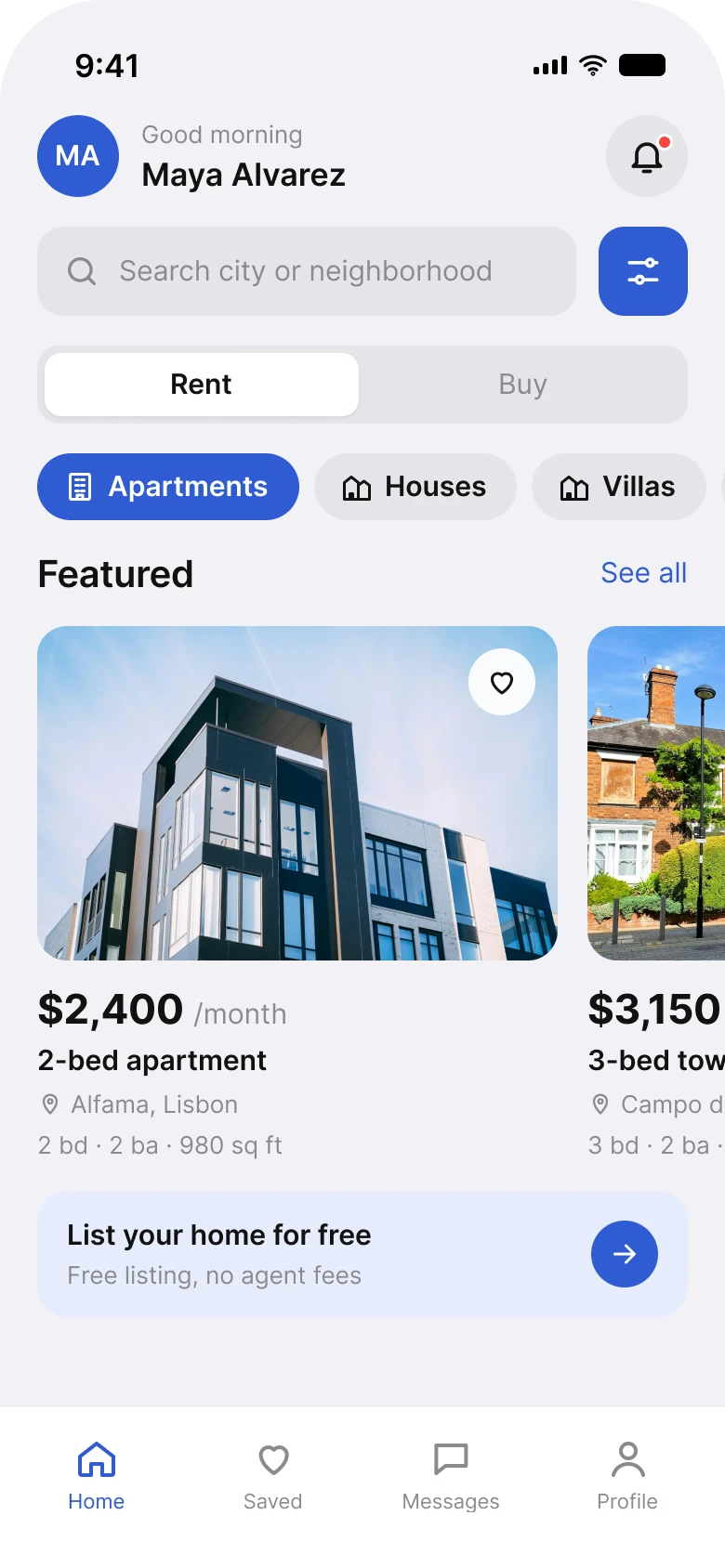
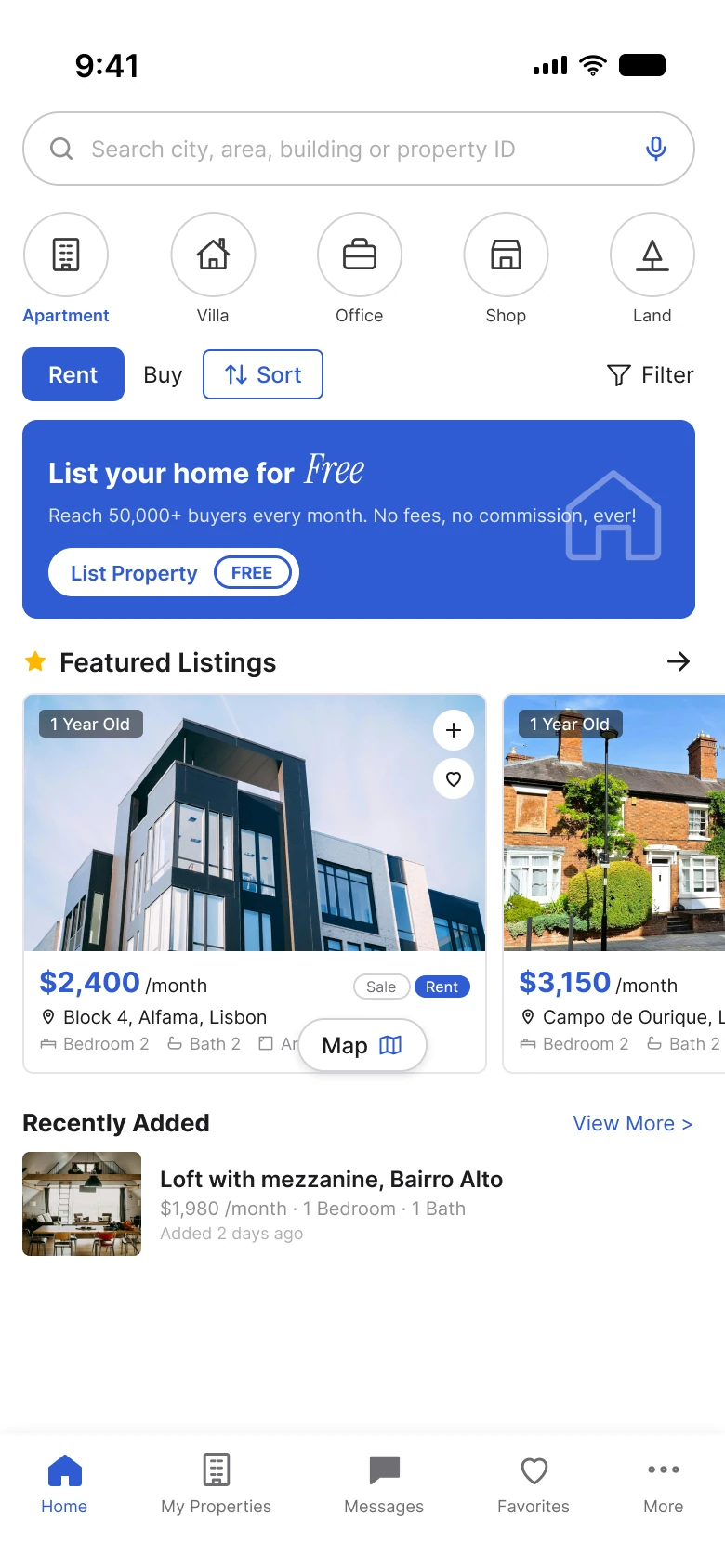
On the left, the eye meets a search field, five category circles, four controls in three different styles, a full width blue banner, a star, an arrow, two stacked buttons on every photo and a floating Map button that sits on top of the listing details. Nothing is wrong on its own. Together there is no first thing to read.
On the right, the screen reads top to bottom: who you are, what to search, rent or buy, what kind of home, then one big listing. The banner is still there, but it waits at the bottom, smaller, where it cannot compete with the search.
| Junior draft | Fixed | |
|---|---|---|
| Side margins | 12 left, 16 right | 20 on every row |
| Text sizes | 9 to 15 px | 11 to 22 pt, the iOS type ramp |
| Spacing | Mixed values | 4, 8, 12, 16 |
| Control styles above the listings | 4 (filled, plain, outlined, text) | 2 (a filter button and a segmented control) |
| Promo banner | 107 px tall, above the listings | 68 px tall, below them |
| Tabs | 5, filled and outline icons mixed | 4, all outline, active tab in the brand blue |
Fix 1: one search row, one Rent or Buy control
Before
After
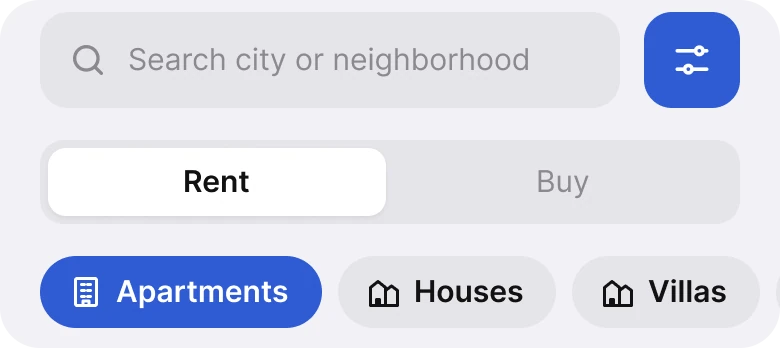
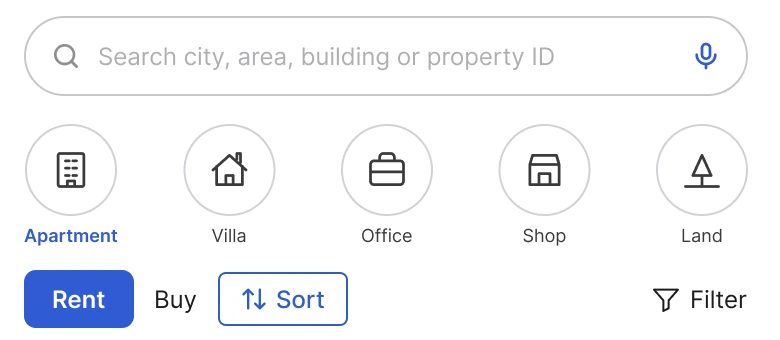
An outlined search field with a microphone, five round category icons, then a filled Rent button, a plain Buy word, an outlined Sort button and a Filter link. Against a grey search field with one blue filter button, and Rent and Buy as two halves of one segmented control.
The draft puts four controls in one row and gives each a different look: Rent is a filled button, Buy is bare text, Sort is outlined and Filter is a plain link with an icon. A reader has to work out which ones are buttons, which are tabs and which are toggles before they use any of them.
The fix gives each job one shape. Search and filter live on the same row, because filtering is part of searching. Rent or Buy is a choice between exactly two things, which is what a segmented control is for: both options stay visible and the selected one is clearly lit. Sort moves out of the way, because it only matters once there are results.
Rule to reuse: if two controls do the same kind of job, they should look the same. If they do different jobs, they should not.
Fix 2: categories that show what is picked
Before

After

Five thin outlined circles with a small label under each, where only the blue label says Apartment is selected. Against filled chips with an icon and a word on one line, where Apartments is solid blue and the next chips keep going off the edge.
In the draft, the only sign of what is selected is a blue label in small text under a circle. The circles themselves look identical, so the eye has to read the labels one by one to find the active one.
A chip with a solid fill answers the question before it is asked. The selected state is a different color and weight, not a small difference in text. The chips are also wider than they are tall, so the icon and the word sit on one line and the whole row takes less height. The chip cut off at the right edge shows the row scrolls, with no arrows needed.
Fix 3: a listing card that reads in order
Before
After
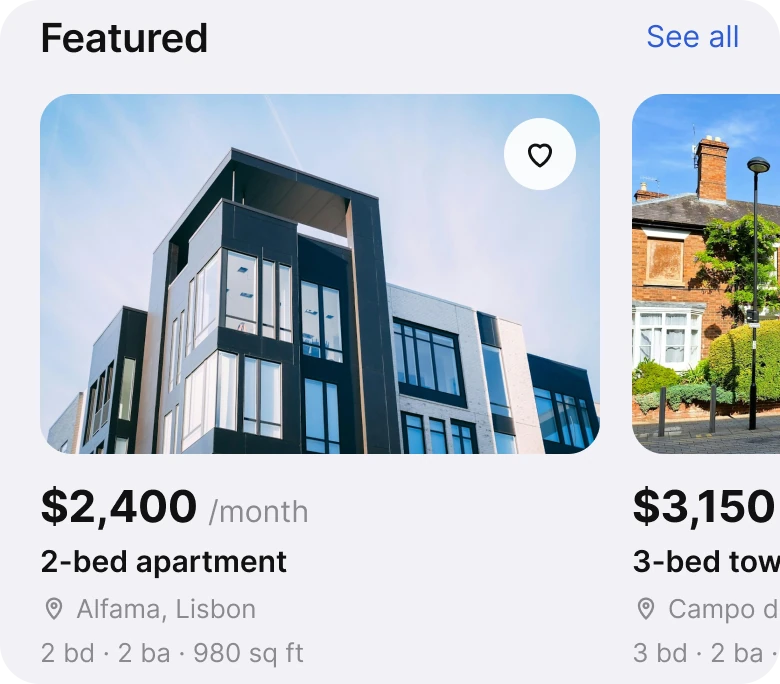
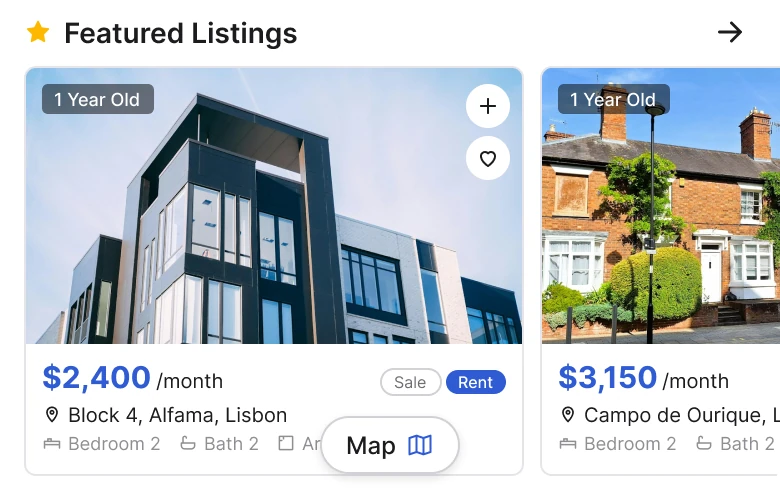
Featured Listings with a star and an arrow, a photo with a "1 Year Old" badge and plus and heart buttons, a blue $2,400 per month, Sale and Rent pills, an address, and bedroom and bath details cut off by a floating Map button. Against a large rounded photo with one heart, then $2,400 per month, 2-bed apartment, Alfama, Lisbon and 2 bd, 2 ba, 980 sq ft.
A person looking at a home asks four questions in the same order: how much, what is it, where is it and how big. The fix puts the card in that order, one answer per line. The price is the largest text, then the home type, then lighter lines for place and details.
The draft mixes the answers up. The price shares a line with two pills that say Sale and Rent on a home that is only for rent. The address sits above the details but below the price in a different color. The details are small 9 point text and the last one is hidden under the Map button, so the reader loses the area, a number most people compare.
Also removed from the photo: the "1 Year Old" badge and the plus button. Two floating buttons on every image ask for decisions the reader has not made yet. One heart is enough, and the photo is bigger because the photo is what sells the home.
Rule to reuse: a card is a sentence. Decide its word order, then give each word one style.
Fix 4: four tabs in one icon style
Before

After
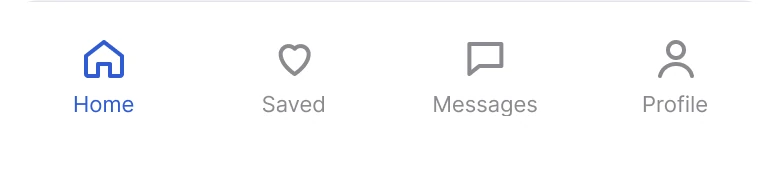
Home, My Properties, Messages, Favorites and More, with filled and outline icons mixed. Against Home, Saved, Messages and Profile, all outline icons, with only Home in blue.
The draft has five tabs, and three of them are close: My Properties, Favorites and More all sound like places where a saved or owned home might be. Its icons also mix filled shapes (the home, the messages) with outlines (the building, the heart), so the active tab is hard to tell from a tab that is just drawn heavier.
The fix uses four tabs with one icon style, so the only difference between tabs is which one is active. "Favorites" becomes "Saved", a shorter word that matches the heart on the card. "More" becomes "Profile", a name that says what is behind it. Apple's guidelines describe the tab bar as navigation between top-level sections, so a destination that is really a menu of leftovers does not belong in it.
The smaller fixes
- A header with a person in it. The fix adds a greeting, an initials avatar in a solid blue circle and a bell with a red dot. The draft has no header, so nothing says whose app this is.
- One margin. The draft uses 12 on the left and 16 on the right, so nothing lines up with the edge of the screen. The fix uses 20 on both sides of every row.
- One spacing scale. Gaps are 4, 8, 12 or 16. When every gap comes from the same short list, rows look related without any dividers.
- A text ramp from the platform. The draft's text runs from 9 to 15 px with no pattern. The fix uses the iOS sizes from 11 to 22 pt, which are sizes people can read.
- A calmer banner. "List your home for Free" lost the italic accent word, the house outline and the second button inside it. It is now a single row with one arrow.
Audit your own real estate app
| Question | Why it matters |
|---|---|
| Can you name the one thing the top of the screen asks you to do? | Without a first thing to read, everything gets read at the same speed |
| Do two controls that do the same job look the same? | Mixed styles make people guess what is a button |
| Is the selected category obvious from across the room? | A selected state should not need reading |
| Does each listing card answer price, home, place, details in that order? | That is the order people ask the questions in |
| Is any detail hidden under a floating button? | Square footage is the number people compare |
| Do two tabs sound like they lead to the same place? | Duplicate doors make people unsure where to go |
| Does every row use the same left and right margin? | Alignment is the cheapest way to look finished |
Get the Figma file
The free file has both screens, every part of the fixed screen as a component, the color variables, the iOS text styles and a read-me with the photo credits.
Free Figma file
Real estate home screen, before and after
Both screens and every fixed part as Figma components. Free, view only, duplicate it to your drafts.
FAQ
What should a real estate app home screen show first?
A search field with one filter button, then Rent or Buy and the property type. Put the listings right below, with the banner and secondary offers after them.
How should Rent and Buy be shown in a property app?
As a segmented control with two halves, so both options are always visible and the chosen one is clearly highlighted. Four different button styles in a row make people guess.
What should a property listing card include?
Price first, then the home type, the place and the key details such as bedrooms, bathrooms and area. One favorite button on the photo is enough.
How many tabs should a real estate app have?
Four is a good number: Home, Saved, Messages and Profile. Avoid two tabs that sound like the same place, such as Favorites and My Properties.
How can you show which category is selected?
Fill the selected chip with the brand color and keep the others neutral. A small change in text color under a circle is easy to miss.
Sources
- Both screens are our own, designed and measured in Figma.
- Photos via Unsplash by Luke van Zyl, A. L. Brown and Annie Spratt, under the Unsplash License.
- Apple Human Interface Guidelines: Tab bars.
- Apple Human Interface Guidelines: Typography, the iOS text sizes.
- First published as a carousel on App Brainy.
Want this for your own app? Our team redesigns app screens like this one, from the first audit to the finished components.
Get StartedGet new papers by email
New Brainy papers in your inbox. Confirm once, unsubscribe anytime.