Figma Shortcuts Juniors Miss: 6 Keys to Learn First (Mac and Windows)
Six Figma keyboard shortcuts that save clicks all day, with Mac and Windows keys: add auto layout, make a component, zoom to selection, measure spacing, copy and paste styling, and hide the panels.
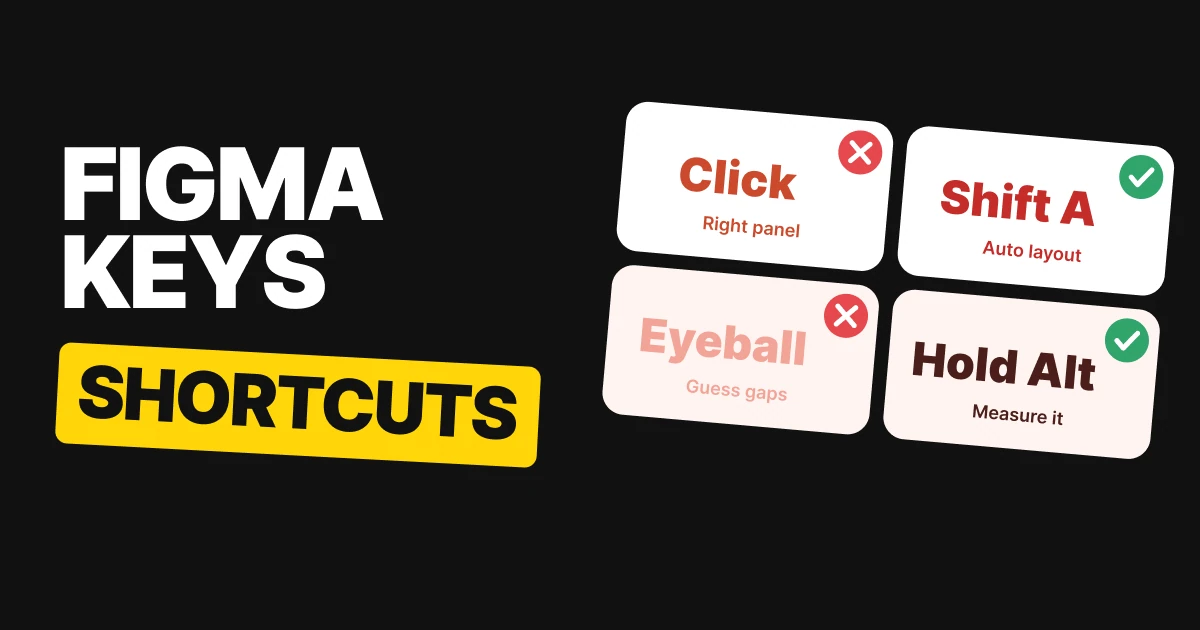
Most designers click through Figma for months before someone shows them the keys. These six shortcuts replace the clicks you repeat the most: wrapping things in auto layout, making components, zooming, measuring, copying styles and clearing the screen. Learn one a day and the file work gets faster.
Keys below are shown for Mac first. On Windows, swap Command for Ctrl and Option for Alt. The one place that is final is Figma's own shortcuts panel (Control Shift ? on Mac and Windows).
1. Add auto layout: Shift A
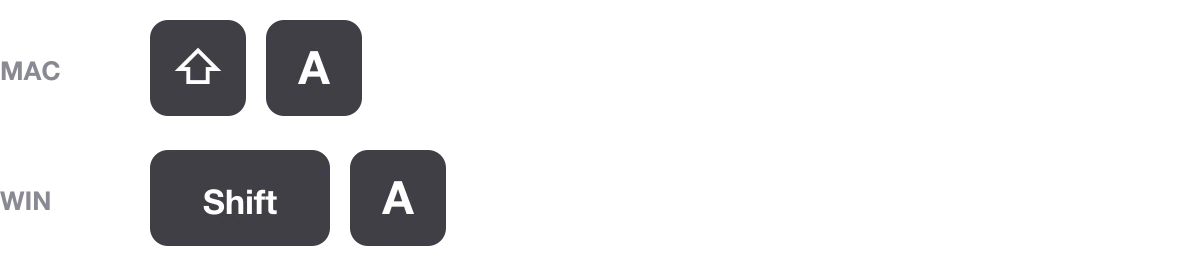
Select a frame, or a few layers, and press Shift A. Figma wraps them in an auto layout frame, so spacing, padding and resizing start working at once. Doing it by hand through the right panel takes several clicks, and you will do it hundreds of times.
The same key works on both systems, which makes it the easiest one to start with.
2. Make a component: Option Command K
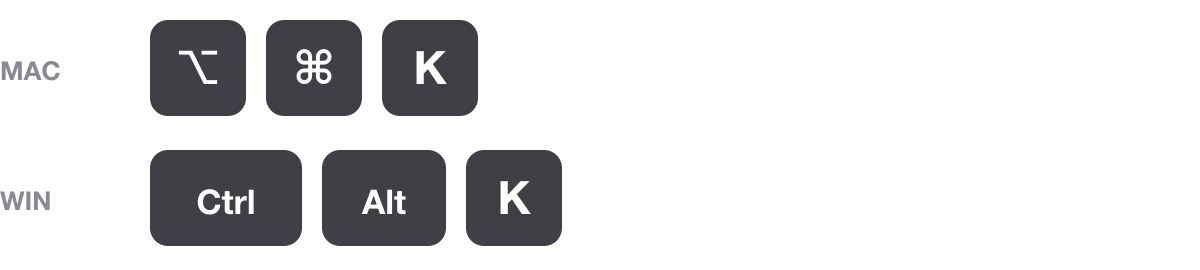
Select a layer or a frame and press Option Command K (Ctrl Alt K). It becomes a component on the spot, no menu. Use it the moment you draw the second copy of something. Waiting until later is how files fill up with near-identical buttons.
3. Zoom to selection: Shift 2
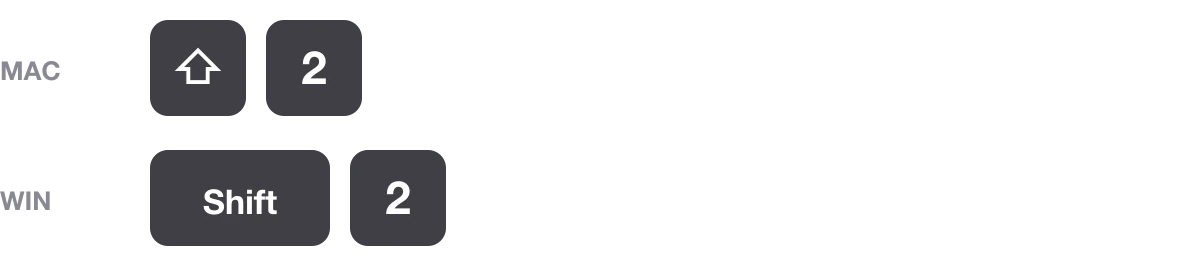
Select anything and press Shift 2. The canvas zooms so the selection fills the screen. It is faster than pinching or scrolling when you jump between a tiny icon and a full screen. Shift 1 fits the whole page.
4. Measure anything: hold Option
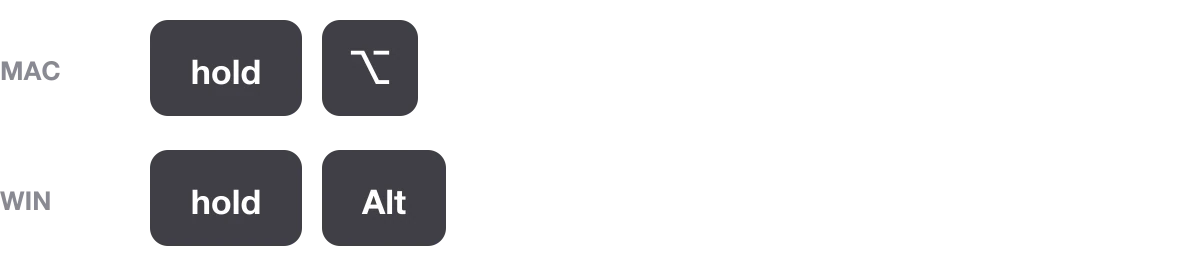
Select a layer, hold Option (Alt) and hover another layer. Figma draws the distance between them and prints the number. No ruler, no guessing, no opening Inspect.
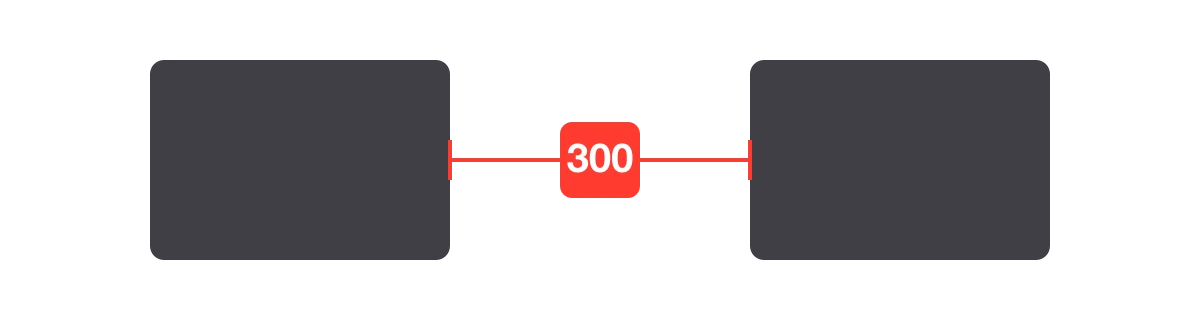
The red label is what you see while the key is held: the gap, in pixels, between the selected layer and the one you hover. Use it to check that your spacing follows a scale instead of eyeballing it.
5. Copy and paste styling: Option Command C and V
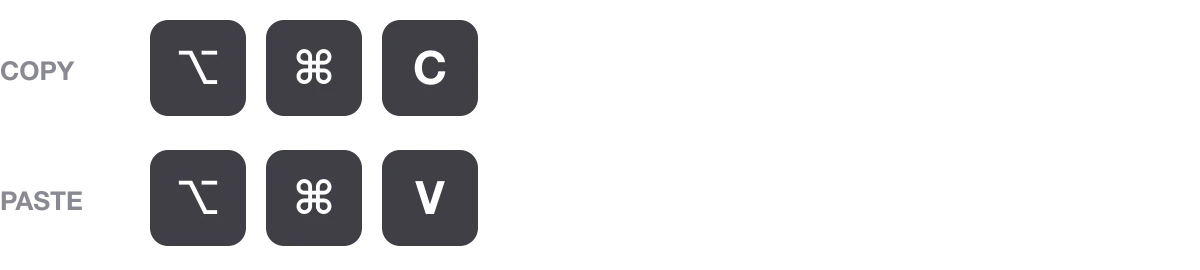
Normal copy and paste moves a layer. Option Command C copies the styling of a layer: fill, stroke, text style, effects. Option Command V pastes that styling onto another layer. On Windows the pair is Ctrl Alt C and Ctrl Alt V.
Use it to restyle a button to match another one, or to carry a text style across without making it a shared style first. It does not change the layer's size or content.
6. Hide the panels: Command backslash
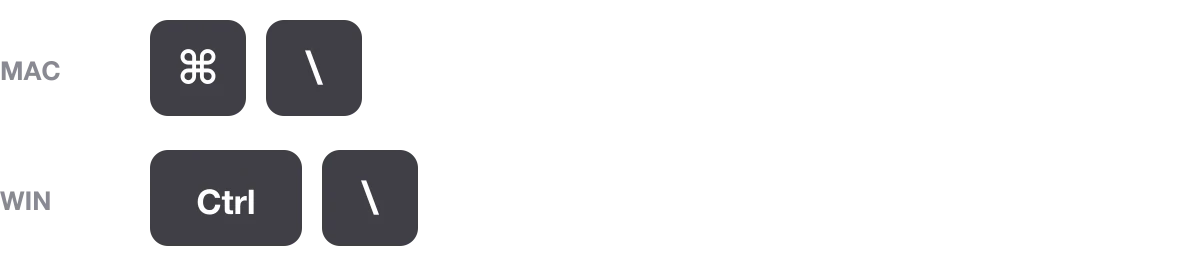
Command backslash (Ctrl backslash) hides the left and right panels together. Press it again to bring them back. You get the whole canvas to judge a layout, or to screenshot a screen without the interface around it.
The six on one table
| Does | Mac | Windows |
|---|---|---|
| Add auto layout | Shift A | Shift A |
| Make a component | Option Command K | Ctrl Alt K |
| Zoom to selection | Shift 2 | Shift 2 |
| Measure anything | hold Option | hold Alt |
| Copy the styling | Option Command C | Ctrl Alt C |
| Paste the styling | Option Command V | Ctrl Alt V |
| Hide the panels | Command \ | Ctrl \ |
FAQ
What is the Figma shortcut for auto layout?
Shift A. Select a frame or some layers and press it to wrap them in auto layout. It is the same on Mac and Windows.
What is the shortcut to create a component in Figma?
Option Command K on Mac, Ctrl Alt K on Windows.
How do I measure the distance between layers in Figma?
Select a layer, hold Option (Alt on Windows) and hover another layer. Figma shows the distance between them.
How do I copy and paste styles in Figma?
Option Command C copies a layer's properties and Option Command V pastes them onto another layer. On Windows, use Ctrl Alt C and Ctrl Alt V.
How do I hide the panels in Figma?
Command backslash on Mac, Ctrl backslash on Windows. Press it again to show them.
Are Figma shortcuts the same on Mac and Windows?
Mostly. Swap Command for Ctrl and Option for Alt. Some keys, like Shift A and Shift 2, are identical on both.
Sources
- Shortcut keys checked on 2026-11-04 against DefKey's Figma shortcuts list and a third-party Figma cheat sheet, with the Mac swap rule (Ctrl to Command, Alt to Option).
- Figma's own page: Use Figma products with a keyboard. The shortcuts panel inside Figma is the final word.
- The 300 gap in the measure picture is an invented example.
- First published as a carousel on UX Brainy.
Want a design system your whole team can move through at this speed? We build them.
Get StartedGet new papers by email
New Brainy papers in your inbox. Confirm once, unsubscribe anytime.